AI assistant
If you use an AI assistant such as Claude or ChatGPT, you can connect it to AppToMe and ask in your own words: "when am I on shift this week?", "sign me up for Saturday morning's shift".
Info
Only available if the organization uses the API and AI assistants module.
Prerequisites
- A Claude or ChatGPT account that lets you add custom connectors. Some free plans do not have them.
- Your AppToMe account, the one you use to enter the organization.
Open the menu and tap AI assistant, at the bottom.
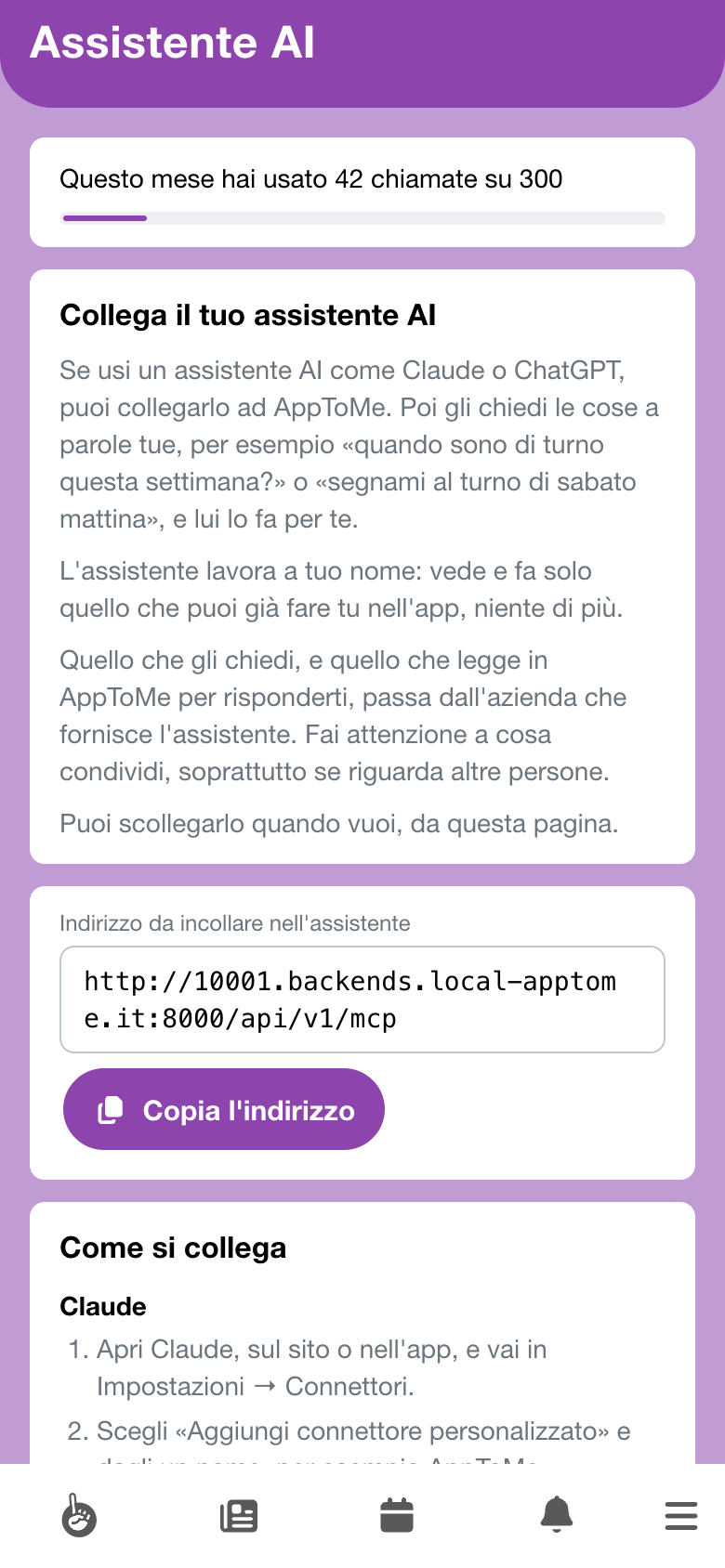
Copying the address
At the top of the page is the Address to paste into the assistant. It is your organization's address: tap Copy the address and keep it ready for the steps below.
Connecting Claude
- Open Claude, on the website or in the app, and go to Settings → Connectors.
- Choose Add custom connector and give it a name, for example AppToMe.
- Paste the address and confirm.
- An AppToMe page opens: sign in with your account if it asks, and choose Allow.
Connecting ChatGPT
- Open ChatGPT and go to Settings → Connectors (in some versions they are called Apps).
- Add a custom connector and give it a name, for example AppToMe.
- Paste the address as the connector's address and confirm.
- On the AppToMe page that opens, sign in with your account if it asks, and choose Allow.
Claude's and ChatGPT's menu names change a little from one version to the next: if you cannot find them, look for "connectors" in the assistant's settings.
The consent page
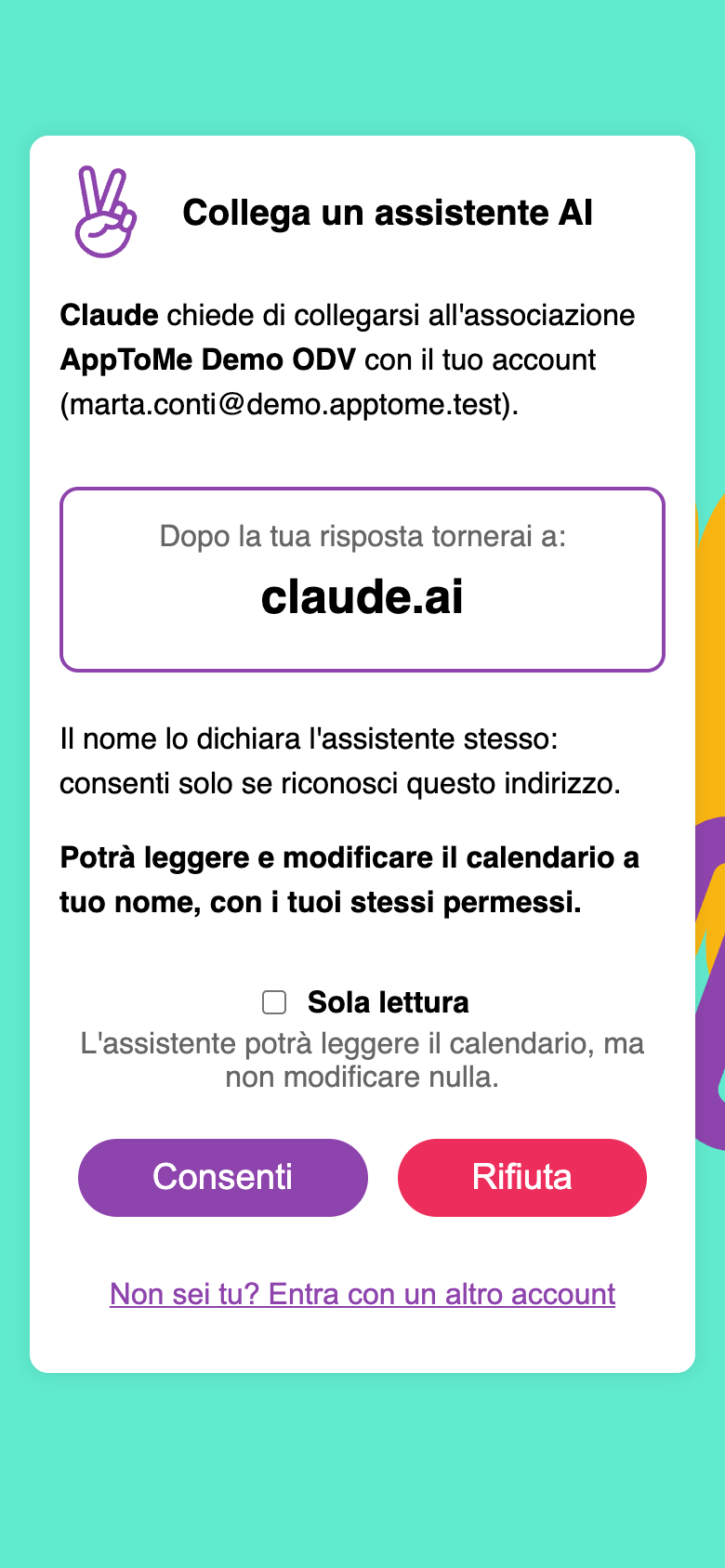
Before connecting the assistant, AppToMe shows you the Connect an AI assistant page. Read it before choosing:
- it says which assistant asks to connect, to which organization and with which account: "Claude asks to connect to … with your account (…)";
- under After your answer you will go back to: is the assistant's
address, for example
claude.aiorchatgpt.com. The name is declared by the assistant itself: allow only if you recognise this address; - the assistant will be able to read and change the calendar on your behalf, with your own permissions.
If you want the assistant only to read, tick Read only before allowing: it will be able to read the calendar, but not to change anything. To change the choice, connect the assistant again.
Choose Allow to connect it, Deny not to. If the page shows an account that is not yours, tap Not you? Log in with another account.
The link then appears on the AI assistant page, under Your links. If you are an administrator, the page has two tabs: your links are in the Yours tab.
What it can do on your behalf
The assistant works in your name: it sees and does only what you can already do in the app. For example:
- "When am I on shift this week?"
- "Who is with me on Saturday morning?"
- "Are there uncovered shifts on Sunday?"
- "Sign me up for Saturday morning's shift as a rescuer."
- "Take me off Sunday's shift."
- "How many hours of service did I do in November?"
- "Have I been asked to cover any shift?"
- "Accept the request for Saturday's shift."
The calendar's rules apply, as in the app: if a shift is too close to withdraw, the assistant tells you. If you sign up or withdraw, the staff get the same notifications as when you do it from the app.
If a coordinator has asked you to cover a shift, the assistant tells you which availability requests you still have open, with shift, task and expiry. It can answer for you: if you accept, you are signed up for the shift with that task, already confirmed; if you decline, the staff see it.
If you are on the staff, the assistant can also do what your permissions allow: "put Conti on the 2 pm shift as a driver", "create the ambulance shift on Sunday from 8 to 2". The people concerned get the notifications as if you had acted from the app.
If you manage the availabilities of a shift, the assistant also helps you cover it. Ask it "who can drive on Saturday morning?": it looks for the people with that task and lists them in the same order as the app. Then it can invite them, one at a time: first it shows you the list and waits for your yes. It does not invite people who lack the task, who are already invited or absent, nor on a shift that has already started.
Before a change the assistant usually asks you to confirm. When a request is not clear, two people with the same surname or a day without a month, check that it understood before saying yes.
Your limit
Each person has 300 calls a month and 100 a day. A call is one step the assistant takes in AppToMe: reading your shifts, looking for a shift, signing you up. One question can take more than one. If you connected more than one assistant, their calls add up. Other people's calls do not touch yours.
You see this month's calls on the AI assistant page: "This month you have used … calls out of 300".
- At 80% you get an email. For the month, the page also shows a notice.
- At 100% the assistant stops answering you and you get another email. If you used up the day's calls, it starts again tomorrow; if you used up the month's, on the first of next month.
If they are not enough, talk to the organization's administrators: they can ask for the limit to be raised.
What goes to the assistant's company
What you ask the assistant, and what it reads in AppToMe to answer you, goes through the company that provides the assistant: Anthropic for Claude, OpenAI for ChatGPT. What it does with it is in its own terms.
- The assistant reads only what you already see in the app, but an answer can contain the names and shifts of other people.
- Be careful about what you share, especially when it concerns other people. Do not paste health data or confidential information into the conversation.
- The organization's administrators see which assistants are connected and by whom, and can disconnect them.
Disconnecting the assistant
- Open AI assistant from the menu.
- Under Your links tap Disconnect next to the assistant.
- Confirm with Disconnect in Disconnect the assistant?.
From then on the assistant can no longer use AppToMe in your name. You can connect it again whenever you want.
Removing the connector from Claude's or ChatGPT's settings may not be enough: the link stays in AppToMe until you disconnect it from here.
An assistant you do not use for three months stops working: to use it again, repeat the connection steps.
When you change your password or email, or sign out of all devices, AppToMe also disconnects all your assistants. To use them again, repeat the connection steps.