Shifts
The calendar is the heart of AppToMe: here you see your organization's shifts and make yourself available for the ones you can cover.
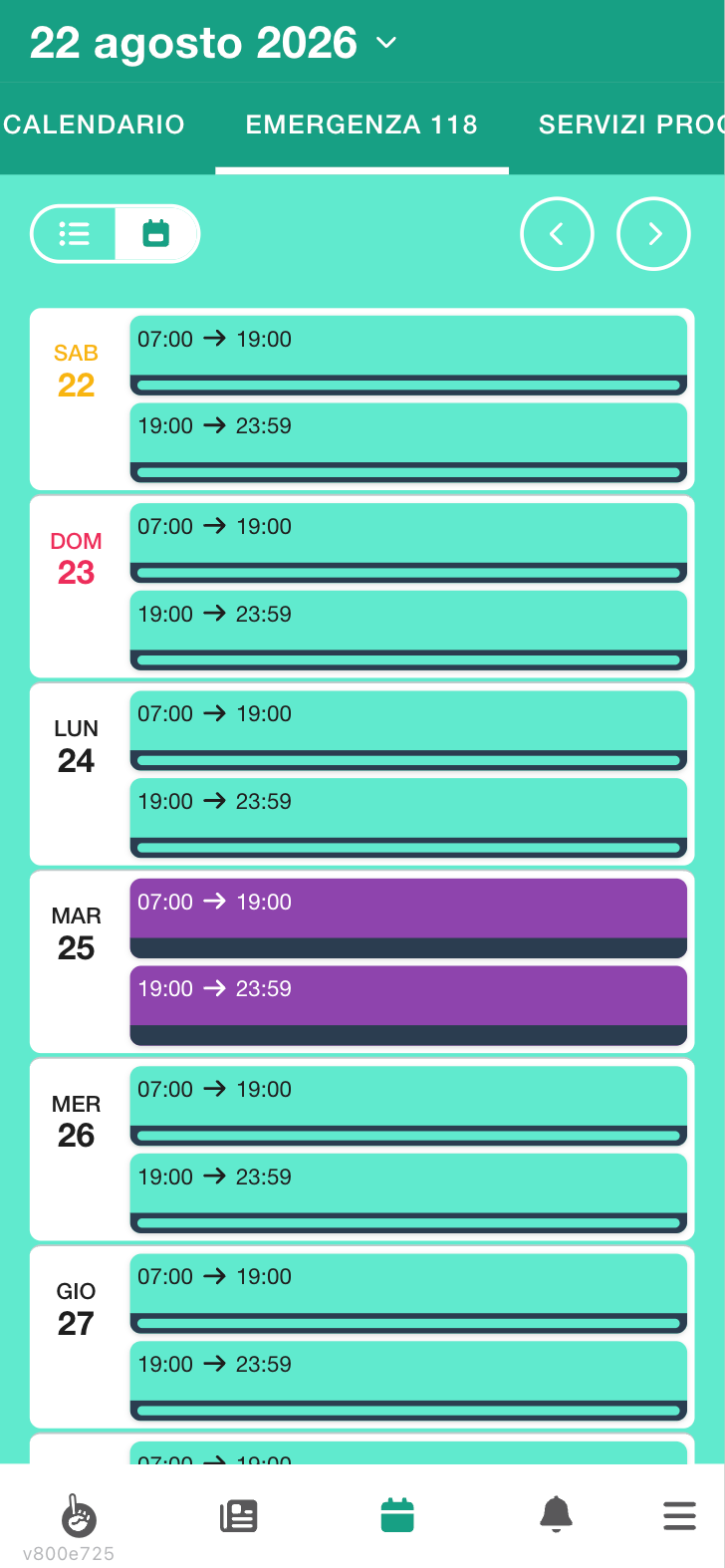
Reading the calendar
Open Calendar from the menu. If your organization has several calendars (for instance Emergency and Scheduled services), pick the one you want from the list at the top. A phone icon next to the name marks an on-call calendar; a chain marks a service calendar that has one linked to it.
You can look at the calendar in three ways, with the buttons at the top:
- Day — one day at a time, as a list
- Week — the whole week
- Month — the whole month
Info
On phones the Month view is not available: there is not enough room and the app switches to Week by itself.
If you read No calendars available, there are no calendars visible for your profile: contact a manager. If you read No shifts in this period, the calendar is there but that period is empty.
Why a colleague sees a calendar you do not
A calendar can be restricted to one or more groups: those who are not in those groups do not see it at all — it does not appear in the list at the top, and its shifts are not in the general overview. It is neither an error nor a missing permission: it is how the organization keeps its teams apart.
If you know that service concerns you, ask a manager to add you to the right group: from that moment the calendar appears by itself, without logging in again.
Understanding a shift card
Every shift is a card with:
- the time, from when to when. An asterisk after the end time (
23:59*) means the shift ends the following day; - the tasks required, each with its coloured symbol;
- the completion bar, showing how many of the shift's requirements are already met;
- the icons at the bottom, telling you at a glance what the shift involves: the speech bubble for the organiser's note (hold your finger on it to read the text), the car for the assigned vehicle, the clipboard for the checklist and the marker for the destinations.
When you are on the shift and something needs filling in, a tappable band appears on the card: Compile Checklist, light blue, and Complete Activities, yellow. Tapping one opens the shift straight on the right tab.
The card changes look when the shift is full: all the required tasks are covered and nothing else is needed.
Next to each task, the bar is light green when the availabilities collected are in order and yellow when at least one still has to be confirmed by a manager.
How AppToMe decides whether a shift is covered
You need to know this, because it explains why sometimes the button to offer yourself is not there even though the shift looks incomplete.
A shift does not ask for "three people": it asks for requirements, that is how many people with which task are needed. The shift is full only when all its requirements are met.
And they are not met "on average": AppToMe splits the shift into time slots and checks each slot separately. If someone made themselves available only for half the shift, they cover only that half: the shift is uncovered in the other, even if the number of people signed up looks sufficient. That is why a shift with many names can stay flagged as incomplete.
Some tasks are hierarchical: someone with a higher qualification can cover the requirement of a lower one, if the requirement is set to accept it. Other requirements are hidden and do not appear on the shift card even though they weigh on the count.
Why I do not see the button to offer myself
The button appears only if all of these are true:
- you have that task among those assigned to you in the registry;
- your presence is really needed for that requirement. If the requirement is already met and adding you would change nothing, the button disappears: it is not an error, it is the app's way of sending people where they are needed;
- you are not outside the calendar's time limits (see When you cannot act).
If you are interested in the shift anyway — for instance you want to be there as an extra — talk to a manager: they can sign you up by hand.
Overlaps
You cannot be in two places at once, and AppToMe takes that literally: signing up for a shift that overlaps one you are already on, the app removes you from the other. It is not a warning, it is what happens.
The comparison takes partial hours into account: if you are on a shift only from 8 to 12, a shift starting at 12 does not overlap.
Some calendars are set to ignore overlaps — typically on-call ones, where being on the list does not commit the person on site. There you can be on two simultaneous shifts without anything being removed.
That is why, before signing up, it is worth reading the warning You already have availability in another shift at the same time: it is telling you that something will change.
When approval is needed
On some calendars availability is not immediate: it stays awaiting confirmation until a manager approves it. In the meantime:
- your name appears on the shift, but does not count for coverage — the task's bar stays yellow;
- you cannot propose a shift swap on that availability: it needs to be confirmed first.
When the manager decides, you receive a notification, whether they approve or reject. A later change to your availability — time, task, removal — is notified to you as well.
A special case: the first time you cover a certain task, managers are told about it. It is for them to know you are debuting in that role, it is not a problem.
What you find when you open a shift
At the top of the shift there is a box with the practical details of the service.
- Vehicles — the vehicle assigned to the shift. If there is none, you read No vehicles.
- Checklist — the check to fill in, if the shift calls for one.
- Destinations — the planned stops, each with its time. Tap the name of a stop to open it in your phone's maps app.
Above the box, when there are any, the Note the organiser wrote on the shift and the fields filled in for that service appear as banners.
If the shift calls for a vehicle check and you are allowed to do it, a pencil appears next to Vehicles: tap it to change the assigned vehicle.
Signing up for a shift
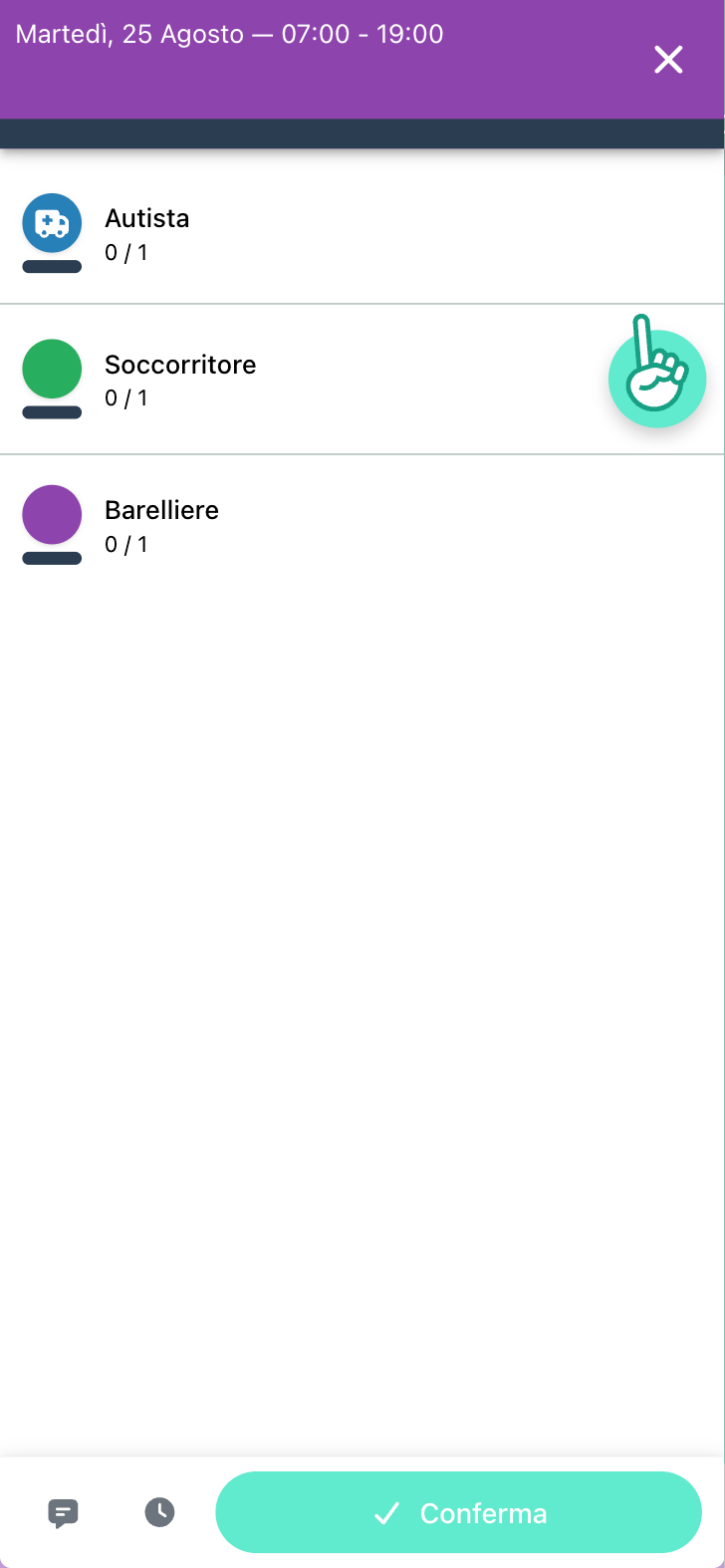
- Tap the shift to open it.
- You see the list of tasks required, each with the number of places
already covered out of the total (
0 / 1,1 / 2…). - Next to the tasks you can offer yourself for there is the round button with the hand: tap it. The button appears only on the tasks assigned to you in the registry; the row itself is not tappable. Until you choose a task, at the bottom you read Select a task first.
- At the bottom the buttons for the note and for partial hours appear, and the Confirm button: tap it to send your availability.
Right after, a message tells you how it went:
- Great! — your availability is Confirmed, you are on the shift;
- Attention! — your availability is awaiting confirmation: that calendar requires a manager's approval.
In the second case you stay on the list as "pending" until someone approves: it is not an error and it is normal in some organizations.
Adding a note
After choosing the task, tap the speech-bubble button to open Notes and write a message for the organizers (Add a note...). The note stays visible on the shift next to your name.
Making yourself available for only part of the shift
If the calendar allows it, next to the notes you find the clock button: it opens Partial hours, where you set From and To, that is the slot in which you can really be there.
If the calendar does not provide for partial availability the button does not appear: in that case you either cover the whole shift or you do not sign up.
If you are already signed up
Opening a shift you are already on, you see, highlighted, the partial hours and the note you had set, and two options at the bottom:
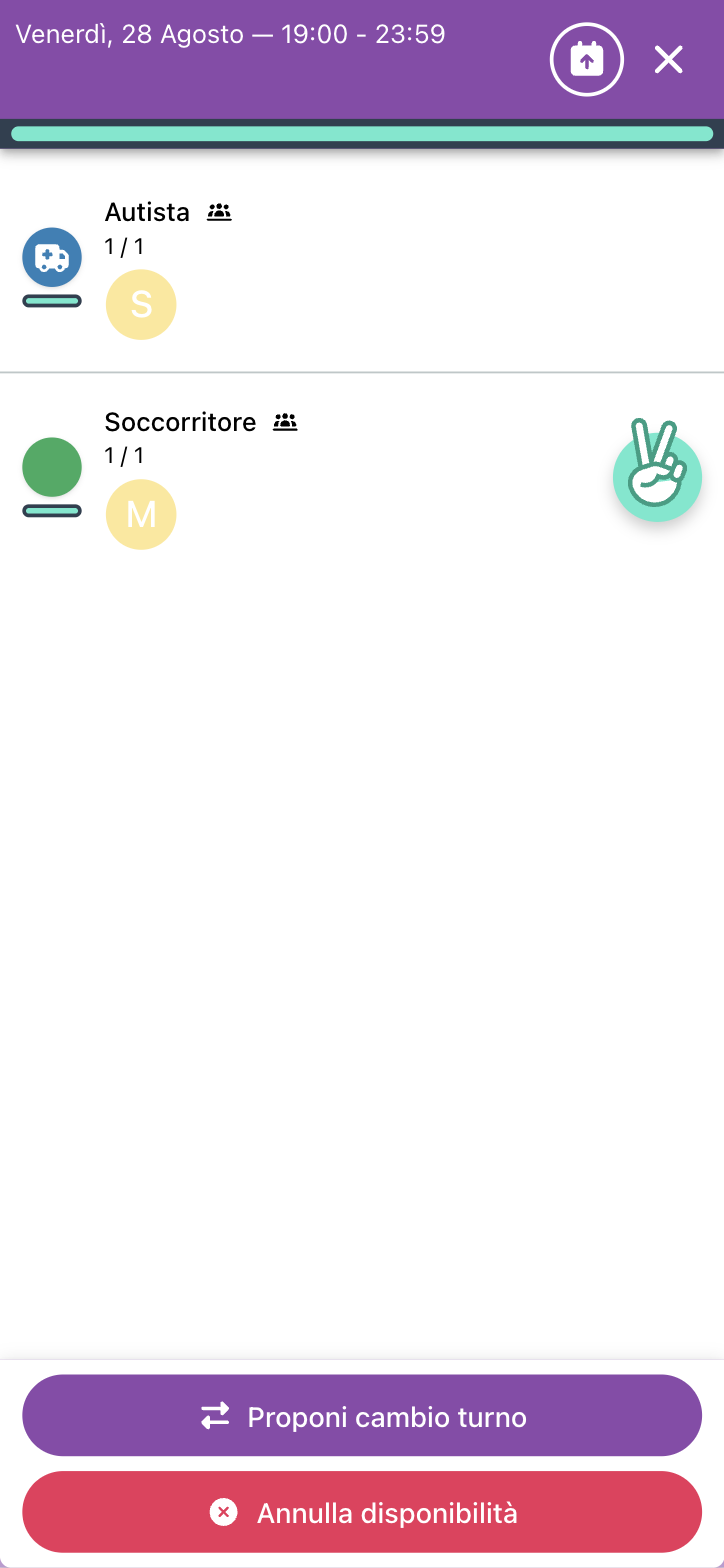
- Propose shift swap — see Requests;
- Cancel availability — removes you from the shift.
Removing yourself from a shift
- Open the shift.
- Tap Cancel availability.
- Answer the question Are you sure you want to remove yourself from the shift?.
Removing yourself is not always possible: see When you cannot act.
Warnings you may meet
You already have availability in another shift at the same time — it does not block you, but warns you that you are overlapping: if you confirm, you are no longer on the other shift (see Overlaps).
Shift full — all tasks are covered.
First shift for this task — it is the first time you cover that task. Managers see it as the First time label next to your name and are notified: it is to get you a buddy, not to put you on the spot.
When you cannot act
Depending on the calendar's rules, at certain times the app does not let you sign up or remove yourself, and tells you with a message:
| Message | What it means |
|---|---|
| This shift is over | it has already ended |
| This shift is in progress | it has just started |
| This shift will start soon, you can't subscribe anymore | you are below the notice limit |
| This shift will start soon, you can't unsubscribe anymore | too late to pull out |
| It's too early to subscribe to this shift, come back later or pick an earlier shift | availabilities for that shift are not open yet |
| It's too late to change your mind, you have another shift waiting for you! | you can no longer change your choice |
| Sorry, you can't subscribe to this shift / you can't unsubscribe from this shift | the calendar does not allow it |
| This shift has been deleted | a manager removed it while you had it open |
These limits are decided by your organization: if they really block you, talk to a manager.
The shift's checklists and activities
When your availability is confirmed and there is something to fill in, two shortcuts appear inside the shift:
- Compile Checklist — opens the vehicle's or service's checklist, see Checklists;
- Complete Activities — opens the activities to record, see Activities.
Vehicles on this shift
Info
Available only if your organization uses the Vehicle management module.
When your availability is confirmed and the shift has vehicles, Vehicles on this shift appears below the box with Vehicles, Checklist and Destinations: two buttons for each vehicle.
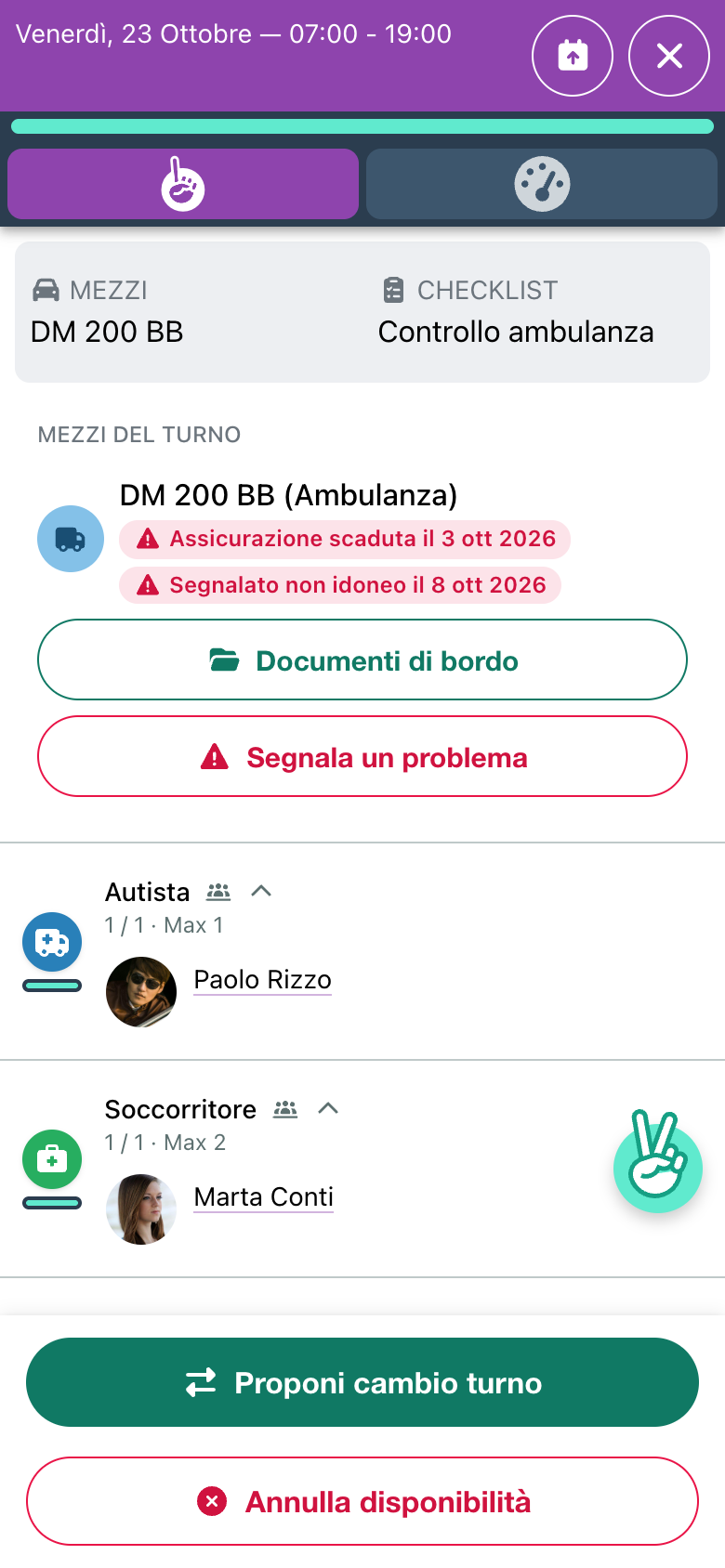
On-board documents opens the vehicle's registration certificate and insurance policy, to show if needed, for instance at a roadside check. If they have not been uploaded, you read No on-board documents uploaded.
Report a problem is for a breakdown, damage, anything wrong with the vehicle:
- Tap Report a problem under the vehicle's name.
- In What happened describe the problem.
- If you can, add a Photo.
- If you think the vehicle must not go out, tick The vehicle cannot go out.
- Tap Send report.
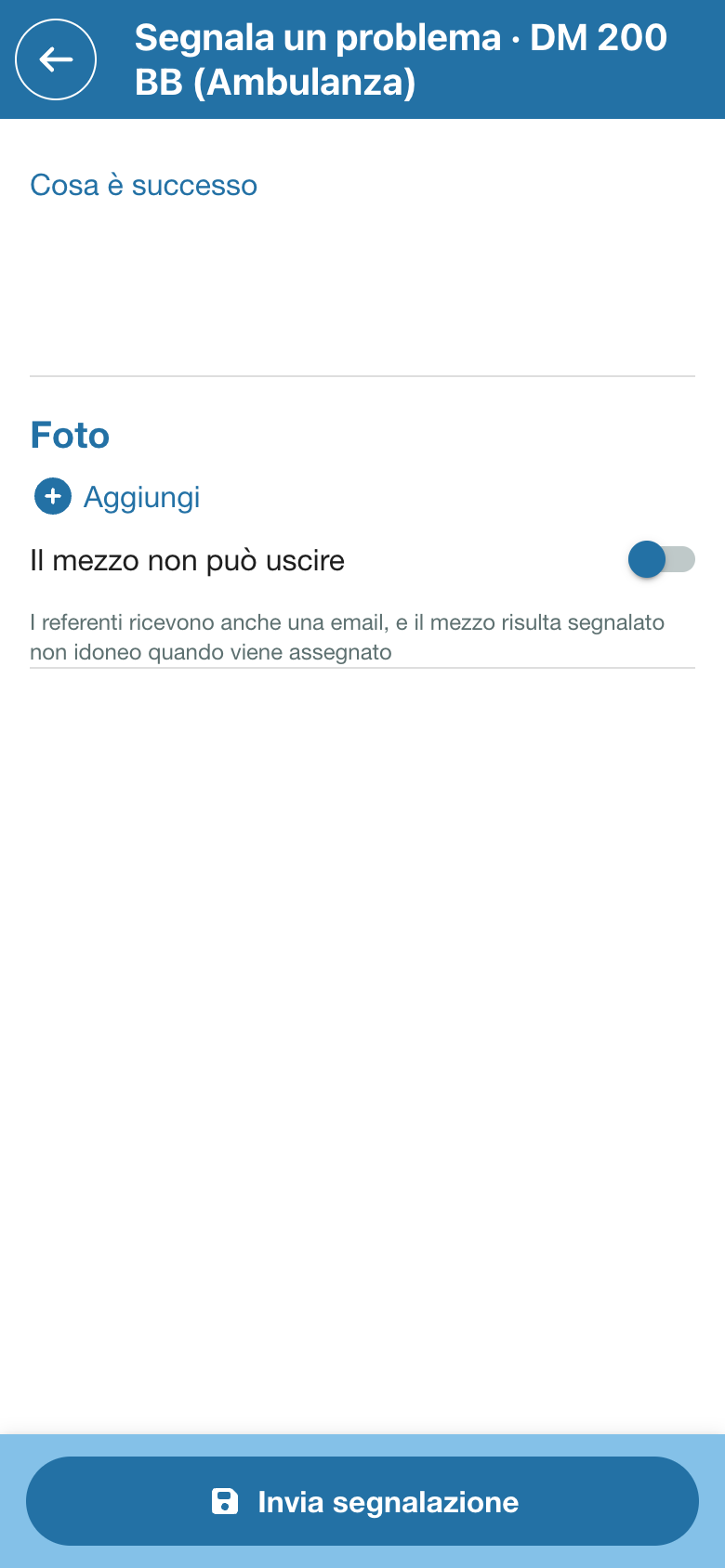
You read Report sent to the contact persons: whoever looks after the vehicles receives it straight away, with the shift you sent it from. With The vehicle cannot go out they also receive it by email, and whoever assigns or books the vehicle sees the warning Reported unfit on ….
Warning
Reporting does not put the vehicle out of service: whoever looks after the vehicles decides that. If the vehicle is dangerous, report it and also tell someone in person straight away.
Under the vehicle's name you may also see the out of service (Out of service until …) and red warnings, such as Insurance expired on …: read them before you set off.