Checklists
Info
Only available if the organization uses the Checklists module.
The checklist is the check on vehicles and equipment: you verify that everything is there and in order, and leave a trace of what you saw.
When to fill it in
Checklists are tied to the shift: when your shift involves a check, the Compile Checklist shortcut appears inside the shift.
The shortcut appears only if your availability is confirmed: if you are still awaiting approval, the checklist is not yours to fill in.
You also find them all together in Checklists in the menu. If there is none you read No checklists.
Filling in a checklist
- Open the checklist from the shift or from the list.
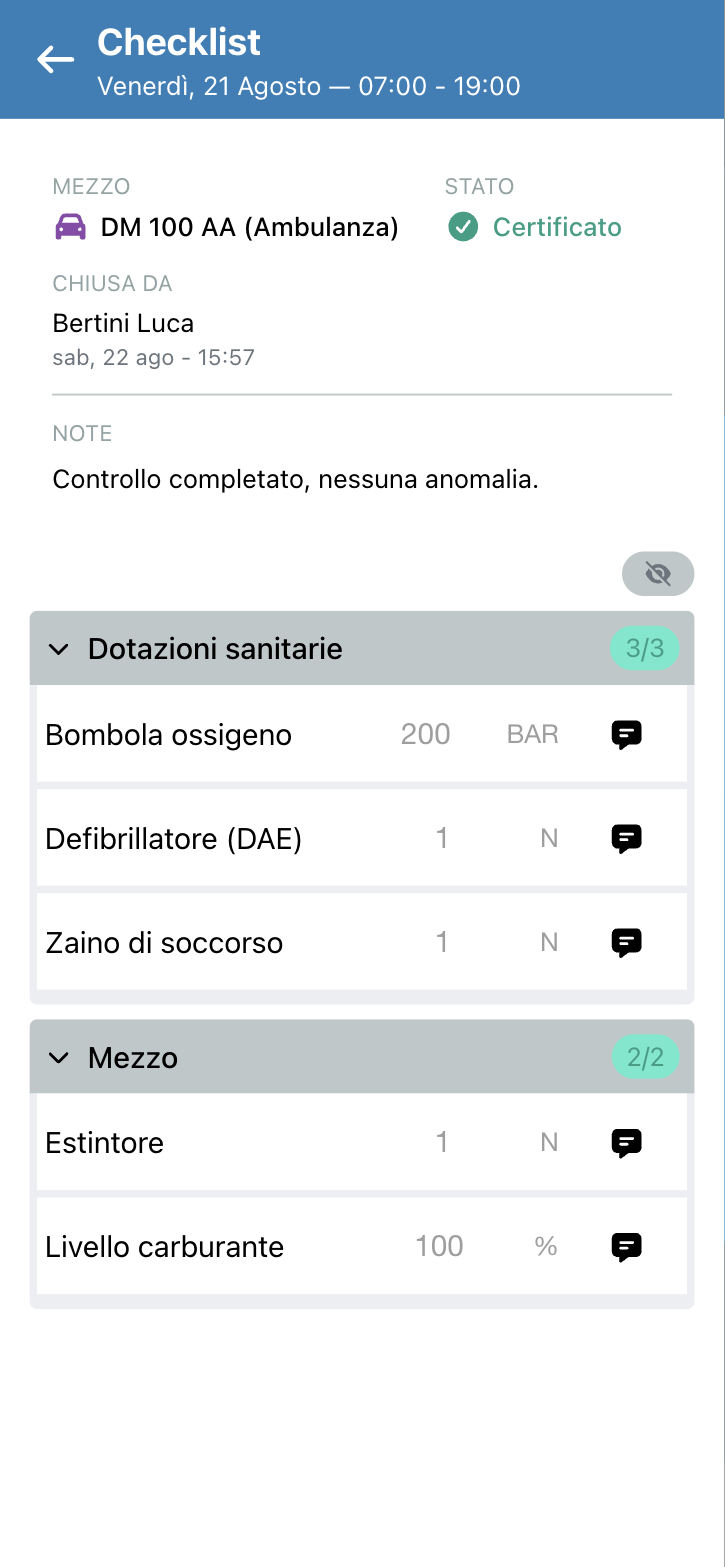
- At the top you find the header: the Vehicle it refers to, the Status, and — once the check is closed — Closed by with name and date, plus the Note.
- Scroll through the sections (for instance Medical equipment,
Vehicle): each section has next to it the counter of items verified out of
the total (
3/3) and contains the items to check, each with its value, unit of measure and the note button. - For each item say how things stand:
- yes/no items — you mark Present item or Absent item;
- items with a quantity — you enter the measured value (cylinders, litres, percentages); the app says whether it is a Verified quantity or a Wrong quantity compared with the expected limits.
- If needed, write a Note: it is the right place to report an anomaly.
- When done tap Certify and confirm (Are you sure?).
Certifying means signing: from that moment the checklist shows as Certified, with the name of whoever closed it and the date, and can no longer be edited.
How it works
Nobody creates checklists by hand. They come into being on their own close to the shift, in two ways: because the shift type provides for that check, or because the shift has a vehicle assigned that brings its checklists with it. A shift with two vehicles will have one checklist per vehicle.
There is a time window to fill it in. Every checklist type has an early tolerance before the start of the shift and a late one after the end. Outside that window the checklist can no longer be edited: before it is too early, after it is Expired. The minutes are decided by the organization, per checklist type.
You need to be on shift. You can only fill in the checklists of shifts on which you have a confirmed availability. Those not on shift see it, but read only.
The judgement is automatic. You do not decide whether an item is fine:
- yes/no items are compliant when the element is present;
- items with a quantity are compliant if the value is between the expected minimum and maximum. When no maximum is given, only the minimum exists: from there up is fine.
The overall result is Compliant only if all items are: a single row out of range makes the whole check not compliant. This is deliberate — it is meant to surface the problem, not to fail whoever fills it in.
The value stays as it was. Each item's result is saved together with the value: if the organization later changes the limits, checklists already filled in do not change judgement retroactively.
Several people fill it in. If you and a colleague have opened the same checklist, each of you sees the items the other is filling in appear in real time. No need to agree on who keeps it open.
Certifying closes everything. After certification the checklist is no longer touched, not even to correct a wrong value: a manager is needed. And if the organization adds a new item to that checklist type, checklists already closed stay as they are — the new item appears only on those still open.
Notes reach their destination. On closing, a non-compliant check, an expired checklist or a checklist with notes triggers a notification to the managers following that checklist type. That is why the note really counts: without it, the problem stays a red number on a row.
Reading the statuses
| Status | What it means |
|---|---|
| Not certified | the checklist is still open, to be filled in and closed |
| Certified | it has been closed and signed |
| Compliant / Not compliant | the overall result of the check |
| Expired | the time to fill it in has run out |
An Expired checklist can no longer be filled in: it stays as a trace of the fact that the check was not done in time. The expiry kicks in by itself when the shift has been over for longer than the expected tolerance, even if the checklist had been half filled in.
To focus on what is wrong, use Hide compliants: only the items out of range stay in view. The button turns into Show compliants to see them all again.
Reporting a problem
If you find something wrong — missing, expired or broken material — do not just mark Not compliant: also write the Note saying what you found. The note reaches whoever has to act, the red mark alone does not.