Registry
The registry is the list of the organization's people, with their tasks, groups and certifications. It is the basis of everything else: whoever is not in the registry cannot be signed up for a shift.
Info
You need the permission to view people; to edit, the one to manage people.
From the menu open Registry: at the top you find the People, Tasks, Groups and Certifications tabs, plus Cards while the card season is open; the settings are in the gear at the top right.
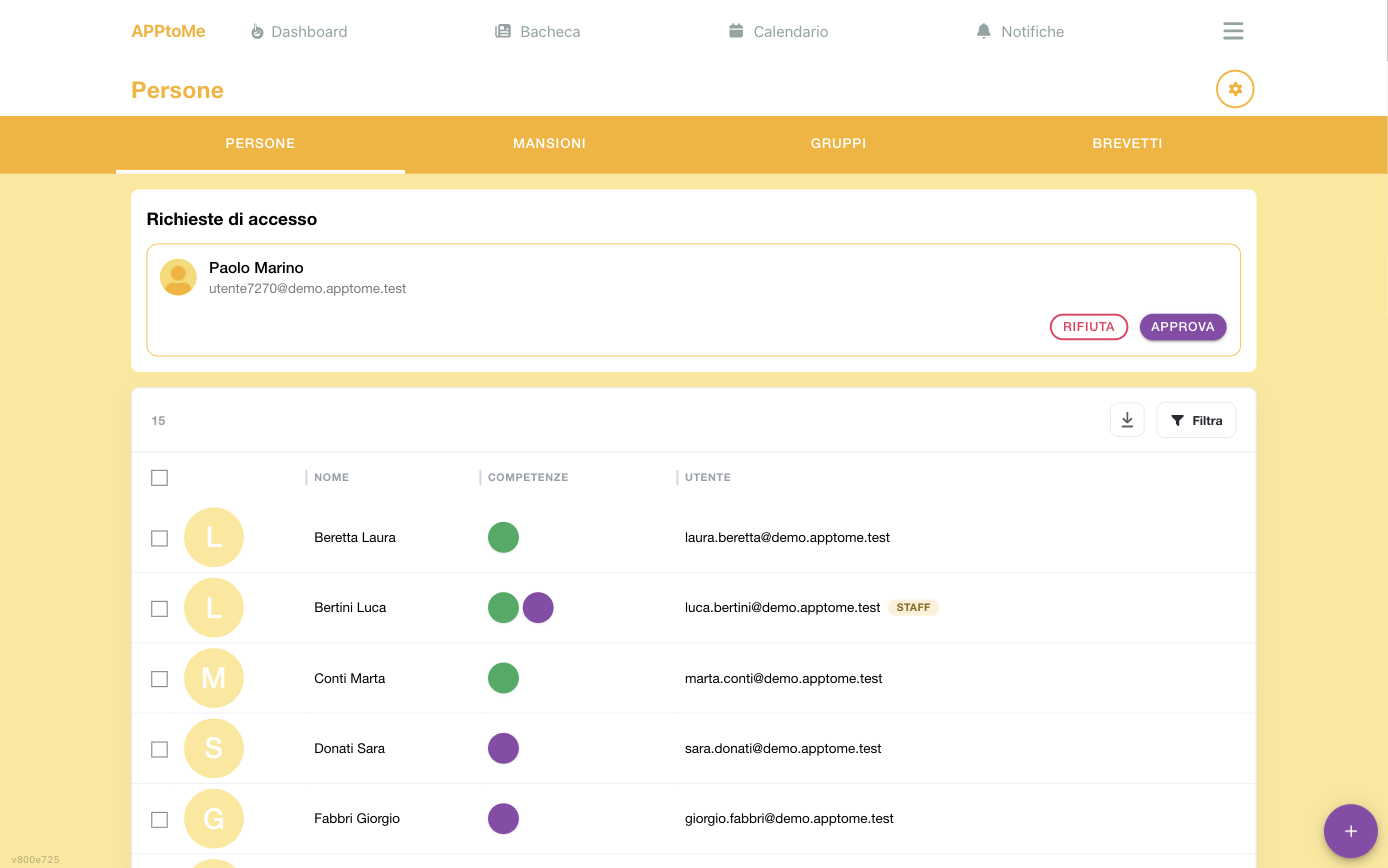
In the People list each row shows the name, the coloured dots of the Abilities, the linked User and, for those who have it, the STAFF label. At the top of the box you find the number of people, the export and the Filters; the boxes on the left are for actions on several people at once.
Person and user: two different things
This distinction explains most of the doubts that come later.
- The person is the registry record: name, surname, contacts, tasks. It can exist on its own, for those who do not use the app.
- The user is the account used to log in to AppToMe.
The two are linked: when a volunteer signs up and asks to join, you link their account to their registry record. Disassociating a volunteer detaches the account and leaves the registry record in place, with its history.
Adding a person
Tap the button to add and fill in the record. It is for those who are in your organization but do not (yet) use the app: their hours and shifts can be recorded anyway.
There is a cap on the number of people
Every organization has a maximum number of records, set by the contract with AppToMe. Once that number is reached, adding stops with You can't add more people: it is not a fault and cannot be worked around from the app. Before asking for an increase, it is worth cleaning the registry of those who are no longer there: deleted records do not count towards the cap, and the hours already done remain in the statistics anyway.
Fields of the person record
| Field | Type | What it does |
|---|---|---|
| Name | text, required | |
| Surname | text, required | |
| Role | choice, required | Member, Volunteer, Employee, Freelancer, Civil Service, Civic Service. It tells apart employees, whom some calendars can hide from volunteers |
| Internal code | text | the staff number you use, if you use one |
| Tax code | text | |
| Date of birth | date | |
| City of birth | choice | municipality of birth |
| Address | long text | |
| Locality | text | |
| Postcode | text | |
| Province | choice | |
| Main phone | text | the contact shown first |
| Secondary phone | text | |
| Other phone | text | |
| Tasks | multiple choice | the person's abilities: they decide which shifts they can be signed up for |
| Notes | long text | internal notes |
| Staff | yes/no | marks the person as staff. The real permissions are then given with Change permissions |
Below the standard fields the custom fields appear, the ones the organization has defined in the registry settings.
Ask only for what you need
Only Name and Surname (plus the Role) are required: everything else is filled in if you really need it.
Inviting a person to use the app
From the person's record use Invite: an email goes out to the address given. Being a nominal invitation, when the person accepts it they are linked straight away to that registry record, without going through access requests.
The invitation form asks for two things:
| Field | Type | What it does |
|---|---|---|
| Person | choice, required | the registry record the account will be linked to |
| email, required | the address the invitation goes to. It is also the one the person will log in with |
To cancel an invitation not yet accepted use Cancel invitation and confirm (Are you sure you want to cancel the invitation for …?).
Inviting several people at once
With the bulk invitation you fill in one row per person, with Name, Surname and Email: AppToMe creates the registry record and sends the invitation to each. Check the addresses before sending — an invitation once sent cannot be corrected, it is cancelled and redone.
Access requests
When someone looks for your organization from the app and sends a request, you find it in Access requests.
For every request you can:
- Approve — and here you have to choose:
- Link to existing person — if the person is already in the registry (the normal case for someone who is already a volunteer). The app shows you the Suggested from registry, that is the records resembling the applicant;
- Create new person — if they are not there yet.
- Reject — with confirmation (Are you sure you want to reject the request from …?).
The fields of the approval window:
| Field | Type | What it does |
|---|---|---|
| the address the person registered with; not editable | ||
| Person | choice | the registry record to link them to, among the free ones of your organization |
| Create new person | yes/no | creates a new record instead of linking to an existing one |
Do not create duplicates
Approving with Create new person someone who is already in the registry creates a second record: from then on hours and shifts split between the two and the statistics no longer add up. Always check the suggestions first.
Tasks
Tasks are the roles a person can take on in a shift: driver, rescuer, stretcher bearer. They are the key to the whole shift system, because shift requirements are expressed in tasks.
In the Tasks tab you can create them and give each a Name and a Color — the colour is the one seen on the shift cards.
Tasks can be hierarchical: a higher task inherits the ones below, so someone who is "team leader" also counts as driver and rescuer without assigning them one by one.
There are also Virtual tasks: they are not assigned by hand, they are obtained by holding other required tasks. They express conditions such as "whoever has both certification X and task Y".
How the abilities that count are formed
The tasks the app really uses to decide who can cover a shift are not exactly the ones you tick on the person's record. AppToMe derives them like this, in this order:
- it starts from the tasks assigned to the person in the registry;
- it adds those provided by their unexpired certifications;
- it expands the hierarchy: whoever has a higher task obtains those below, provided they are marked Inheritable;
- finally it evaluates the virtual tasks: if the required tasks are there — all of them, or at least one, depending on how it is configured — the virtual one is added.
The result is recalculated by itself when something changes: assigning or removing an ability, editing a task, recording or removing a certification. Certification expiries, on the other hand, go through a daily check: the day after the expiry the person loses the task, not at the exact instant.
This explains two situations that come up often:
- "They have the task but do not appear among the eligible" — the task comes from an expired certification, or the hierarchy does not inherit it because the child task is not Inheritable;
- "I never assigned it and they have it" — it is a virtual one, or they inherit it from a higher task, or a certification gives it to them.
Fields of a task
| Field | Type | What it does |
|---|---|---|
| Name | text, required | |
| Parent | choice | the higher task in the hierarchy |
| Description | long text | |
| Icon | text | the symbol shown next to the task |
| Color | colour | the colour of the dots on the shift cards |
| Exclude from statistics | yes/no | availabilities given for this task do not enter the statistics |
| Inheritable | yes/no | whoever has a higher task automatically obtains this one too |
| Auto assign to new people | yes/no | every new registry record is created already with this task |
| Virtual task | yes/no | turns the task into a virtual one: it is no longer assigned by hand |
Fields of a virtual task
| Field | Type | What it does |
|---|---|---|
| Name | text, required | |
| Description, Icon, Color | as above | |
| Required tasks | multiple choice | the tasks this one is obtained from |
| All required | choice, required | All tasks are necessary — all of them are needed; The required tasks are alternatives — one is enough |
| Exclude from statistics | yes/no | as above |
Assigning tasks to a person
From the person's record, under Abilities. From there you add or remove tasks.
Removing a task from someone already signed up for future shifts with that task does not remove them from the shifts: check the calendar. The opposite is equally true — a task removed does not take the hours already done in that role out of the statistics.
Assigning tasks to many people at once
In the People list select several rows: the count of selected appears along with the Action menu, with which you can Add task, Remove task, Add to group, Remove from group, Assign certification, Remove certification. Choose the action, the item and tap Apply.
Groups
Groups collect people by team, site or any criterion you need.
| Field | Type | What it does |
|---|---|---|
| Name | text, required | |
| Members | multiple choice | the people who belong to it |
| Notes | long text | |
| Exclude from statistics | yes/no | the group's people do not appear in the statistics |
They are mainly for: addressing board news to a subset, limiting a calendar's visibility, and reserving a vehicle's booking.
Certifications
Info
Only available if the organization uses the Courses module.
Certifications are the qualifications with an expiry: they have a Name, Validity (months) and the Jobs provided, that is the tasks the certification grants whoever holds it.
It is the mechanism by which a training expiry reflects on the shifts by itself: if the certification provides the task, on expiry the person stops being able to cover those shifts.
Fields of a certification
| Field | Type | What it does |
|---|---|---|
| Name | text, required | |
| Jobs provided | multiple choice, required | the tasks whoever holds the certification obtains |
| Months validity | number, required | for how many months it is valid, counted from the date achieved; 0 = never expires |
| Remind the person | multiple choice of days | how many days before the expiry to warn the person concerned (e.g. 150, 30 and 3); empty = no warning |
| Remind supervisors | multiple choice of days | the same, for the supervisors listed below; the two lists are independent |
| Supervisors | multiple choice | who receives the expiry warnings |
Assigning a certification to a person
From the person's record, under certifications:
| Field | Type | What it does |
|---|---|---|
| Certification | choice, required | which certification |
| Date | date, required | when it was achieved |
| Expiration date | date | leave it empty and the app calculates it |
If you do not fill in the expiry, it is calculated by adding the certification's Months validity to the date achieved. If you do fill it in, the one you wrote holds: useful for cases where the expiry on the document does not match the month count.
Under the expiry date the app lists the warnings already sent for that expiry. On renewal you can update the existing row: change the Date and leave the expiry as it was, and the expiry is recalculated; with the new expiry the warnings start over, as for a new certification.
Several warnings for the same certification
For an early warning plus a reminder close to the expiry (e.g. 150 and 3 days) pick more than one entry in the same list: there is no need to create a second "reminder" certification.
0 months = never expires
With 0 months of validity the certification has no expiry: its tasks stay granted
forever and the Date only serves to record when it was achieved. The
expiry warnings, of course, do not go out.
Cards
Info
It appears only when the Your card season is open in the organization, to whoever sees the registry.
The Cards tab gathers, small, every card of the organization's season: the same ones each person finds in Your card. Above the grid you read how many there are, for example Season 2026 · 13 cards; under each card, the person's name and the number, such as No. 007.
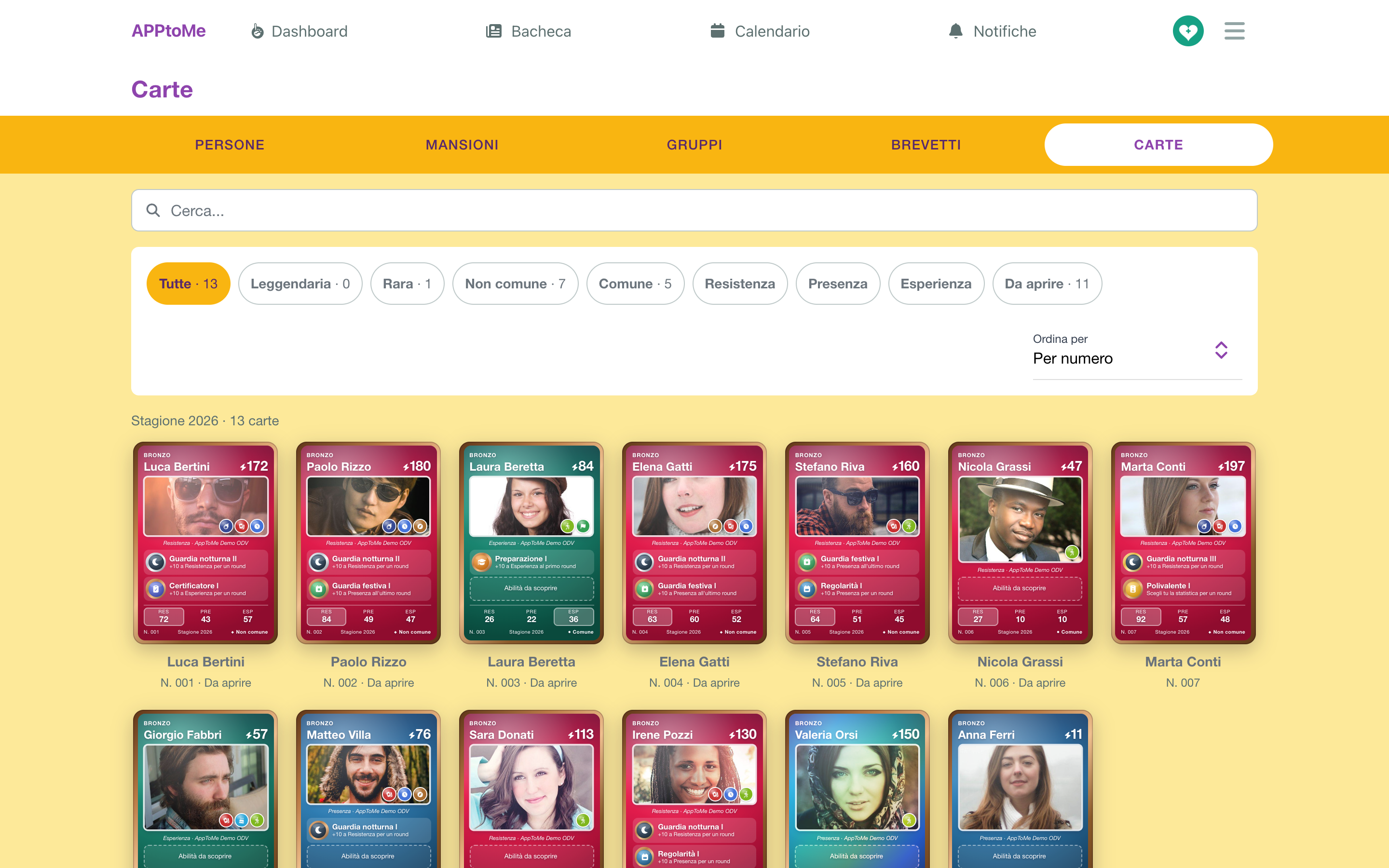
- Search... finds a card by name or by number: 007 and 7 lead to the same one.
- The filters: All, the four rarities (Legendary, Rare, Uncommon, Common), the three stats (Endurance, Presence, Experience: the cards whose strongest stat is that one, that is of that colour) and Not opened. The number next to a filter says how many cards there are. You can turn on more than one at a time; All turns them off.
- Sort by chooses the order: By number, as they were born, or By power, from the strongest.
Next to a card's number you may see:
- Not opened — the person has the app but has not opened their card yet. The Not opened filter gathers them all, and is there only if there is at least one;
- No app — the person has no linked user: nobody will ever open that card. See Person and user.
Tap a card: it comes to the front, like a teammate's card in a shift's detail, with The cards below it — the ones you had on screen, with the search, filters and order you chose. Move from one to the next with the arrows, by tapping a face or by swiping sideways; on a computer, also with the keyboard arrows. Tap outside the card, or press Esc, to go back to the cards.
As long as nobody has done a volunteer shift in the season, the tab says No cards yet.
Totals only
Of someone else's card, staff see what anyone sees: the totals, the abilities reached and the feats. Never the hours, the shifts or the split between service and dice, which stay with the card's owner. See Your teammates' cards.
Absences
On the person's record, below the fields, there is the Absences block: it is for recording the periods when someone is away — illness, a trip, a month out. Every row has two fields:
| Field | Type | What it does |
|---|---|---|
| Start | date, required | the first day of absence |
| End | date | the last one; leaving it empty the absence stays open, with no end |
The end must come after the start, otherwise saving stops with Invalid range.
Recording an absence deletes availabilities
It is not a reminder: on saving, all the person's future availabilities falling in the period are deleted, and the coverage of the shifts involved is recalculated — shifts that were full can go back to being uncovered. It is the right behaviour (whoever is away does not cover), but it is irreversible: the availabilities do not come back by deleting the absence.
Beware above all of the absence with no end date: it takes the person out of all their future shifts, not only those of the current month. If the return has a date, write it down.
The past is not touched: shifts already done, hours and statistics stay as they are. The absence acts only from here on.
Whoever is left uncovered has to be covered by hand: once the absence is recorded, look at the shifts you have just freed up — AppToMe does not look for substitutes on your behalf and does not warn anyone that the place is free again.
The Card and Equipment tabs
Next to the person's tabs, when needed, two more appear.
Card
It appears when the Your card season is open in the organization, and whoever sees the registry sees it. It shows that person's card of the season, to turn like your own: Totals only: no hours, shifts or split between service and dice. If the card is not born yet there is the placeholder The card is born at the first shift; for those who only do shifts as employees, the employee card. See Your card; everyone's cards, together, are in the Cards tab.
Equipment
Info
Available only if the Warehouse module is active with Uniforms and PPE on, for those with Can visualize Warehouse.
The person's uniforms and PPE: their sizes, the kits of their tasks, what they lack and what they hold, the deliveries with their receipts. Those with Can manage Warehouse deliver from here (Deliver and sign), take back (Return) and change the sizes. See Uniforms and PPE.
Managing a volunteer's account
From the person's record, if they have a linked user:
- Change permissions — see Roles and permissions
- Reset password — sends the reset email (Are you sure you want to send a password reset email to this user?). You neither see nor set the password: the person chooses it from the link received
- Disassociate — detaches the account from the registry record (Are you sure you want to disassociate this user?). The record stays, with the shifts and hours already done: only the link with the account disappears, and the person loses access to the organization. It is not a deletion, and it is reversible: a nominal invitation links that account back to the same record
Registry settings
In the Settings tab you configure the Custom fields: additional data your organization wants to keep on people and that does not exist as standard (staff number, uniform size, medical check expiry).
Every custom field is defined with:
| Field | Type | What it does |
|---|---|---|
| Label | text, required | the name that appears next to the box |
| Type | choice, required | Text, Multiline text, Number, Yes/No, Date, Time, Single choice, Multiple choice, Place, File |
| Choices | list | the selectable values, for choice fields |
| Required | yes/no | the record does not save while the field is empty |
| Help text | text | a line of help below the box |
Note
With the File type whoever fills in attaches a document (5 MB at most) and whoever opens the record downloads it. The file stays reachable by anyone who has the link, even without signing in to AppToMe: do not upload documents that must not circulate.
Ask only for the data you really need: every extra field is one more personal datum to look after.