Warehouse
Info
Available only if the Warehouse module is active. To see the whole module you need the Can visualize Warehouse permission; to enter items, record loads and run inventories, Can manage Warehouse. Volunteers use part of it without permissions: see Warehouse in the volunteer guide.
The main site's supplies inside AppToMe: how many you have, where they are, what is about to run out. The stock sheet and the withdrawals notebook in one place, with the list of what to order already prepared.
The module keeps the supplies of the Main site and of its cabinets and shelves. It does no purchasing, suppliers or prices: the order is placed outside AppToMe, reorder list in hand.
On this page, module viewers are those with the Can visualize Warehouse permission, and module managers those with Can manage Warehouse, which includes the first.
How it is enabled
Warehouse is switched on from Plan and contract, like the other modules: see Plan and contract. Once it is active, permissions decide who does what, see Who can do what.
What changes in the app
With the module active, the Warehouse entry appears in the menu, under Resources. Everyone sees it, volunteers included. Inside, the tabs:
| Tab | What it holds | Who sees it |
|---|---|---|
| Overview | what needs attention and the quick actions | everyone |
| Items | the catalog of supplies | everyone |
| Stock | how much there is of each item, area by area | everyone |
| Areas | the Main site, its cabinets and shelves | module viewers |
| Movements | the ledger of everything that came in and went out | module viewers |
| Reorder | the list of what is running out | module viewers |
| Inventory | the physical counts of the supplies | module viewers |
With the gear at the top right, module managers open Warehouse settings: categories and import from checklists.
The warehouse sends no notifications: what is running out shows in the Overview and in the Reorder list.
How the warehouse works
Four words that come back all over this page:
- the item — an entry of the catalog: Sterile gauze 10×10 cm, Nitrile gloves size M;
- the area — where the supplies are: the Main site and, inside it, the cabinets and shelves you create;
- the movement — a fact: 6 packs loaded, 30 gauzes used, 2 bottles disposed of. Every movement says from where to where, when and who;
- the stock — how much of an item there is in an area. It is never typed by hand: it is the sum of the movements.
So, to change a stock you record a movement, and to correct a mistake you record another one. The Movements ledger loses nothing.
A consumption that takes the stock below zero is recorded anyway, with a warning: it happens when supplies that were never loaded are used. The stock stays negative, and clearly visible, until a load or an inventory fixes it.
First steps
The catalog starts empty and the stock from zero. From there:
- If you use Checklists, start from them: Import from checklists turns the checks into items. See Importing from checklists. Otherwise create the items one by one, with New item.
- Complete the items: unit, pack size, Minimum stock and barcode, if there is one.
- If the supplies are kept in several cabinets, create the Areas. If everything is in one room, the Main site is enough.
- Run the first Inventory of the Main site: you count what is there and, on confirmation, the stock starts out right. Alternatively, record a Load for each item.
- Tell the volunteers that what they take is recorded as Consumption.
The Overview
It is the first tab of the Warehouse entry.
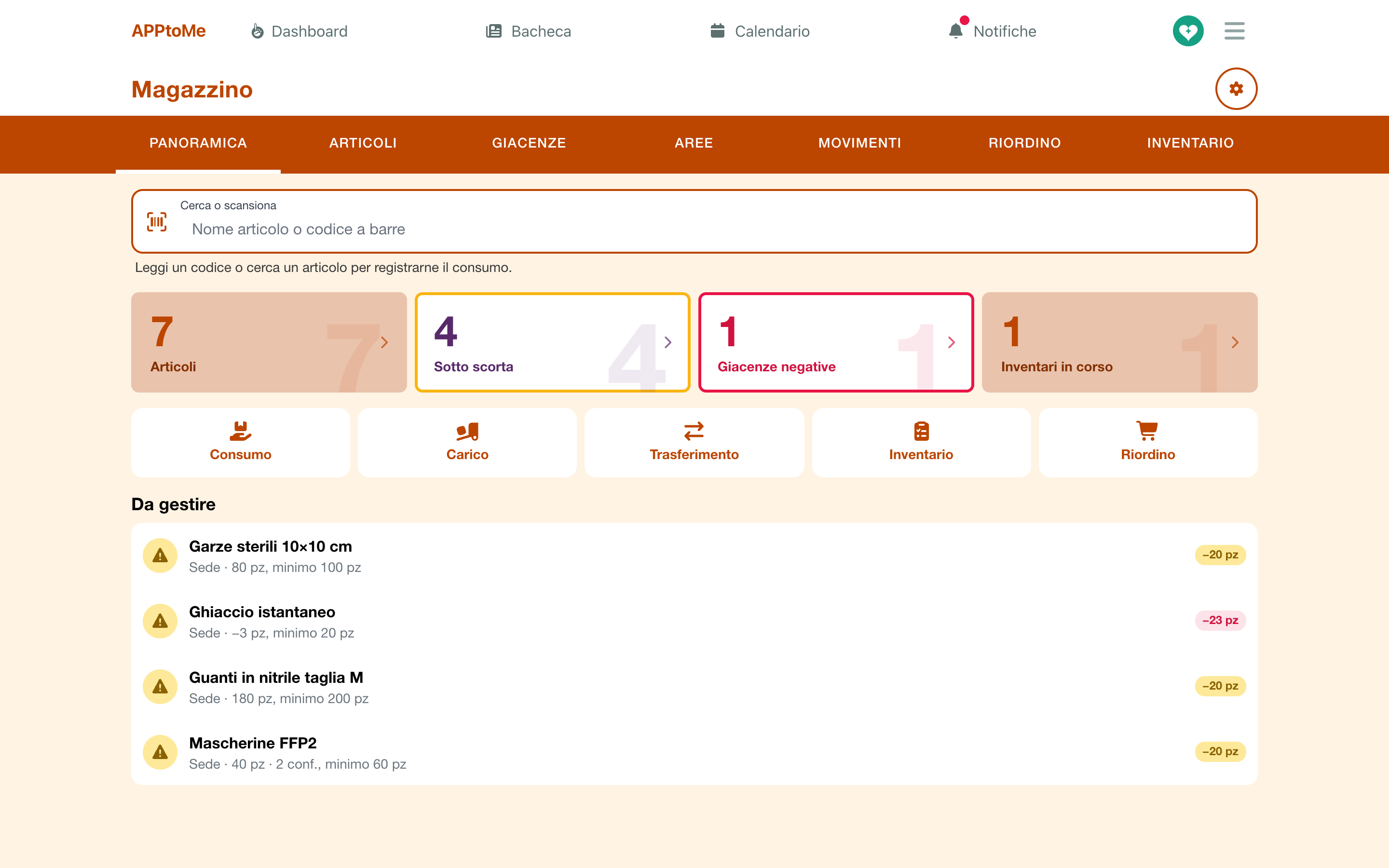
At the top is the Search or scan field. Read a barcode or type an item's name: the Consumption of that item opens. Module viewers who do not manage it open the item's card instead.
Below, the counters. Tap one to open the tab it is about:
| Counter | What it counts |
|---|---|
| Items | the items in the catalog |
| Under minimum | the items below their Minimum stock: it turns yellow |
| Negative stock | the stock below zero: it turns pink |
| Inventories in progress | the inventories started and not closed yet |
Then the quick actions, each for whoever can use it: Consumption, Load, Transfer, Inventory and Reorder.
At the bottom, To handle: the items under their minimum stock, with the Main site stock, the minimum and what is missing. Tap one to open it; if there are more than twenty, See all opens the Reorder list. If nothing is missing you read No item under its minimum stock.
The barcode reader
On a computer, the Search or scan field works with a USB barcode reader: it reads the code and sends it by itself, and the field stays ready for the next one. Without a reader, type the item's name, or type the code and press Enter.
Items
The Items tab is the catalog.
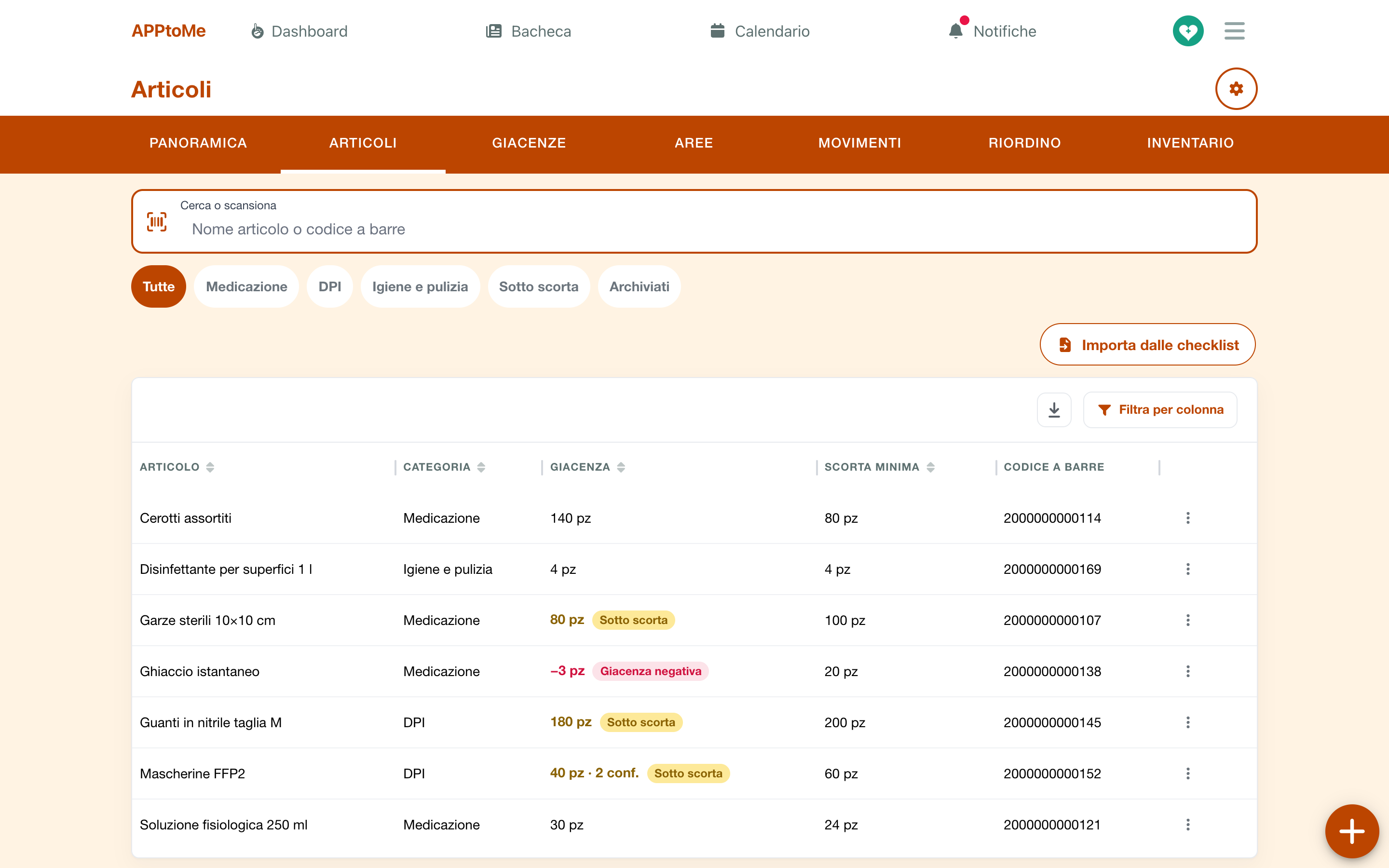
- Search or scan filters by name as you type; a code read by the reader opens its item.
- Below are the filters: All, one per category, Under minimum and, for module viewers, Archived.
- The columns are Item, Category, Stock, Minimum stock and Barcode. The stock is that of the whole Main site: yellow with Under minimum, pink with Negative stock. An item that is not counted shows Not kept in stock.
- The three dots at the end of the row open the item's actions.
Module managers add an item with the +.
New item
| Field | What it does |
|---|---|
| Name | required |
| Category | the group in the catalog, see Categories |
| Barcode | the one printed on the pack, read by the reader. Two items in use cannot have the same code |
| Unit | How it is counted: pieces, boxes, litres. Empty means pz |
| Pack size | How many units a pack holds, to load or count by the pack |
| Minimum stock | Below this, across the main site, the item is on the reorder list |
| Kept in | the item's usual area |
| Kept in stock | Untick for what is not counted: it has no stock and no movements |
The minimum stock applies to the whole Main site, cabinets included: 100 gauzes split between two cabinets are 100 gauzes.
The item card
Tap an item to open its card: the data (Category, Barcode, Unit, Pack of, Minimum stock, Kept in), then Stock by area and, for module viewers, the Latest movements.
The buttons are the ones you can use: Record consumption, Record load, Transfer, Dispose of and Edit; below, Archive and Delete.
Archiving or deleting
- Delete removes an item that was never used. The app asks for confirmation: Its record goes (barcode, minimum stock, pack size). It has no movements or inventories, so the ledger does not change. This cannot be undone.
- An item with movements is not deleted: you Archive it. It disappears from the catalog and from new movements, but the ledger keeps it. You find it with the Archived filter and put it back in use with Restore.
Importing from checklists
The quickest way to start, if you use checklists: every checklist check becomes an item, with its section as the category. Import from checklists is in Items and in Warehouse settings.
- Tap Import from checklists: the app reads the checklists and does not import anything yet.
- At the top you read how many conditions it found, how many are new and how many already in the catalog. For each row: Item, Category and Outcome (New or Already in the catalog).
- Tick the rows to import: nothing is selected to start with. Leave out the readings, such as the fuel level: they are not supplies.
- Tap Import … items.
The imported items have no stock: the first load or the first inventory gives it to them. Importing twice adds nothing.
Areas
The Areas tab shows The main site and what it holds: cabinets and shelves, up to three levels. The Main site exists by itself, labelled System, and cannot be edited.
Module managers:
- tap the + for a New area: Name, Inside (the area that holds it, usually the Main site) and Order;
- tap an area for its actions: See stock, Add an area inside, Edit, Archive or Delete.
Three levels at most: Main site › cabinet › shelf. An area can be archived only when empty, with no area in use inside it and no inventory in progress; it can be deleted only if it was never used.
Stock
The Stock tab says how much there is of each item, area by area.
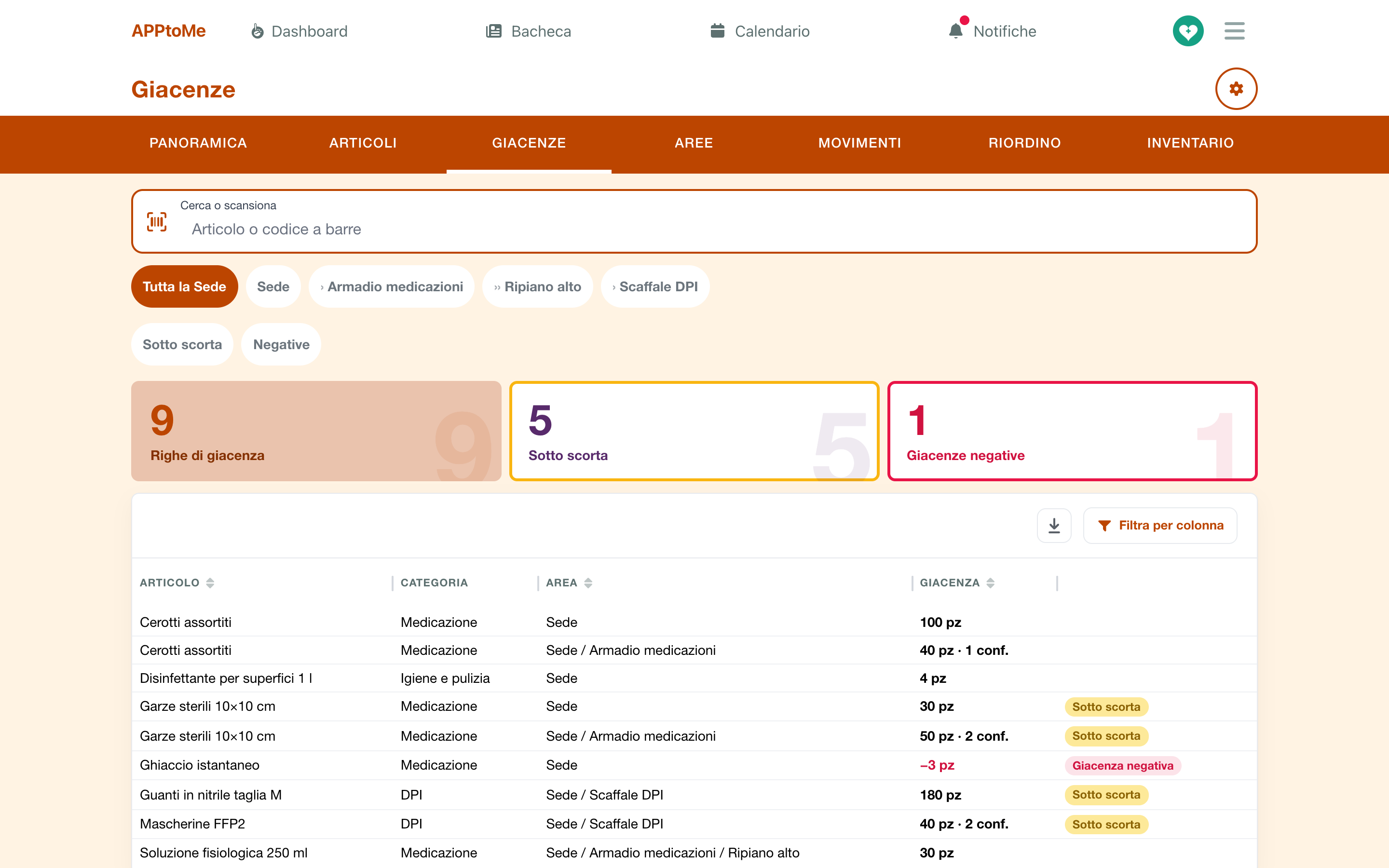
- At the top, The whole main site and one filter per area: choosing a cabinet also shows its shelves. Then Under minimum and Negative.
- The counters say how many Stock rows, how many Under minimum and how many Negative stock there are with the chosen filters.
- The columns are Item, Category, Area and Stock.
Tap a row for the movements from that area: Record consumption and, for module managers, Record load, Transfer and Dispose of; then Open item.
Recording a movement
The reasons
| Reason | What it does | Who uses it |
|---|---|---|
| Load | the supplies enter an area: a delivery, a purchase, a donation | module managers |
| Consumption | the supplies leave because they were used | everyone, except module viewers who do not manage it |
| Transfer | the supplies move from one area to another | module managers |
| Disposal | the supplies leave because they expired or broke | module managers |
| Adjustment | the correction that comes from an inventory or a reversal | nobody by hand |
Consumption, transfer and disposal take the supplies from the area where they really are: the item's usual one if there is some there, otherwise the one that holds the most. You can choose another one.
Several items at once
The everyday way: a delivery to unload, the supplies used on a shift. It opens from the quick actions of the Overview, or with the + of Movements.
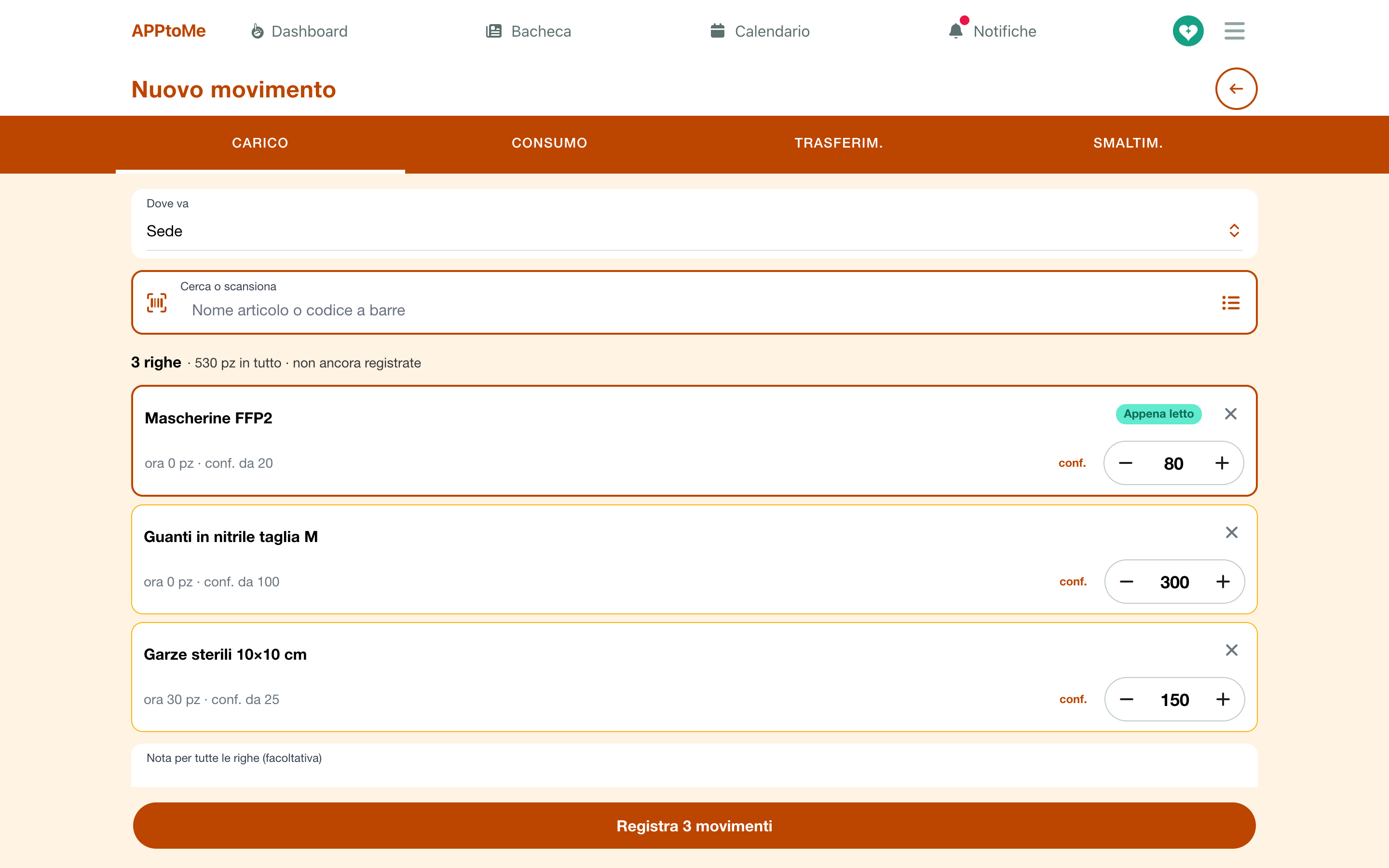
- At the top choose the reason: Load, Consumption, Transfer or Disposal.
- Choose the area, once for all the lines:
- for a load, Goes to: it starts from the Main site;
- for a transfer, From and To;
- for consumption and disposal, Taken from. Leaving Wherever each item is, each one leaves its own area.
- Read the codes one after the other, or search the items by name. Each read adds a line, or one more to the line already there. With the list button next to the field you pick the items from the catalog.
- Correct the quantities with − and +, or type them. For an item with a pack size, pk switches to counting by the pack. Each line shows how much there is now.
- If needed, write the Note for all lines (optional).
- Tap Record … movements.
Everything is recorded, or nothing. Afterwards the app shows the summary, with New load (or consumption, transfer, disposal) to start again and See in the ledger.
The lines not recorded yet stay on the device: closing the app does not lose them. If the connection drops while you record, you read No answer from the server: try again. The lines stay here and the movement will not be recorded twice.
A single item
From the item's card, from a row of Stock or from the three dots of the catalog, the short form opens, for example Consumption · Sterile gauze:
| Field | What it does |
|---|---|
| Quantity | In the unit of the item |
| Packs | instead of the quantity, for an item with a pack size |
| From where | If you leave it empty, it is taken from the area where it is. For a load it is Where it goes |
| Destination | only for a transfer |
| Note | optional |
Tap Record movement.
The warnings
After saving, never before, the app warns you if the movement left:
- a stock below zero: After this movement the stock of … in … is negative;
- the item under its minimum stock: After this movement you will be under the minimum stock of …
In the summary of a movement of several lines the same warnings are under Keep an eye on. They are warnings, not blocks: the movement is recorded.
Movements
The Movements tab is the ledger: every movement, newest first.
- It opens on the current month. In the filter panel choose the period and the Reason; the search field finds by item, code or note.
- The columns are When, Item, Reason, Quantity, From → To, Note and Who.
- Under a movement recorded together with others its name appears, such as Load no. 12: tap it to see all its lines.
- The adjustments of an inventory carry inventory no. … in the note.
Reversing a movement
A movement is neither edited nor deleted: if it is wrong, it is reversed. Module managers tap the row and choose Reverse.
The app asks Reverse the movement? — The opposite movement is recorded for …: the ledger stays as it is and the stock goes back to what it was. If the reversal leaves a negative stock or one under the minimum, it says so first. You can write Why (optional).
The movement stays, labelled Reversed; next to it its Reversal appears. A movement is reversed only once, and a reversal is not reversed. For a movement of several lines, Reverse all reverses all the lines together.
Reorder list
The Reorder tab opens the Reorder list: the items under their minimum stock, counting the Main site and all its cabinets.
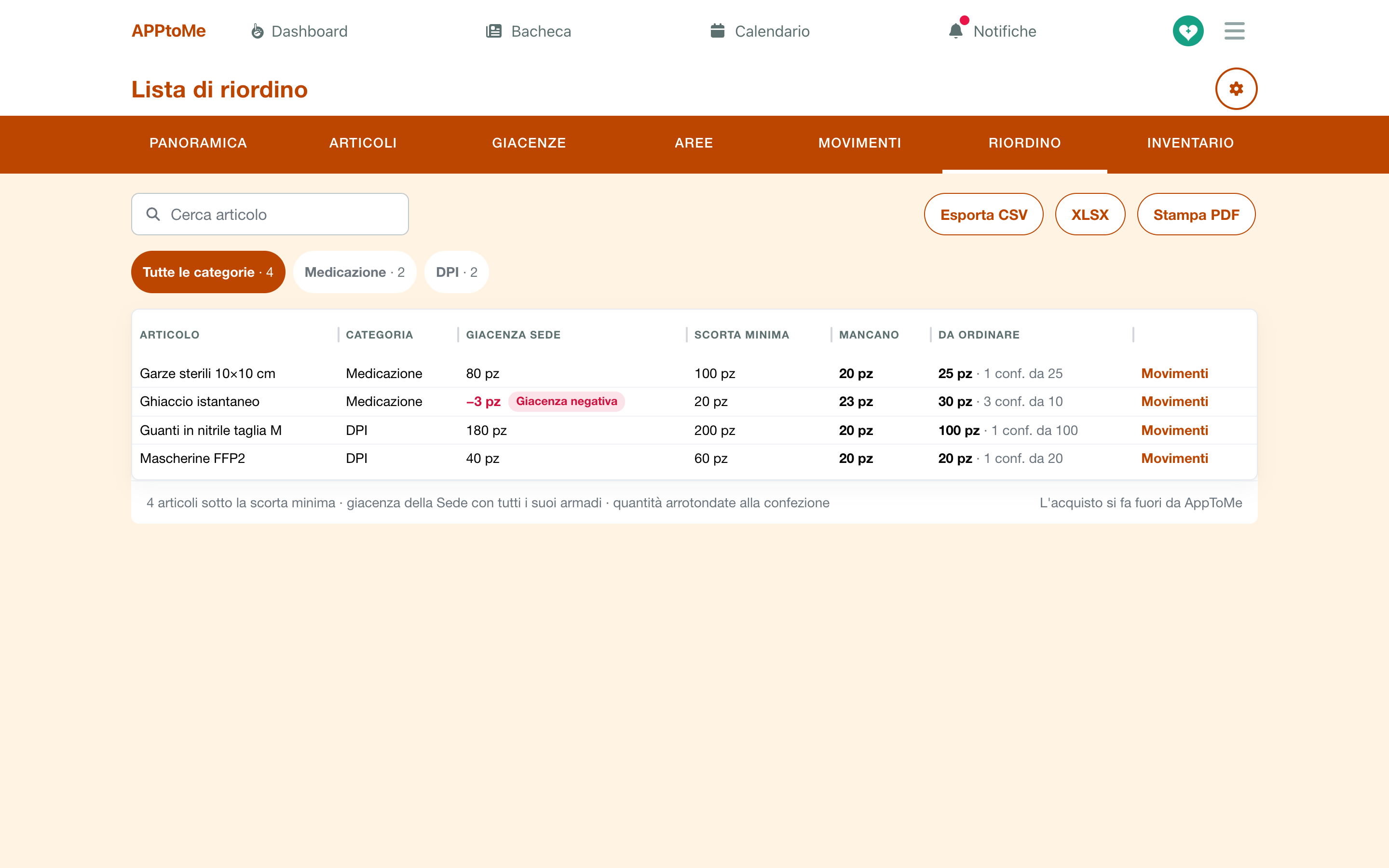
| Column | What it shows |
|---|---|
| Main site stock | how much there is in the whole Main site |
| Minimum stock | the item's minimum |
| Missing | how much is missing to get back to the minimum |
| To order | what is missing, rounded up to whole packs: 30 pz · 3 pk. of 10 |
Filter by category with the buttons at the top, or search an item. Tap a row to open the item; Movements, on the row, opens its ledger.
To take it to the supplier: Export CSV, XLSX or Print PDF. Purchasing happens outside AppToMe: when the supplies arrive, record the Load.
Inventory
The inventory compares what is really in an area, cabinets included, with the recorded stock. You count item by item and, on confirmation, every difference becomes an Adjustment.
The Inventory tab lists the inventories, starting with those In progress, with the Area, the State, the Progress (5 of 9 counted), who started it and when. Module viewers open them read-only; counting and confirming are for module managers.
Starting an inventory
- Tap the + (or Start an inventory, if there is none yet).
- In Location choose the area to count: The locations inside it are counted too. The Main site counts the whole warehouse.
- If you like, write a Note, then tap Start the inventory.
The inventory starts with one line for each item that, according to the stock, is in that area. Two inventories cannot be open on the same area.
Counting
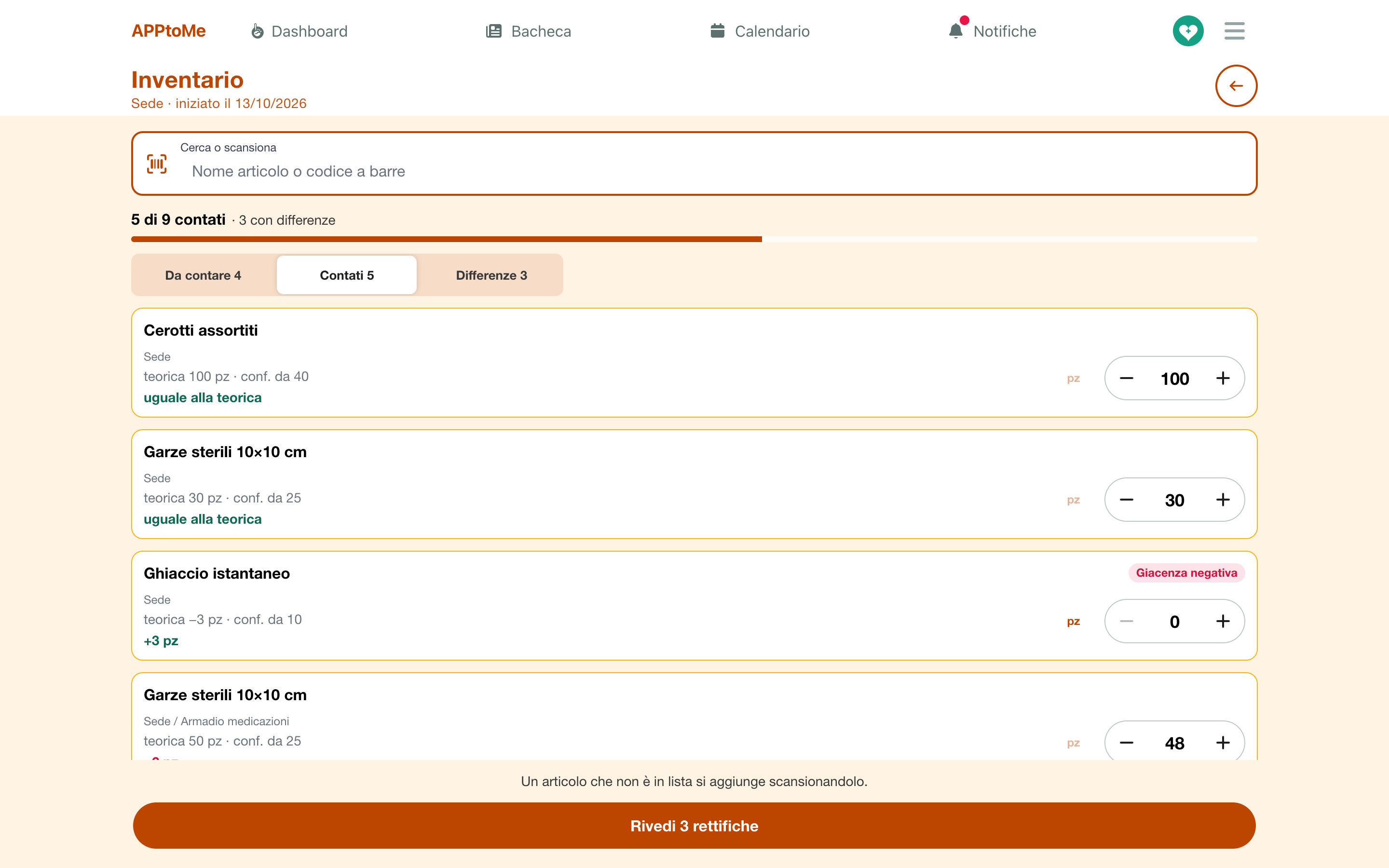
- For each line read the expected stock and type what you count, or use − and +. With the reader, each read adds one to the item's line.
- Next to each line you read how it went: not counted yet, matches the expected, or the difference.
- An item that is not in the list is added by reading its code, or by searching for it and choosing Add to the inventory.
- With To count, Counted and Differences you see only the lines you need.
The counts save by themselves as you work: at the top you read Saving… and then Saved. Two people can count the same area: the reads add up, they do not overwrite each other.
Reviewing and confirming
- Tap Review … adjustments (or Review and close the inventory, if there are no differences).
- Read the Adjustments, how many lines Match the expected and how many are Not counted, stay as they are. For each adjustment: expected … → counted …
- Tap Confirm … adjustments (or Close the inventory).
The comparison is with the stock right now: movements recorded during the inventory are already included. The lines not counted change nothing. Every adjustment ends up in Movements, with the inventory as its origin.
Cancelling an inventory
Cancel the inventory, at the bottom of the inventory, closes it without touching the stock: What was counted stays, but makes no adjustments.
Warehouse settings
With the gear at the top right, module managers open Warehouse settings.
Categories
The list of categories, with Name and Order: The order decides how they appear in the catalog. A category with items is archived, not deleted.
- New category adds one;
- tap a category to change, archive or delete it;
- Archived shows the archived ones.
Import from checklists
The same import as the Items tab, see Importing from checklists.
Who can do what
| Who | What they can do |
|---|---|
| Volunteers, and staff without the warehouse permissions | Overview, Items and Stock of the Main site; record consumption, see Warehouse |
| Can visualize Warehouse | every tab, including Areas, Movements, Reorder, Inventory and the archived items, read-only. They record no movements, not even consumption |
| Can manage Warehouse | everything: items, categories, areas, loads, consumption, transfers, disposals, reversals, inventories, Warehouse settings. It includes the permission to see |
Administrators do everything. The two permissions are in the Warehouse tab of the person's permissions, see Roles and permissions, and they start on for every staff member: take them away from those who should not manage the warehouse.
If you use Odoo
Items, stock and movements stay in AppToMe: the Odoo connector does not carry them to the management system.
If something goes wrong
I don't see the Warehouse entry — the module has to be active. After it is switched on, or after you receive a permission, close and reopen the app.
I only see Overview, Items and Stock — the warehouse permissions are missing: it is the volunteers' view.
You can't record moves here — your profile sees the warehouse but does not manage it: ask whoever manages it.
No item with this code — the code is not in the catalog. Open the right item and type the code in Barcode.
Another item already has this barcode — two items in use cannot have the same code: archive the old one, or correct the code.
This item has movements: archive it instead — see Archiving or deleting.
A stock is negative — usually a consumption recorded before the load, or a forgotten load. Record the missing load, or run the inventory of that area.
A count is already open for … — an open inventory already covers that area: confirm or cancel it before starting another one.
There is still stock in this location: move it first — an area is archived empty: transfer the supplies to another area.
The reorder row does not add up — the minimum stock applies to the whole Main site, cabinets included, and To order is rounded up to whole packs.