Notifications and newsletters
AppToMe warns you when something that concerns you happens: a shift about to start, an availability request, a shift swap, a checklist to fill in.
What you get notified about
You do not receive everything: AppToMe only warns those involved. Here is what triggers a notification for a volunteer.
| Occasion | When it arrives |
|---|---|
| A new shift you could cover | when a manager creates the shift, if you have one of the tasks required and availabilities for that shift are open |
| Shift reminder | the day before the shift |
| Shift changed or cancelled | when the manager changes the time, the tasks or deletes the shift you are on |
| Availability approved or rejected | when a manager decides on a pending availability of yours |
| Availability changed | when a manager moves you, removes you or changes your task |
| Availability request | when a manager asks you to cover a shift |
| Shift swap | at every step: request received, accepted, rejected, cancelled, expired |
| Clocking | if the shift has started and you have not clocked in, or if you left an entrance open |
| Open activities | within 24 hours of the end of the shift, and at the start of a shift that still has open ones, if an activity was left without a closing time or without final kilometres |
| Checklist | reminder to fill it in, and warning if a checklist turns out not compliant or expired |
| Lessons | reminder of a lesson of a course you are enrolled in |
| Certifications about to expire | at the notices decided by the organization for that certification, possibly more than one; this one also arrives by email |
| Board | new post, comment or reaction to your posts |
| Vehicle bookings | when your booking is approved, rejected, changed, cancelled or expires |
| Booked vehicle out of service | when the vehicle of one of your bookings is put out of service: the booking is not cancelled, see Vehicles |
| Joining the organization | when your membership request is accepted or rejected |
| Your card | when your card is born and at every power-up; push only, never email, see Your card |
How they work
Three things explain almost every question about "why did it not reach me".
Every alert leaves once only. There are no second reminders: if you do not open the notification about tomorrow's shift, another one does not arrive. The notification centre stays there, though, and you find it anyway.
Reminders are not instant. They do not leave at the exact moment: a periodic check gathers and sends them. Shift and lesson reminders run once a day, in the morning, and concern the following day; those about clockings, checklists and activities run every few minutes. A few minutes' delay is normal.
If a push cannot go out, AppToMe retries within the hour. Past that window there are no further attempts, but the notification stays in the notification centre: that is where to look before giving it up for lost.
Notifications are per organization. If you are in several organizations, each has its own notification centre and its own counter: a notification read in one does not clear the dot of the other.
Push notifications
They arrive on the phone even with the app closed, but only if you granted permission and only on the devices you logged in on: the notification follows the account, not the phone number. If you change phone, notifications start arriving there from the first login.
If you did not grant it, at the top of the screen the Notifications are off warning appears — Turn them on in settings to keep up with updates. Tap it to open the phone settings and grant the permission. The same warning also appears on the Home, because the phone can revoke the permission on its own — for an app you have not opened in a while, for instance — without you noticing.
Notifications arrive in the language set in your Profile.
Notification centre
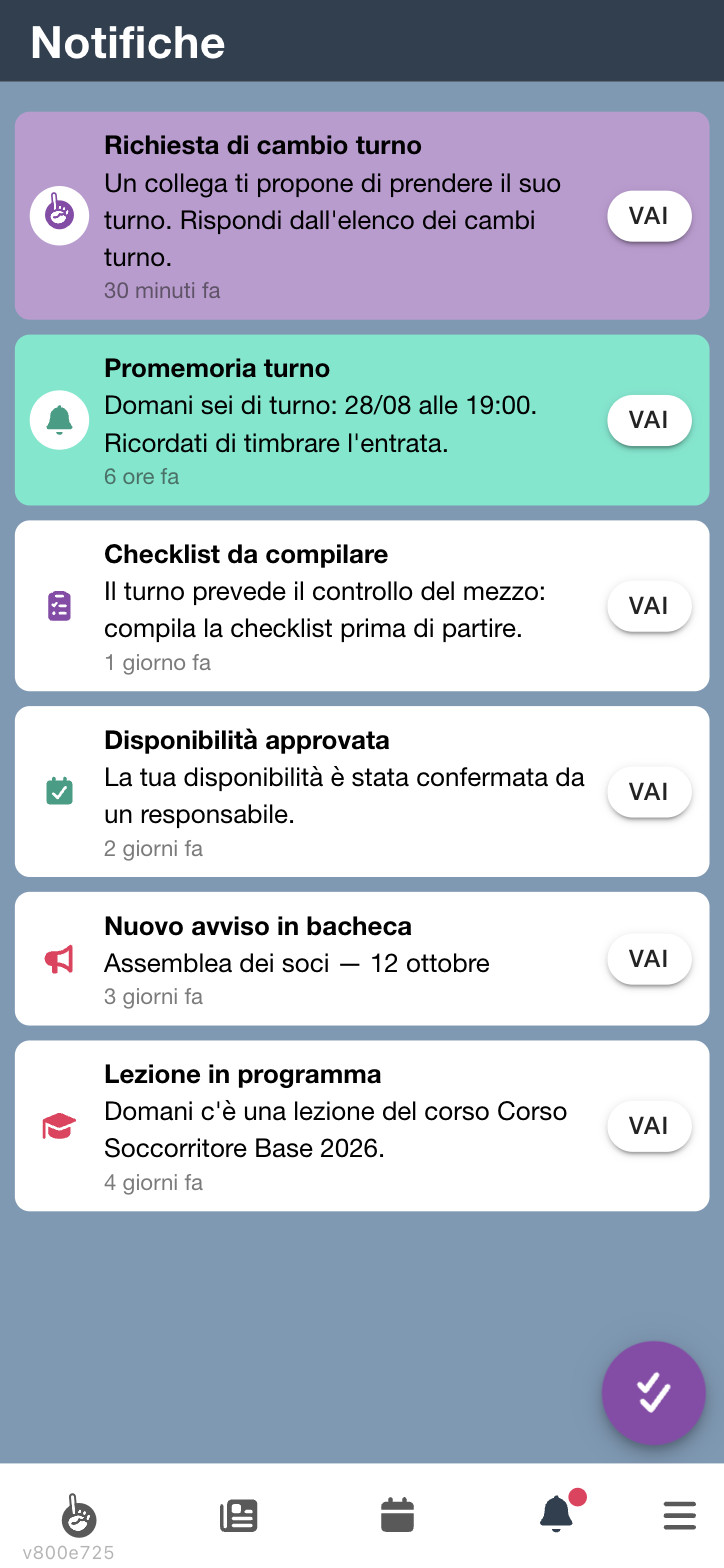
The bell icon in the bottom bar opens the list of the organization's notifications. The dot on the bell means there are unread ones.
- Tap a notification to open it; if it concerns something specific — a shift, a request — the Go button takes you straight there.
- Unread notifications have a coloured background; those already seen are white.
- The round button at the bottom, Mark all as read, clears the counter without opening them one by one.
- When there is nothing, the list says so: "No notifications — Alerts about shifts, courses and messages show up here."
If you are in several organizations, the counter is per organization: the dot on the organization's symbol in the Dashboard tells you where to look.
News
News are the messages staff send to all volunteers, separate from board posts. You find them under News in the menu; those not yet opened are marked as Unread.
If there are none you read No news yet — Announcements from the staff will show up here.
If a newsletter does not open, The newsletter could not be loaded. appears: usually a connection problem, try again later.