Availability and attendance
Info
You need the permission to manage availabilities.
When you open a shift as a manager you see the organizer card: who has made themselves available, for which task, and who is missing.
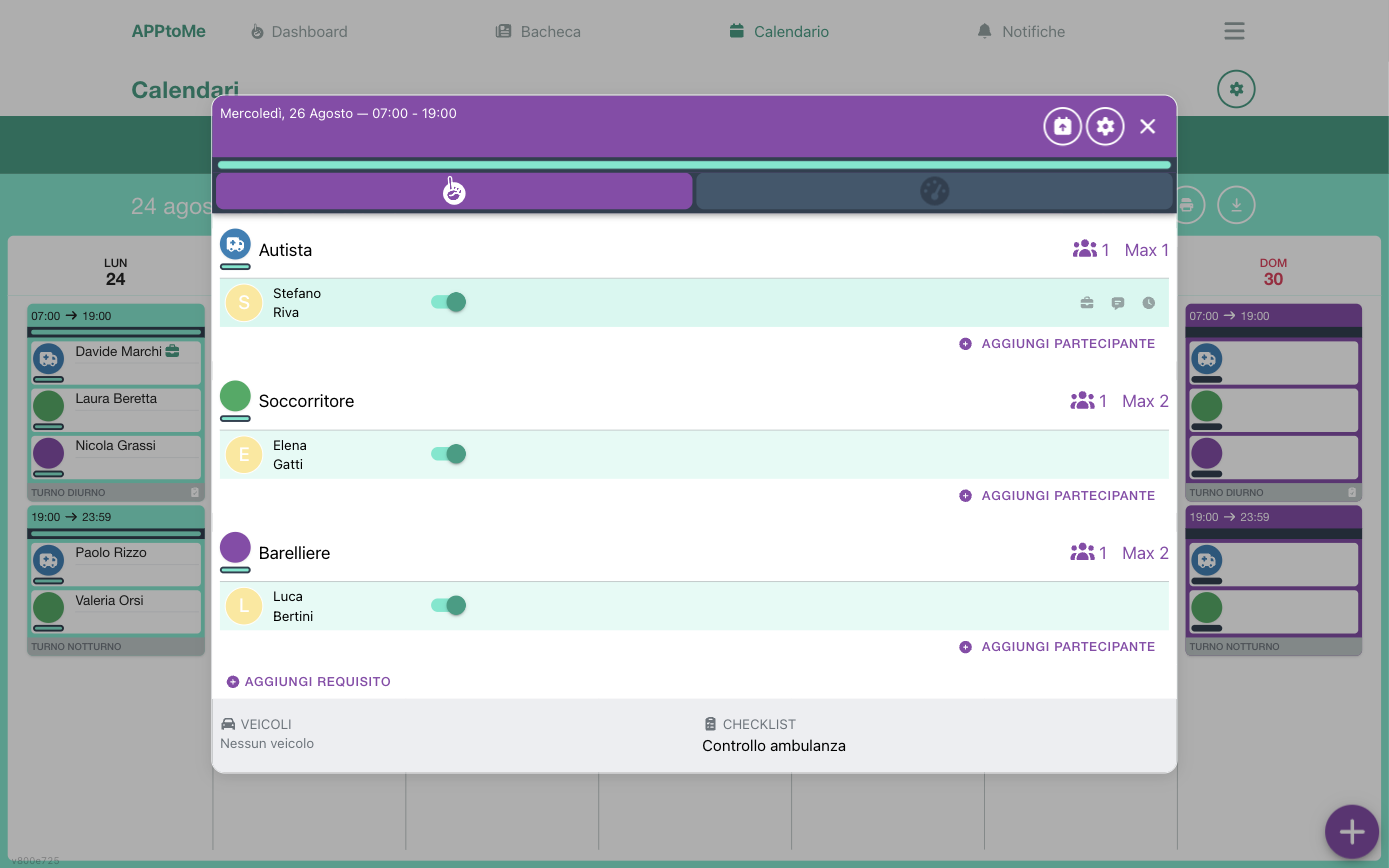
Every requirement is a block: the task, the number of people collected and the Max allowed, then the list of participants and Add attendee. At the bottom, Add requirement for that shift's exceptions, and the summary of the linked Vehicles and Checklists.
Signing a person up for the shift
From the organizer card, on every requirement you find the list of eligible people — that is, those holding that task — and you can sign them up yourself.
It is the way to cover a shift when nobody comes forward, or to settle arrangements made by word of mouth.
What you can do that the volunteer cannot
By signing someone up yourself, you skip three things that block the volunteer's way:
- the calendar's time limits — minimum notice, maximum window, shift already started: they do not apply to staff. You can sign someone up even with the shift under way;
- approval — an availability entered by you is created already confirmed;
- the useful-candidates filter — for the volunteer the button disappears when their presence serves no requirement; you can add them anyway.
The flip side: nothing warns you that you are forcing a rule the organization set itself. If the calendar asks for three days' notice, a last-minute entry is your decision, not a technical shortcut.
The person is always notified
Every move of yours on someone's availability reaches them as a notification: approval, rejection, change of task or time, removal from the shift. There is no silent tweak — and that is a good thing, because whoever is on shift has to know you are moving them.
If the person is already busy elsewhere
Signing them up for a shift that overlaps another one they are already on, AppToMe removes them from the other shift, and that other shift can become uncovered. The comparison takes partial hours into account, and does not apply to calendars set to ignore overlaps (typically on-call ones).
So look at what you are leaving behind, not only at what you are covering. Whoever has the permission to unblock busy people can also free someone from a concurrent commitment without signing them up elsewhere.
Inviting a person
Instead of signing them up on your authority you can invite them: the person receives an availability request and decides for themselves. They find it in their Requests and in the notifications.
The invitation is the route to prefer: signing someone up without warning them works technically, but does not tell them they have to be there.
The invitation form asks for two things:
| Field | Type | What it does |
|---|---|---|
| Duration | choice, required | within how long the person has to answer: 15 minutes, 1 hour, 1 day, 3 days. Once the time is up, the request lapses |
| Expiring on shift completed | yes/no | the request lapses by itself as soon as the shift shows as covered, even before the deadline |
How much time to give
15 minutes is for the gap to cover tonight; for next month give 3 days, otherwise the request expires before the person opens the app.
Approving availabilities
On calendars with approval active, whoever signs up stays pending. In the organizer card the availabilities to approve are highlighted — it is the same yellow the volunteer sees on the task's bar — and you have Accept and Reject.
Until you approve, the requirement is not met and the shift is not covered: pending availabilities do not count towards coverage.
The statuses of a person on the shift
Besides available, a person can be marked with other statuses, useful for keeping track of the round of phone calls:
| Status | When it is used |
|---|---|
| Available | they will be there |
| Unavailable | they said no |
| To recall | not the right moment, try again |
| No answer | contacted without success |
| Busy | already committed elsewhere in that slot |
| On call | not on shift, but reachable |
| Absent | has a recorded absence covering the shift |
The status is changed from the person's row with Change state. On call and Absent are the exception: you do not choose them, AppToMe calculates them — the first from the on-call calendar, the second from the absences recorded in the registry (see Whoever is absent does not get signed up).
Calling in someone on call
On the row of whoever is On call, in place of the switch and Change state you find a single command: Confirm. One tap and the person enters the shift as an approved availability — it is the gesture that follows the phone call, when the person at home has said yes.
There is no middle ground: until you confirm, being on call stays what it is, a flag, and does not count towards the shift's coverage. If after confirming you have to go back, the row is by now an availability like the others and is handled with Change state.
Partial availability
If the calendar allows it, a person can cover only one slot of the shift: the time appears next to their name. You can set it or correct it yourself from the person's row.
Be careful reading the coverage: three people on a twelve-hour shift, each for four hours, are not a shift covered three times.
Duplicating availabilities
With the Can duplicate availabilities permission you can copy a shift's team onto all the following dates you choose. The form's fields are described in Managing shifts.
The stars next to the name
It is the most frequent question. The stars are not a mark and do not measure reliability.
They indicate the affinity with that time slot. AppToMe takes the availabilities that person has given in that calendar over the last fifty days (plus the future ones already taken), lays them out on a weekly grid day by day and hour by hour, and counts how many times they were on duty in the hours covered by the shift you are filling. More stars means "this person is usually there in this slot", nothing more.
Two useful consequences: the stars refer to one calendar at a time — someone doing many shifts elsewhere does not earn stars here — and on shifts longer than a day they are not calculated, because the weekly grid would not know what to compare. Someone who has just arrived has few stars by definition: it is not a judgement on them.
They are for choosing who to call first when you have to cover a gap: someone who is always on duty on Thursday evenings is more likely to say yes than the colleague who only comes on Sunday mornings.
On the same row the First time label can appear: it flags that for that person it would be the first shift for that task. It is not a ban — it is an invitation not to leave them alone on their debut.
Employee volunteers
People recorded in the registry as employees (or civil service, civic service, freelancer) are marked on the shift. It serves to tell volunteering hours from working hours, which matters in the statistics and in the reports.
When you add a person recorded as an employee to a shift, their availability starts already marked that way: remove the mark case by case, if that time they are there as a volunteer.
A calendar can be configured to hide employees from volunteers.
There is also a practical effect: an availability marked as employee is not in the person's hands. They cannot remove it themselves, and while it is there they cannot sign up for concurrent shifts — the app answers that they cannot unsubscribe or cannot subscribe. It is intended: that shift is a work commitment, not an offered availability. Changes therefore go through you.
Completion bar and shift colour
The bar on the shift card shows how many requirements are met out of the total. The shift changes appearance when it is covered, that is when every requirement has reached its minimum.
On the individual requirement the bar is green when it is fine and yellow when there is at least one availability still to approve: the yellow is your reminder, not an error.