Calendars and shift types
Info
Calendars exist in every organization. The configuration described in this chapter is reserved for admins.
Before a shift can be published three things are needed: a calendar to put it in, a shift type saying what it is made of, and the tasks the requirements ask for (those live in Registry).
The settings are not in the menu: open Calendar and tap the gear at the top right. Calendar settings opens, with the Calendars, Shift types, Notifications, Custom fields and General tabs; the back arrow, in the same place as the gear, takes you back to the calendar.
Creating a calendar
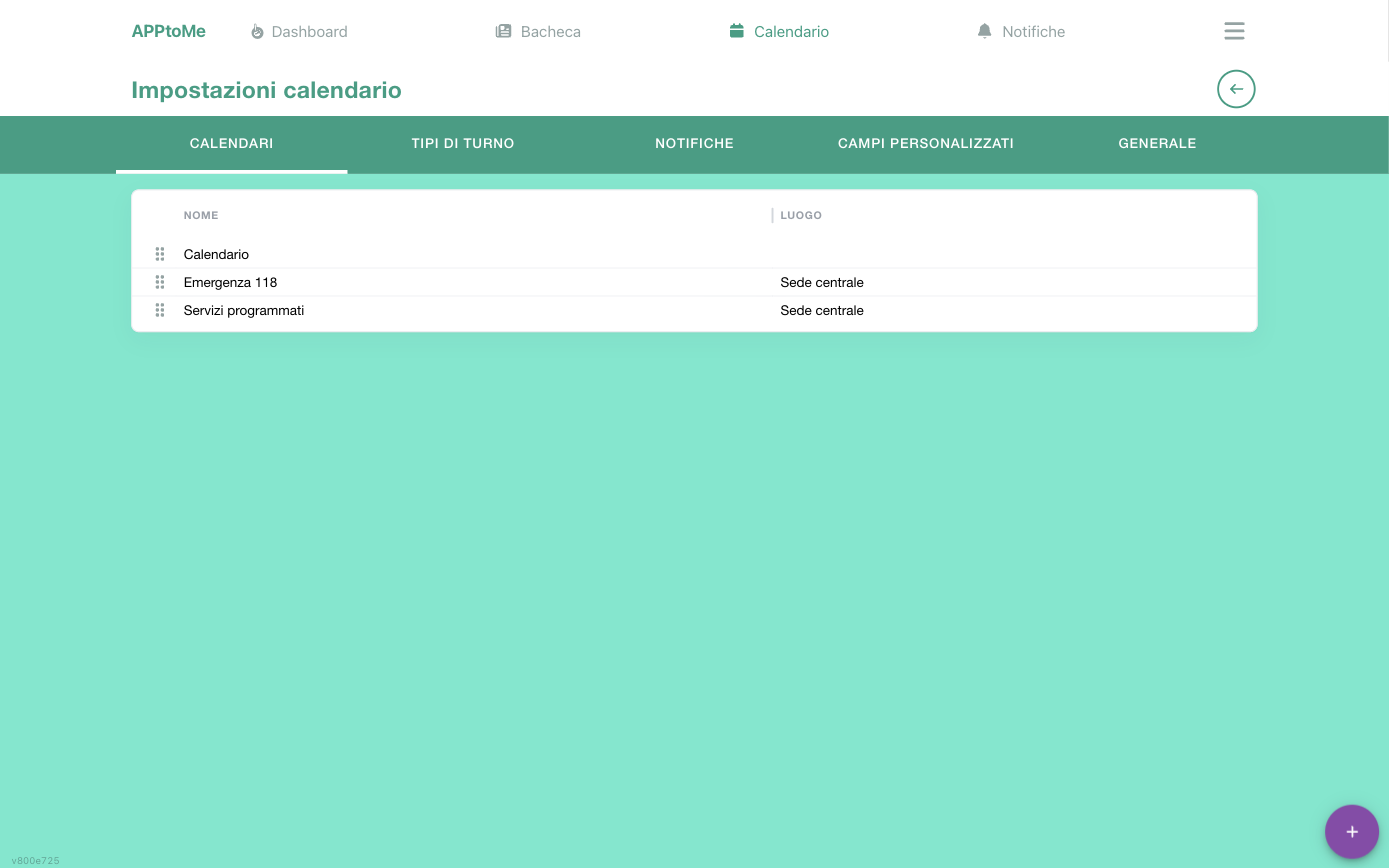
A calendar is a diary of its own: Emergency, Scheduled services, Civil protection. Separate calendars are needed when the rules change, not just the activities.
In the Calendars tab add a calendar and configure it. The choices that really change volunteers' lives are three: whether availabilities have to be approved, how much notice is needed to sign up or cancel, and who sees the shifts. The rest is finishing touches.
Tapping a calendar opens Edit calendar, split into three blocks: Options (name, approval, visibility, shift swap, monitor), Clockings (place and tolerances) and Intervals (the notice days). If a setting you are looking for is not on the first screen, it is in one of the other two blocks, further down.
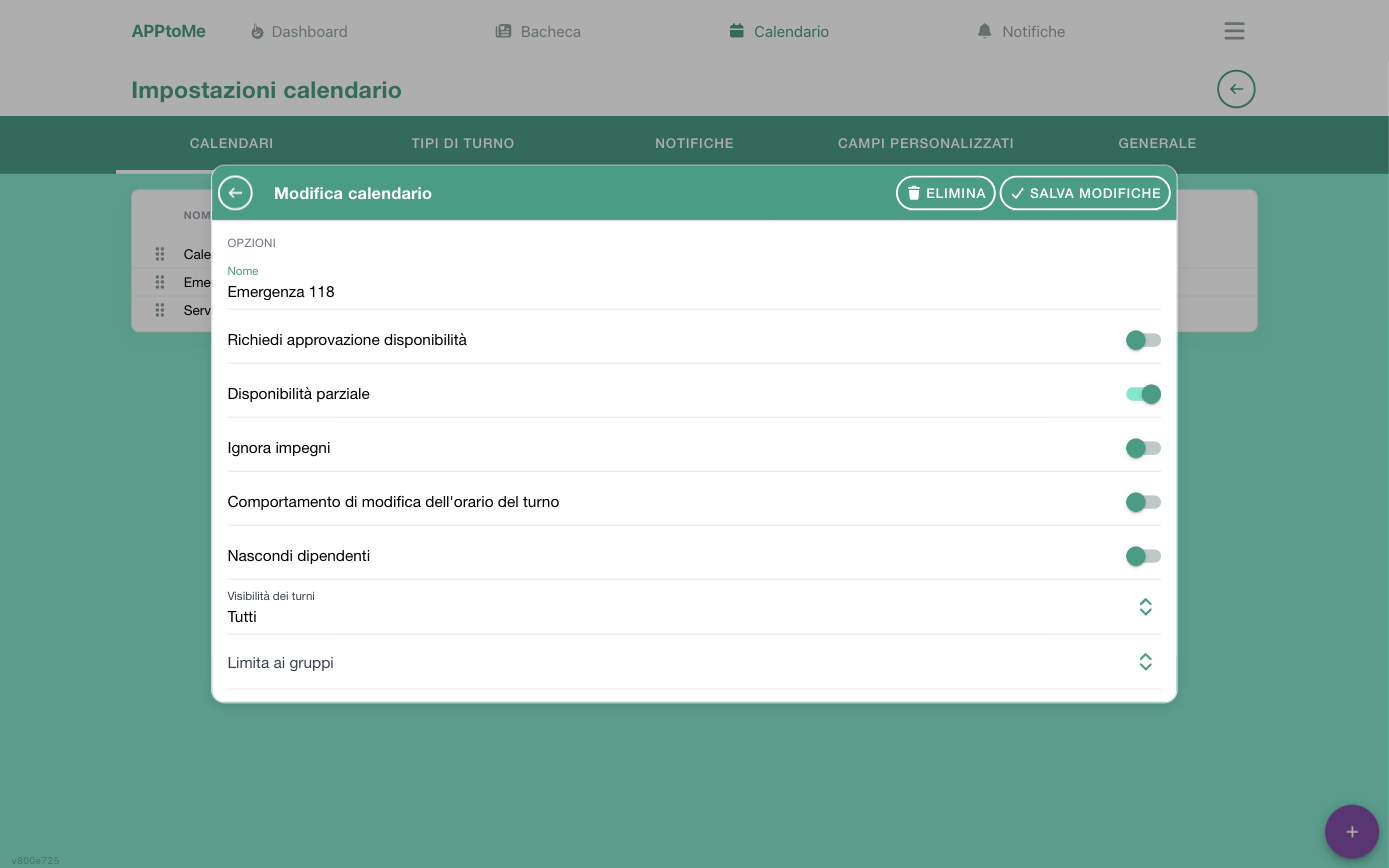
All the calendar fields
| Field | Type | What it does |
|---|---|---|
| Name | text, required | how it appears in the menu and on the calendar tabs |
| Place | choice | the reference site; it is the place clockings compare with the volunteer's position |
| Restrict to groups | multiple choice | only members of the groups listed see the calendar. Empty = everyone |
| Shift visibility | choice, required | Everyone, Only available users, Only eligible users — see below |
| Hide employees | yes/no | employees do not appear in the calendar to volunteers |
| Show in monitor mode | yes/no | the shifts appear on the fixed screen at the premises |
| Ignore commitments | yes/no | lets people sign up even if already busy on another shift |
| Partial availability | yes/no | allows availabilities shorter than the shift |
| Require availability approval | yes/no | availability stays pending until staff approve it |
| Min availability lead time | number, required | minimum days of notice to sign up. 0 = no limit; a negative number allows signing up even after the shift has started |
| Max availability lead time | number, required | maximum days of notice to sign up. 0 = no limit |
| Min unavailability lead time | number, required | minimum days of notice to cancel. 0 = no limit |
| Create availability from clocking | yes/no | if the volunteer clocks at the place and time of a shift they could cover, the availability is created by itself |
| Minutes advance tolerance | number, required | how long before the start a clocking can still be associated with the shift |
| Stamps need place check | yes/no | the association happens only if the volunteer clocks close enough to the place |
| On-call calendar | choice | links an on-call calendar. Only calendars with Ignore commitments active can be chosen |
| Shift's time schedule change behaviour | yes/no | if active, changing a shift's time cancels the availabilities and the participants are invited again — see below |
| Allow shift swap | yes/no | volunteers can hand over or swap their shifts |
| Shift swap requires approval | yes/no | after the colleague's yes, the swap applies only if a manager approves it |
Moving an already published shift
Shift's time schedule change behaviour decides what happens to those already signed up when you change the time of a future shift. They are two different philosophies, and the choice should be made knowingly.
Off (default): the team stays, everyone is warned. Those signed up stay on the shift with the new time and receive a notification saying how it was and how it has become. Handy for a half-hour slip; risky for a real move, because nobody said yes to the new time.
On: start from scratch. The availabilities are deleted and each participant receives an availability request for the new time. It is honest — those who can no longer make it do not confirm — but it has two consequences to know: the shift shows as uncovered until the confirmations arrive, and those requests last one hour. If you move a shift at eleven at night, the next morning the team has to be rebuilt.
In both cases nothing happens if the shift has already started or passed: there the change is only a correction after the fact.
There is one last side effect: if the new time puts the vehicle assigned to the shift in conflict with another shift, the vehicle is removed from the shift you are moving. Check the vehicles again after changing a time.
The three Shift visibility policies:
| Value | Who sees the shift |
|---|---|
| Everyone | anyone with access to the calendar |
| Only available users | only those already signed up for that shift |
| Only eligible users | only those holding one of the tasks the shift requires |
The lead time numbers are counted in days
They are the limits the volunteer meets as "It's too early to subscribe" or "you can't unsubscribe anymore". If a volunteer reports being unable to cancel, look at Min unavailability lead time.
Warning
Changing a calendar's rules affects all its shifts, including those already published. If you turn on approval mid-month, the availabilities already collected do not go back, but the new ones go through the check: warn the managers before doing it.
On-call calendars
On call is not a service shift: it is someone staying at home and answering if needed. In AppToMe it is organized with a second calendar, dedicated to on-call shifts, which is then linked to the service calendar with the On-call calendar field.
That link does two things. The first: in the organizer of the service shift, whoever is on call in that slot is flagged as On call and appears at the top of the list of candidates. When a shift is left uncovered, you know right away who to call without opening another calendar. For the flag to appear, the person must have on the on-call calendar an approved availability covering the whole service shift: someone on call only for part of it is not flagged.
The second: on that row there is the Confirm command, which after the phone call brings the person into the shift with one tap, without going through Change state (see Calling in someone on call). Until you confirm, being on call stays a flag and does not cover the shift.
The on-call calendar must have Ignore commitments active — not a technical detail: being on call must not prevent signing up for a real shift, otherwise on-call duty would take people away from service instead of adding them. Once a calendar is used as on call, that setting locks and can no longer be changed.
In the list of calendars at the top the link is visible: the on-call calendar carries a phone icon, the service ones linked to it a chain icon. From a computer, hovering over the calendar's name shows what the other end of the link is.
Two behaviours follow by themselves, and they are intended:
- on on-call shifts the day-before reminder does not go out: whoever is on call does not have to show up anywhere;
- an on-call shift is not handed over and not swapped: it is not a place someone else can take in your stead, and indeed it does not appear among the shifts that can be offered in a swap.
Creating a shift type
The shift type is the mould: it says which tasks are needed and how many people for each. In the Shift types tab create the type, give it a Name, and define the requirements: for every task a Minimum and a Maximum.
The minimum is what makes the shift covered: the completion bar the volunteer sees on the card measures how many requirements are met.
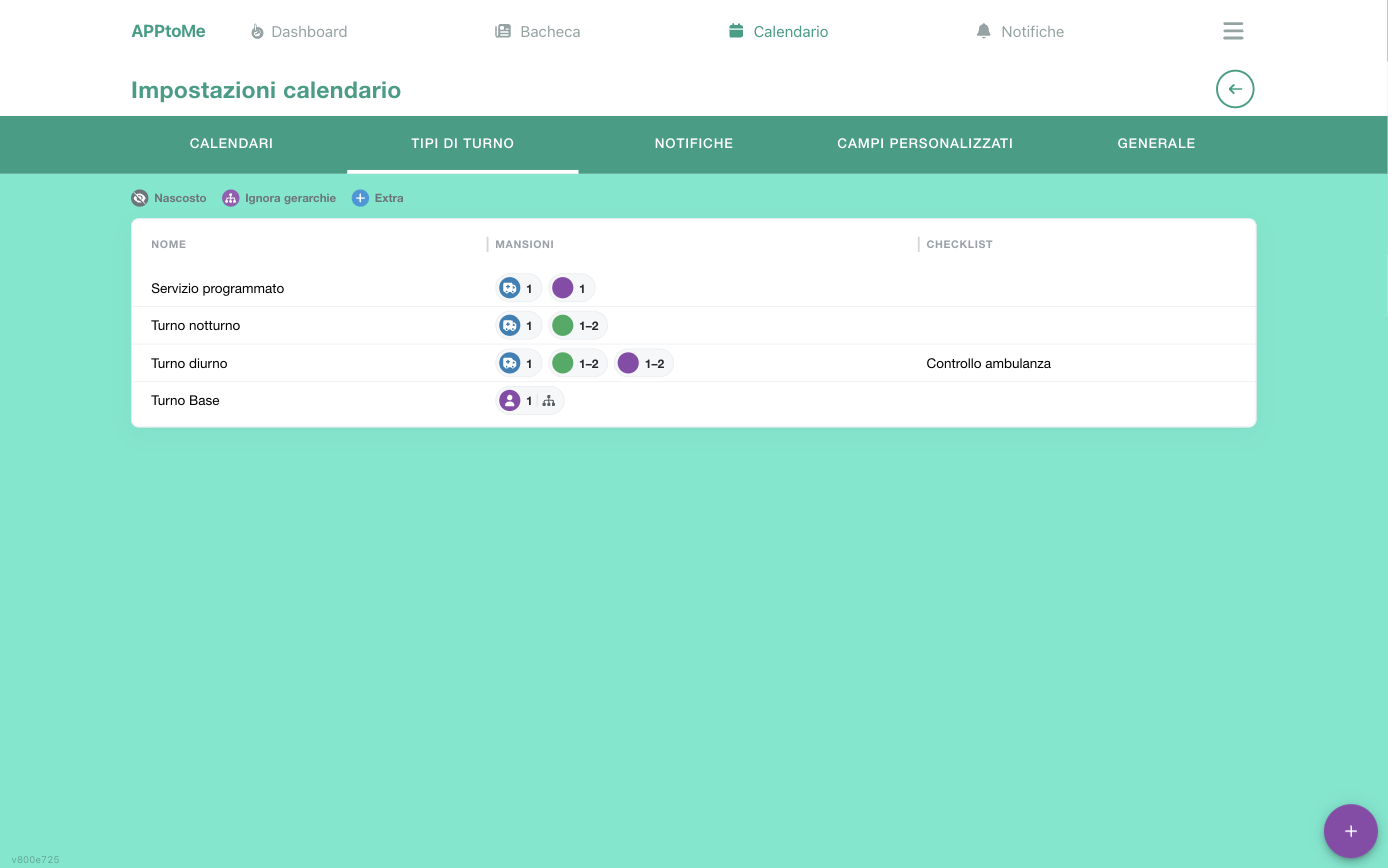
The list of types shows, for each one, the tasks required as coloured dots
with the number of people next to them (1, 1–2) and any linked checklist.
The legend at the top explains the symbols of the particular requirements:
Hidden, Ignore hierarchies, Extra.
Checklist types are also linked to the shift type: that is how a checklist appears inside the shift. See Checklists.
How a requirement is verified
A requirement is not a headcount over the whole shift: AppToMe cuts the shift into slots, one for every time someone comes in or goes out, and checks each slot on its own. The requirement is met only if it is met in all the slots.
That is why a shift with many names can stay uncovered: two people each making themselves available for half the shift do not cover a two-person requirement at either moment.
The Maximum works the other way round and should be used with care: exceeding it makes the requirement not met, and so the shift not covered. It is for where one extra place is a real problem (the seats in an ambulance), not as a suggestion.
The three particular options change who is counted:
| Option | Who counts for the requirement |
|---|---|
| none | only those signed up with that task |
| Use hierarchy | also those signed up with a task descending from it: a higher role counts for the lower one |
| Extra | anyone on the shift who holds that task, whatever role they signed up with |
Extra is the way of saying "among those present there must be at least one fire-fighting qualified person", without requiring anyone to occupy that place. Hidden adds that the requirement is not offered to anyone: it is checked, but the volunteer cannot choose that role — it is covered by staff signing people up, or through the extras.
A practical note on order: changing a shift type's requirements reflects on all shifts of that type, including those already published, and a shift that was covered can become uncovered from one moment to the next.
Shift type fields
| Field | Type | What it does |
|---|---|---|
| Name | text, required | how the type appears in the list and inside the shift |
| Checklist types | multiple choice | the checklists that appear in shifts of this type |
| Priority | number, required | the order in which the type appears in the list of shift types |
| Allow edit vehicle necessary jobs | multiple choice | only those with one of these tasks can change the vehicle assigned to the shift |
Fields of a requirement
Every requirement row is a form of its own.
| Field | Type | What it does |
|---|---|---|
| Task | choice, required | the task required |
| Minimum | number, required | how many people are needed for the requirement to be met |
| Maximum | number, required | how many people at most. 0 = no limit |
| Hidden | yes/no | the requirement is checked anyway, but the volunteer cannot sign up in that role |
| Extra | yes/no | the requirement is checked against all the tasks of the people available, not only the role they signed up with |
| Use hierarchy | yes/no | people with a higher task also count |
Requirements are reordered by dragging them by the handle on the left of each row: that is the order they appear in inside the shift.
Notifications
In the Notifications tab you decide who is warned and when. Every rule ties a recipient to certain days, calendars and shift types.
They are for getting the alert to the right person: whoever runs the night shift does not need the notifications of the daytime services.
You can also choose to be warned only when someone cancels an availability, which is the case where you need to act quickly.
How the rules are applied
The three conditions — days, calendars, shift types — must all hold for the notification to go out, and a field left empty means "any". A rule with no calendars and no shift types warns about the whole scope of the organization; and that is why a new rule seems to "notify too much": it is not a flaw, it is an unfilled filter.
The days are compared with the day the shift starts, not the day the person signed up. Whoever covers the nights therefore receives the alert even if the volunteer signed up on a Tuesday morning.
Two things that often surprise:
- notifications go out only when it is the volunteer who acts. If it is you signing someone up or removing them from a shift, the other managers receive nothing: the notification is there to tell you what the volunteers do, not to tell you among colleagues what you have just done;
- the first-shift rule ignores the days. Notify when a volunteer does the first shift for a task respects the filters on calendars and shift types, but not the one on the days of the week: that alert concerns the person debuting in a role, and arrives anyway.
A detail on the first shift: it counts the first shift for that task, not the first shift ever. Someone doing their hundredth service as a rescuer and their first as a driver triggers the alert.
Fields of a notification rule
| Field | Type | What it does |
|---|---|---|
| User | choice, required | who receives the notification |
| Days | multiple choice, required | the days of the week the rule applies to |
| Calendars | multiple choice | limits the rule to certain calendars. Empty = all |
| Shift type | multiple choice | limits the rule to certain shift types. Empty = all |
| Notify only when availability has been canceled | yes/no | warns only when someone removes themselves from a shift |
| Notify when a volunteer does the first shift for a task | yes/no | warns the first time a person covers a certain task |
Custom fields
In the Custom fields tab you add to the shifts information AppToMe does not provide as standard: an agreement number, the name of a contact person, an operational note. They appear in the shift form and are visible to whoever opens the shift.
Every custom field is defined like this:
| Field | Type | What it does |
|---|---|---|
| Label | text, required | the name whoever fills in sees next to the box |
| Type | choice, required | Text, Multiline text, Number, Yes/No, Date, Time, Single choice, Multiple choice, Place, File |
| Choices | list | only for Single choice and Multiple choice: the selectable values, one per line |
| Required | yes/no | the shift does not save if the field is empty |
| Help text | text | a line of help below the box |
Note
With the File type whoever fills in attaches a document (5 MB at most) and whoever opens the shift downloads it. The file stays reachable by anyone who has the link, even without signing in to AppToMe: do not upload documents that must not circulate.
Warning
Making Required a field added along the way also applies to shifts that already exist: at the first edit the field has to be filled in.
General
The General tab holds the options valid for all calendars, among them the combined calendar — the view that merges the shifts of all calendars, the one volunteers see as the first tab.
| Field | Type | What it does |
|---|---|---|
| Cumulative calendar instance | yes/no | turns on the tab that merges the shifts of all calendars |
| Cumulative calendar instance name | text | what that tab is called. Leave it empty for the default name |
Info
The combined tab shows the calendars together: to work on a shift you have to open the tab of the calendar that contains it.