Activities
Info
Only available if the organization uses the Activities module.
Activities are the account of what happened during the service: an intervention, a transport, an outing. The organization needs them to know what was done and for statistics.
When to record one
Activities are tied to the shift. When your shift provides for them, the Complete Activities shortcut appears inside the shift; as with checklists, it appears only if your availability is confirmed.
You also find them in Activities in the menu. If there is none you read No activities.
Recording an activity
- Open the shift and tap Complete Activities, or go to Activities and tap Add.
- If the organization has several activity types, choose the type (Choose type).
-
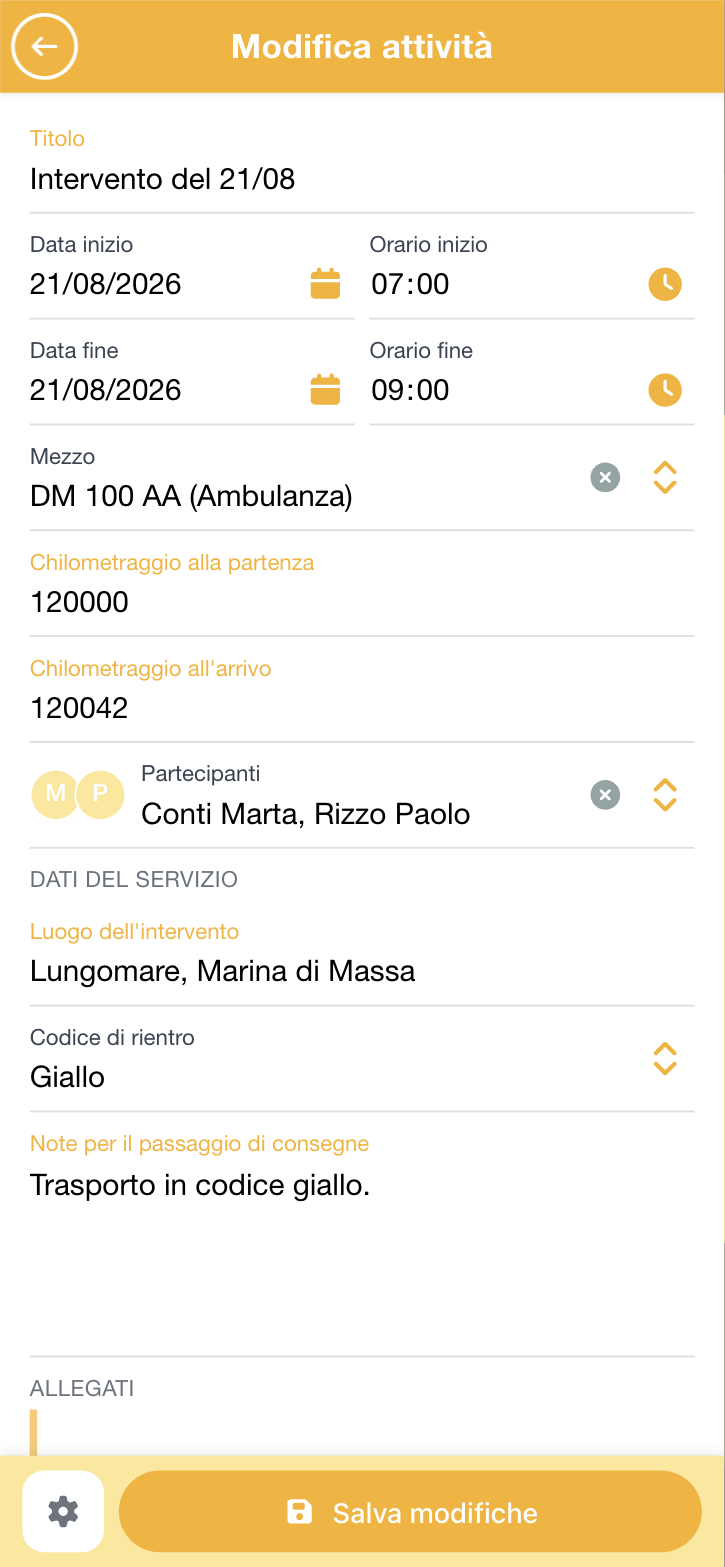
Fill in the part common to all activities:
Field What to write Title a name to recognise the activity in the list Start date and Start time when it began. They are required End date and End time when it ended. While they are empty the activity stays a draft Vehicle the vehicle you used Kilometers at the beginning the km on the odometer at departure Kilometers at the end the km on return Participants who was with you -
Below you find the section with the fields specific to the activity type: your organization configures them, so they change from one organization to another and from one type to another. Fields with a coloured label are required.
- At the bottom, in Attachments, you can add files.
- Tap Save changes.
How it works
Which activities you can record. Every activity type can be tied to certain calendars: if it is, that type does not appear from the shifts of other calendars. That is why the list of types changes from one shift to another.
There is a time window. As with checklists, every activity type has an early tolerance before the start of the shift and a late one after the end. Outside that window you can no longer create or edit the activity: it stays as it is, and a manager is needed to change it. Close your activities before going home.
You need to be on shift. You can record activities only on shifts where you have a confirmed availability.
An activity is "open" in two cases: if the end time is missing, or if there is a vehicle and the km at arrival are missing. In the second case the activity looks complete — everything is there except a number — but for AppToMe it is still open and keeps appearing among the things to finish.
You are reminded twice, no more. If at the end of the shift an activity stays open you receive a notification, within 24 hours of the end; and if you enter a shift that still has open activities, it tells you while you are on duty — the right moment to close them, because the vehicle and the km are in front of you. They are two single alerts: once they have passed, the activity stays open in silence.
Kilometres check themselves. When you choose a vehicle, the figure in Kilometers at the beginning is proposed automatically: it is the arrival mileage of the last activity recorded on that vehicle. You can correct it, but not backwards — the app refuses a starting mileage lower than the one the vehicle came back with last time, and an arrival mileage lower than the departure one.
If the proposed number does not match what you read on the odometer, it almost always means someone before you closed their activity badly: report it instead of forcing the figure.
Drafts
An activity without an End time stays a Draft: you started it but did not close it. The same holds if you set a vehicle and did not enter the km at arrival. Drafts are flagged in the list, so it is easy to find them again and complete them at the end of the service.
Always close the activities you open: a forgotten draft does not enter the counts and forces someone to chase you.
Attachments
You can attach files to activities. In the list, activities with attachments are marked (Has attachments), so you see at a glance where there is documentation.
Do not attach documents with personal data that is not needed: everything stays on the organization's records.
118 missions
If your organization is under agreement with AREU (the Lombardy 118 emergency service), Activities also shows the 118 missions tab: the rescue missions as the dispatch centre recorded them, read-only. You only see those of the shifts you served on. They do not replace activities: you keep filling those in as usual.