Statistics
Info
You need the permission to view statistics.
The statistics answer three questions: who did the most shifts, who gave the most hours, who made themselves available and when.
The three views — Shifts, Hours, Availabilities — are tabs at the top of the page. At the top you find the Filters and the date range everything is calculated on.
The filters
They apply to all three views and combine with each other: the more filters you set, the tighter the count.
| Field | Type | What it does |
|---|---|---|
| Range | dates | the period to calculate everything on. It opens from the button with the calendar: a quick range, such as This month, or two dates |
| Shift name | text | counts only the shifts whose name contains the text given |
| Calendars | multiple choice | limits to the calendars chosen |
| Type of turn | multiple choice | limits to the shift types chosen |
| Tasks | multiple choice | counts only the availabilities given for those tasks |
| Groups | multiple choice | limits to the people of the groups chosen |
| People | multiple choice | limits to the people chosen |
What stays out anyway
The tasks and groups marked Exclude from statistics do not enter the counts, however wide you set the filters.
Shifts
The Shifts tab counts the shifts each person did in the period: the totals at the top, then the bar chart in descending order and below the table with position, Name and Value.
Hours
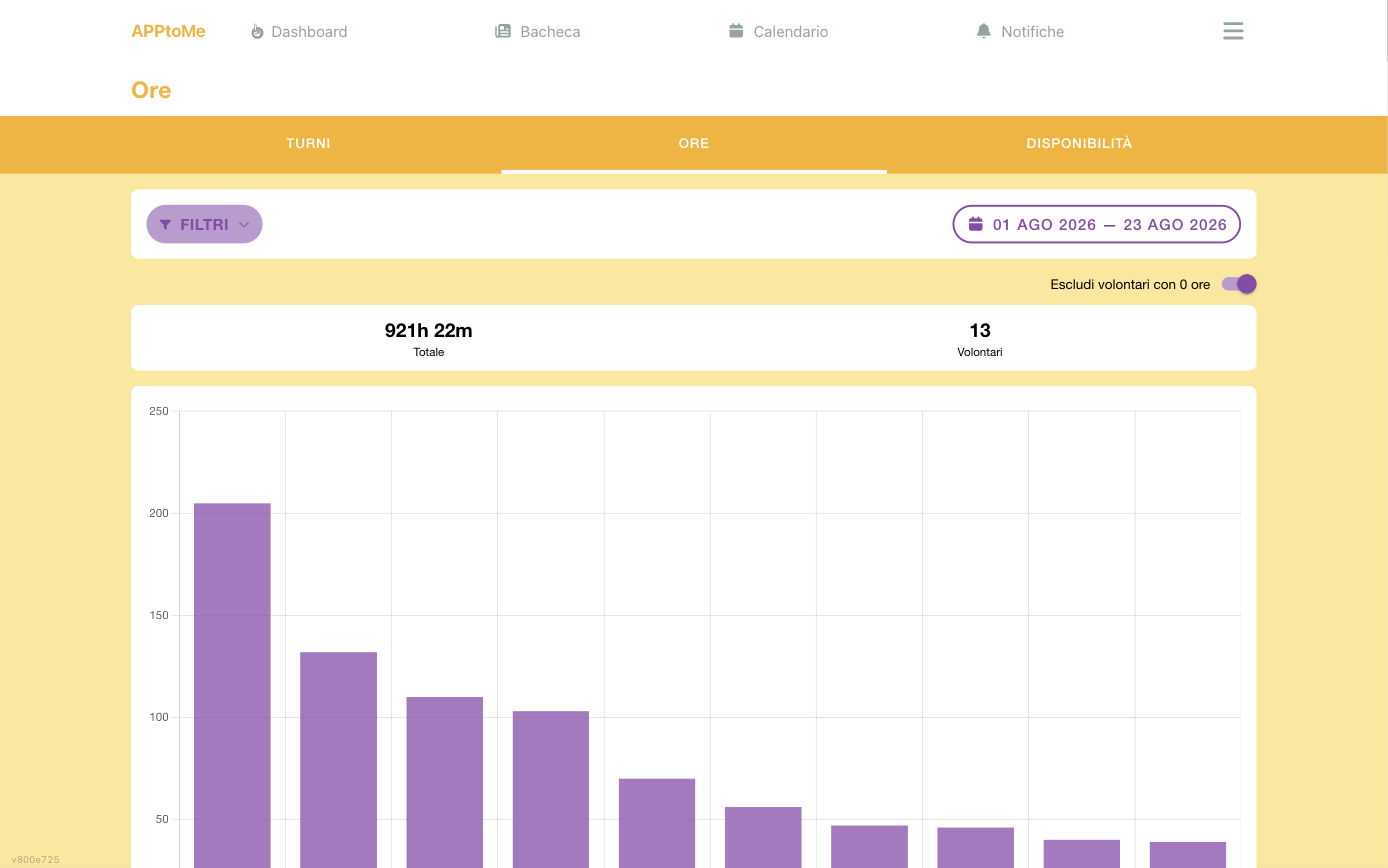
The Hours tab does the same for the hours given. At the top you read the overall Total and the number of Volunteers who contributed; the Exclude volunteers with 0 hours switch takes out of the count those who did nothing in the period, useful when the registry is large.
How the hours are counted
This is the part that generates the most discussion in meetings, so it is worth being precise.
The hours are the duration of the approved availabilities on the shifts of the period, not the hours clocked. In practice AppToMe adds up, for each person, how long every shift they were signed up for lasted:
- only approved availabilities of type available count: an availability still awaiting confirmation brings no hours;
- if the person had made themselves available for part of the shift, only those hours count, not the whole shift;
- the period applies to the start of the shift: a shift beginning on 31 December and ending on 1 January counts entirely in the year it started.
The practical consequence: the hours are the ones planned and approved, not those measured by the clockings. Whoever covered a shift without clocking shows anyway; whoever clocked without being signed up on the shift does not. If you have to report actual attendance, the source is the clockings report, not this page.
The Shifts tab uses exactly the same criteria, but counts the availabilities instead of adding up their duration: the two rankings are consistent with each other by construction.
If a number does not add up, check in this order: was the availability approved? was it partial? does the shift really fall in the period? is the person in a group excluded from the statistics?
If you use Odoo
With the Odoo connector active, the same certified hours reach the management system by themselves as attendance, ready for reporting: see What gets synchronised.
Availabilities
The Availabilities tab is the analytical list, not a ranking: every row is an availability with Start, End, Person, Role, Type and Shift ID.
The Type column is a coloured label and says how that row was recorded: Available, Unavailable, To recall, No answer, Busy.
It is the view to use to reconstruct a specific case — who was there that day, in which role — or to export the raw data.
Period and export
All the views work on the date range chosen at the top and can be exported.
Warning
The statistics concern people and are often used for reports, rewards and meetings. Before circulating them, check the period and remember that a low ranking can depend on a missing datum, not on the person at the bottom.
A warning about incomplete shifts
An organization setting allows excluding incomplete shifts from the statistics — that is, those where not all the requirements were covered. With the option active, the hours of whoever was on the shift disappear from the counts even if that person was there: the criterion looks at the shift, not at who covered it.
Changing it modifies the numbers of every period, past ones included: agree on a criterion and stick to it.
People no longer in the organization
The statistics also include those deleted from the registry: the hours done in the period stay in the counts. It is intended — an annual report that loses the hours of whoever left in June is not a report.