Dashboard
The Dashboard is your personal area: it is the first screen you see after logging in and the place from which you enter your organizations.
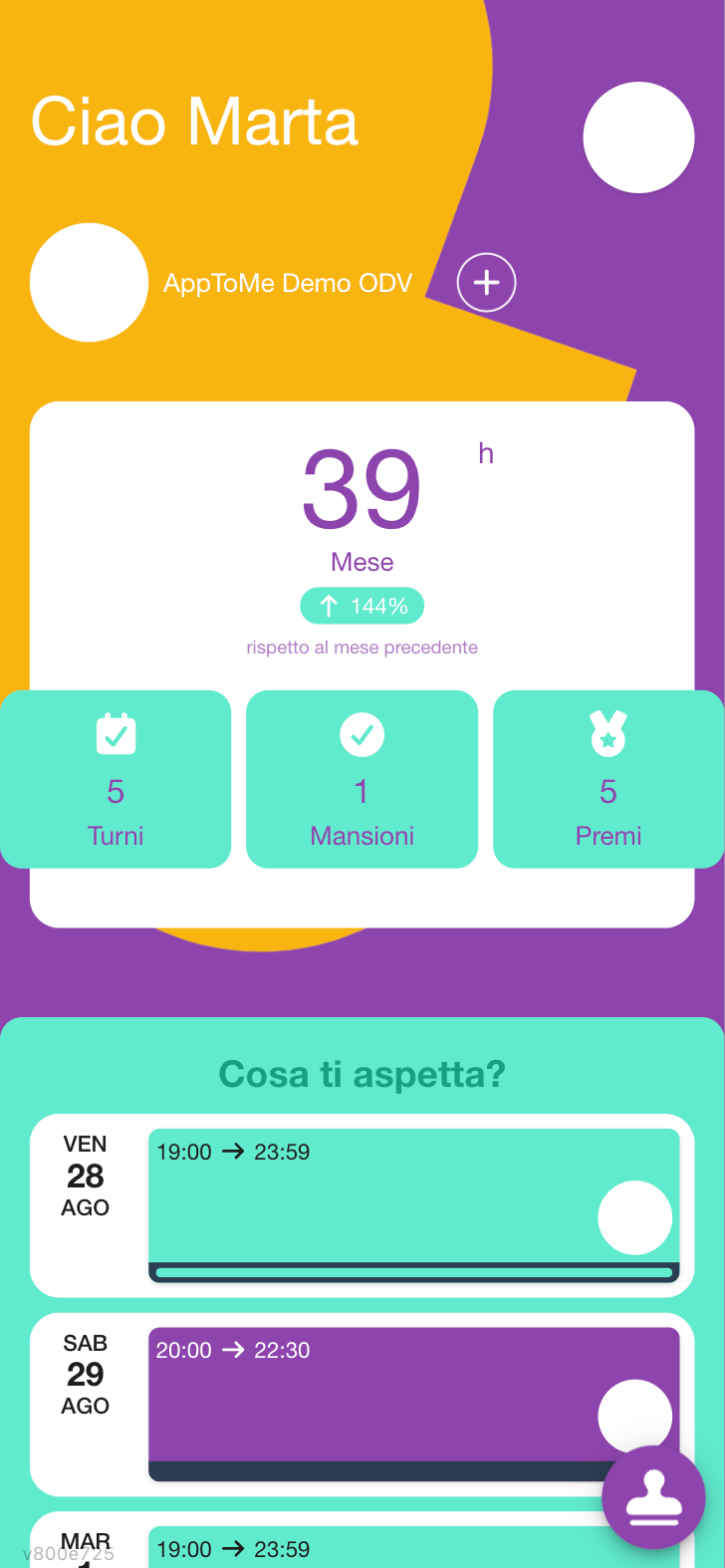
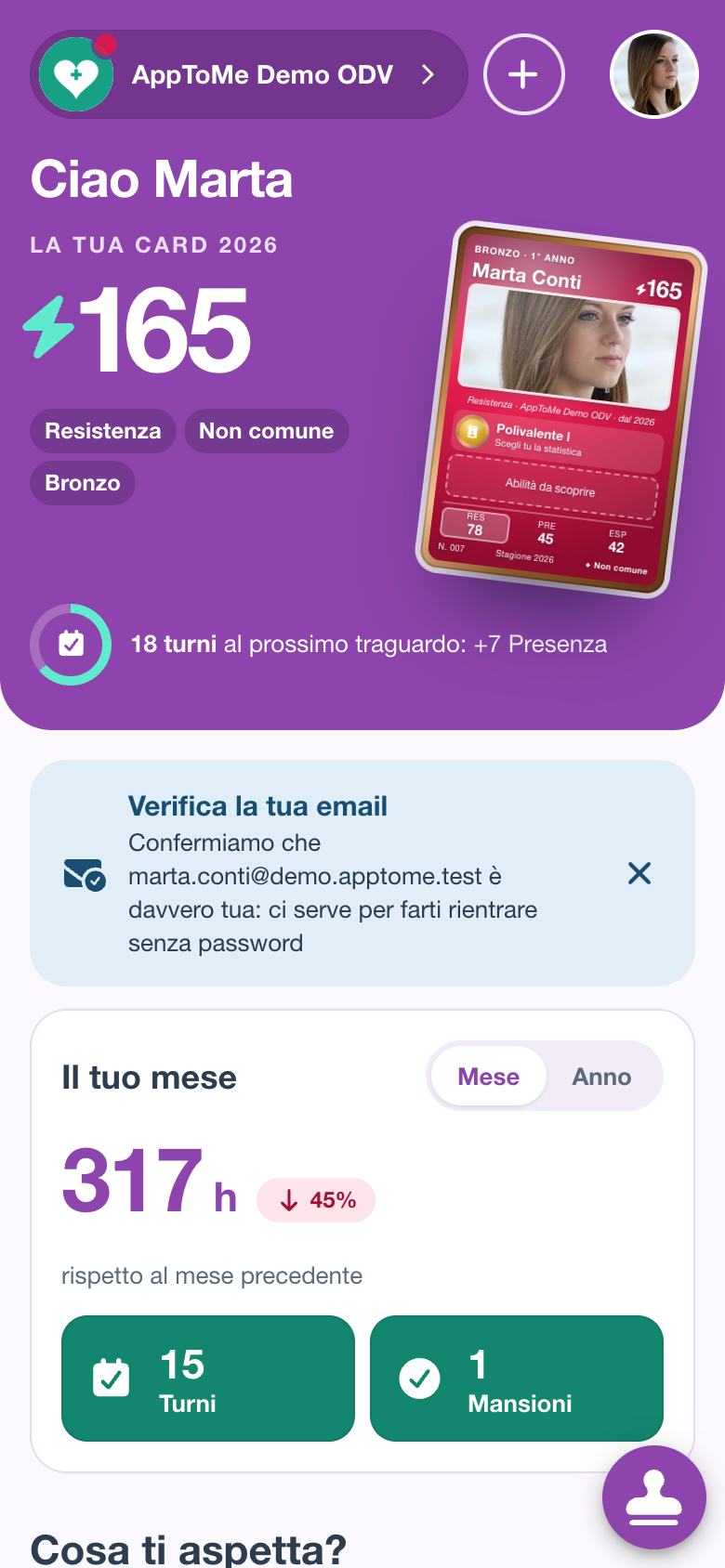
What you see
At the top is the violet band:
- Your organizations: tap an organization to enter it. With just one you see its symbol and name, with more only the symbols. The red dot on the symbol means there are new notifications.
- The + button opens the Organizations list, to ask to join another one.
- On the right, your name and profile picture: tap it to open Profile.
- Hello name.
- Your card, the card of your service: see Your card.
Below, from top to bottom:
- Notifications are off — a warning that only appears if the phone is not letting push notifications through: tap it to fix it, see Notifications.
- Verify your email — a notice that only appears if you never confirmed your mailbox (it happens to those who had the account before September 2026 and log in with a password). Tap it: you get a code by email, type it and the notice goes away. From there you can also fix a wrong address with Wrong address? Fix it. With the ✕ you hide it until the next time you open the app. See How the account works.
- Invitations — only appears if you have pending invitations.
- Your month — your hours, shifts and tasks.
- What's next? — your upcoming shifts and lessons.
- Latest news — the latest posts from the board.
- Courses — the upcoming training courses.
On a computer, news and courses sit in a column on the right.
If you are linked to more than ten organizations, the row of organizations is replaced by the Select organization button, which opens a searchable list.
If you are not in an organization yet
Right after signing up, in place of your month you see the Join your organization box. Tap Find your organization to open the list of organizations and ask to join: see Asking to join an organization.
Your card
The violet band shows your card for the year in the organization you are operating in (after logging in, it is the first of your organizations):
- Your card 2026 and, in large type, the card's power;
- the strongest stat, the rarity and the frame;
- how far you are from the next milestone, for example 17 shifts to the next milestone: +7 Presence;
- the card itself, on the right. A red dot means there is something new: the birth, a power-up or a feat to see.
Tap the band to enter the organization and open the card. How it is born and how it grows is explained in Your card.
Before your first shift of the year you read Born at your first shift, with your next shift. If you are in more than one organization, under Your cards 2026 there is a row for each card: tap a row to enter that organization.
Until the card season opens in your organization, the card is covered: you see Your volunteer card, Every shift will make it stronger. and the three stats with a question mark.
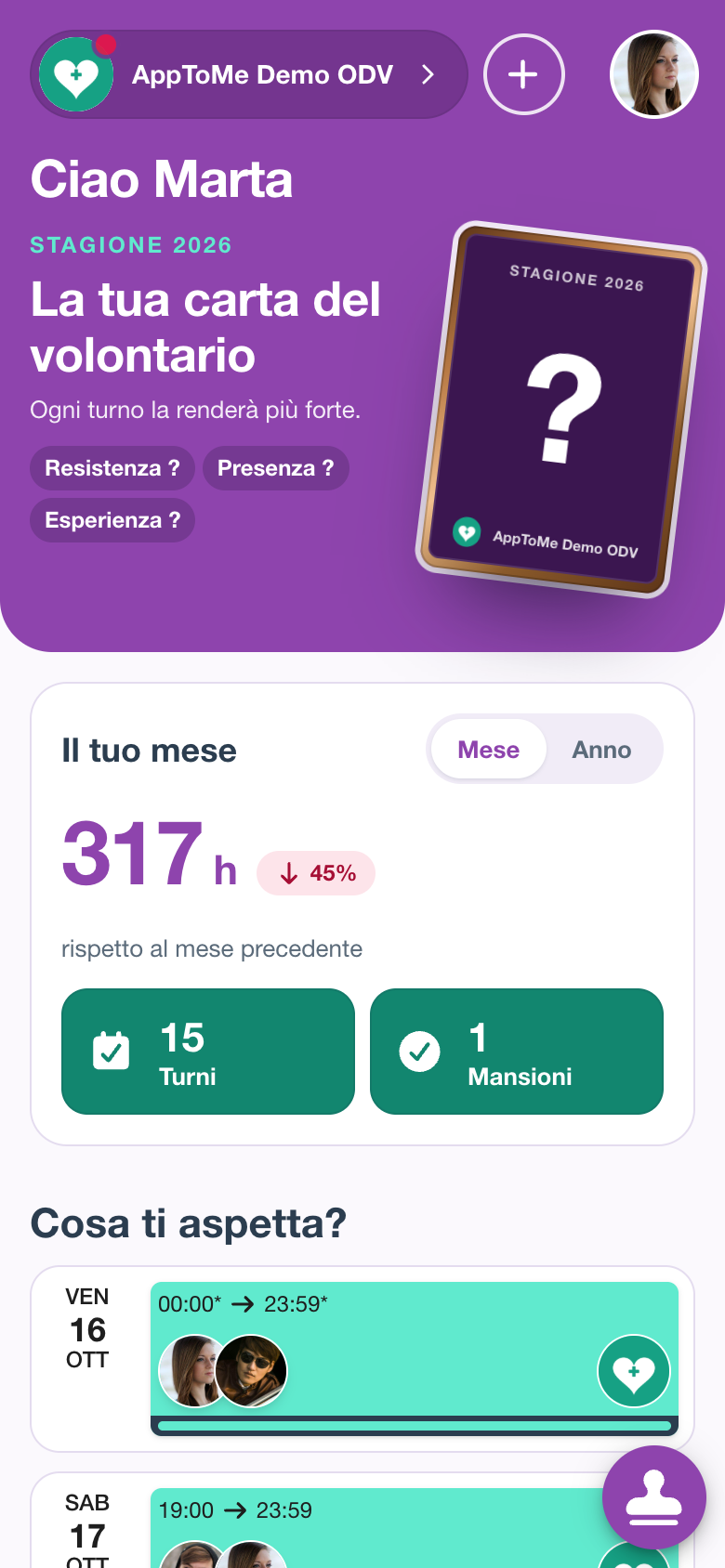
Your month
The box shows the hours you gave in the current month, with the change vs previous month, and two counters:
- Shifts — the shifts you completed
- Tasks — how many different tasks you took on
Use Month and Year to choose the period: fields to change month and year appear, and the box becomes Your year, with the change vs previous year. Below you see the hours split by task. If you did nothing in the chosen period, No activity in this period appears. The ✕ (Back to this month) takes you back to the current month.
If you are in more than one organization, under the counters there is a row for each one with its hours: tap it to see its tasks.
How these numbers are calculated
They are the shifts already over in which you were signed up with confirmed availability:
- the hours are the duration of those shifts. If you had made yourself available only for part of the shift, only those hours count;
- the shifts are the number of those shifts, not of the times you clocked;
- the tasks count the different roles you took on: ten shifts as a driver are worth a single task.
Two surprising things follow. First: a shift in progress is not yet in the numbers — it appears once it is over. Second: the hours do not come from clockings, but from how you were signed up on the shift; if you covered a service without being signed up, it does not show there.
If you are in more than one organization, the counters are the sum of all of them: the rows below show how much comes from each. And if your organization has chosen to exclude incomplete shifts from statistics, those shifts do not appear here either, even if you were there.
The numbers are not real time: AppToMe keeps them aside and recalculates them every few hours, so the Dashboard opens straight away. A shift that has just ended, or a correction made by staff, may therefore take a while to show up: if the count does not add up, try again later before reporting it. The organization's statistics, on the other hand, are calculated on the spot: in the hours in between the two may differ.
What's next?
Lists your next three commitments, shifts and course lessons together, in date order. Tap a row to open the shift in the calendar or the lesson in the course.
If you have nothing scheduled you read Sign up for a shift or enroll in a course: it means you are not signed up anywhere, not that the app is broken.
Latest news
The latest posts published on your organizations' board. Tap a news item to open it in full, or Board to see them all; see Board.
Courses
Info
Only available if the organization uses the Courses module.
The upcoming courses of your organizations, with their dates: tap a course to open it. If there are none you read No courses scheduled: Discover the courses opens the list of courses; see Courses.
Invitations
If a manager has invited you to an organization, here you find the invitation, with the organization's symbol and name and the Reject and Accept buttons. If you reject, you are asked to confirm (Are you sure you want to reject the invitation from …?).
Invitations are handled from here: it is the only place in the app where they appear. An accepted invitation gets you straight into the organization, without going through the access request and waiting for approval — see Sign-up and login.
Clocking from the Dashboard
Info
Only available if the organization uses the Clockings module.
At the bottom right is the button with the stamp: open it to clock in or out without going through the calendar. The full procedure is in Clockings.
Switching between organizations
In the violet band, tap another organization: the app enters that organization and takes you to its calendar. To get back to the Dashboard use the Dashboard entry in the menu.