Vehicle management
Info
Available only if the Vehicle management module is active. You need the Can visualize Fleet permission; to enter deadlines, maintenance and documents, Can manage Fleet.
Deadlines, maintenance, faults, documents and costs of each vehicle, inside AppToMe: the deadline spreadsheet and the fault logbook in one place, with alerts that go out on their own.
The module works on top of the vehicles you already have: the vehicle records stay those of the Vehicles chapter, and the same goes for bookings and out of service. The module adds what you need to keep the vehicles in order.
On this page, module viewers are those with the Can visualize Fleet permission, and module managers those with Can manage Fleet, which includes the first.
How it is enabled
Vehicle management is switched on from Plan and contract, like the other modules: see Plan and contract. Once it is active, permissions decide who sees it, see Roles and permissions.
What changes in the app
With the module active:
- in the Vehicles entry, the Vehicles tab also shows each vehicle's status, next deadline and open faults, with the counters at the top. The + button to add a vehicle and the vehicle's card are still there;
- the vehicle's card has five more tabs: Technical details, Deadlines, Maintenance, Documents and Costs;
- the gear at the top right of Vehicles opens Vehicle settings, for module managers;
- in the menu, under Resources, the Deadlines entry appears: all the vehicle deadlines in a single list;
- in the shift, the crew finds Report a problem and On-board documents for each vehicle, see Shifts.
Without the module, or without its permissions, the Vehicles entry stays as it has always been.
The Vehicles tab sits inside the Vehicles entry: to reach it you also need the Can visualize Vehicles permission. The Deadlines entry, on the other hand, only asks for the module's permission.
Getting started
As long as there are no deadlines, the Vehicles tab shows No deadlines yet. From there, start like this:
- Open Vehicle settings with the gear and choose the Fleet referents (in this guide, the general referents): they are the people who receive faults, deadlines and the Monday summary. See Vehicle settings.
- Load the deadlines you already keep: all together from an Excel sheet, with Import deadlines from Excel, or vehicle by vehicle from the vehicle's Deadlines tab. See Importing deadlines from Excel.
- Tell the crews that faults are reported from the shift, with Report a problem.
Vehicle status
At the top of the Vehicles tab, five counters: Vehicles, Deadlines within 30 days, Overdue deadlines, Open faults and Out of service. When they are not zero they change colour: yellow for what is coming up, pink for what is already a problem.
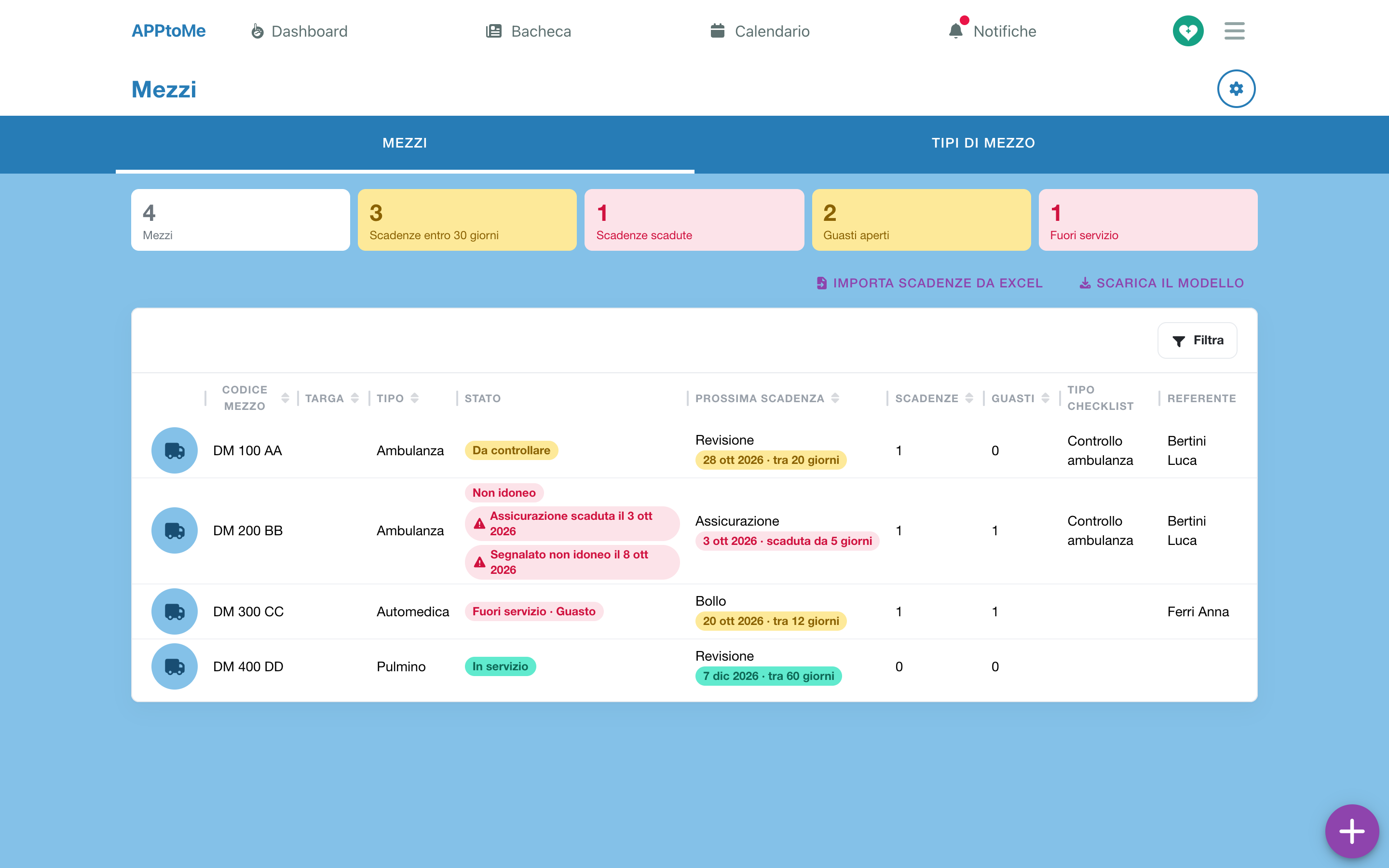
Below, the list of vehicles:
| Column | What it shows |
|---|---|
| Vehicle code, License plate, Type | the vehicle's details |
| Status | how the vehicle is doing, see below, with the red warnings |
| Next deadline | the type and date of the first open deadline, with the days left |
| Deadlines | how many deadlines fall within 30 days, overdue ones included |
| Faults | how many fault reports are still open |
| Checklist type | the checklists linked to the vehicle |
| Contact person | the vehicle's referent, from the Technical details |
On the phone you keep the name, status, plate, type and next deadline; the other columns appear on a wider screen.
| Status | What it means |
|---|---|
| In service | nothing to report |
| Needs attention | a deadline within 30 days or already overdue, or an open fault |
| Unfit | someone reported that the vehicle cannot go out, and the report is still open |
| Out of service | the vehicle is stopped right now: next to it you find until when and the reason |
Under the status two red warnings may appear, the same ones seen by whoever assigns the vehicle to a shift or books it:
- Insurance expired on … — an open deadline has gone past its date;
- Reported unfit on … — an open report says the vehicle cannot go out.
They are warnings, not blocks: the vehicle can still be assigned and booked until someone puts it out of service.
Tap a vehicle to open its card.
The vehicle card
The card opens with the vehicle's code in the title. The first tab, Summary, holds the details from the Vehicles chapter; then come the module's tabs. On the phone the row of tabs scrolls sideways.
In the gear you find the actions on the vehicle: deleting it, putting it out of service or back in service, as in the Vehicles chapter, and Report a problem.
Technical details
The details only the module needs: Fuel, Tank capacity, Registration date and Contact person. Module managers change them with Edit technical details.
| Field | Type | What it does |
|---|---|---|
| Fuel | choice | Diesel, Petrol, LPG, Methane, Hybrid or Electric |
| Tank capacity (litres) | number | the litres of the tank |
| First registration | date | the date on the registration certificate |
| Vehicle referent | person | Told about the faults and deadlines of this vehicle, as well as the general referents |
The Report a problem button is here too.
Deadlines, Maintenance, Documents, Costs
Each has its own chapter below: Deadlines, Maintenance and faults, Documents, Costs.
Deadlines
Three things to tell apart:
- the deadline type — inspection, insurance, road tax…;
- the plan — for one vehicle and one type, how often the deadline comes back and with how many days' notice;
- the deadline — the actual date, open until you record it as done.
When you record a deadline as done, it closes and, if the vehicle has a plan for that type, the next one is created on its own.
The deadline types
The module comes with six types. Each one closes in one of two ways:
| Type | Closed by |
|---|---|
| Inspection | Garage work |
| Service | Garage work |
| Fixed on-board devices check | Garage work |
| Insurance | Renewal |
| Road tax | Renewal |
| Health authorization | Renewal |
Each type starts with reminders 30 and 7 days before the deadline. The types you add yourselves close with a Renewal. See Deadline types.
A vehicle's plan
In the vehicle's Deadlines tab, the first part is the Deadline plan: How often each deadline of this vehicle comes back, and how many days' notice.
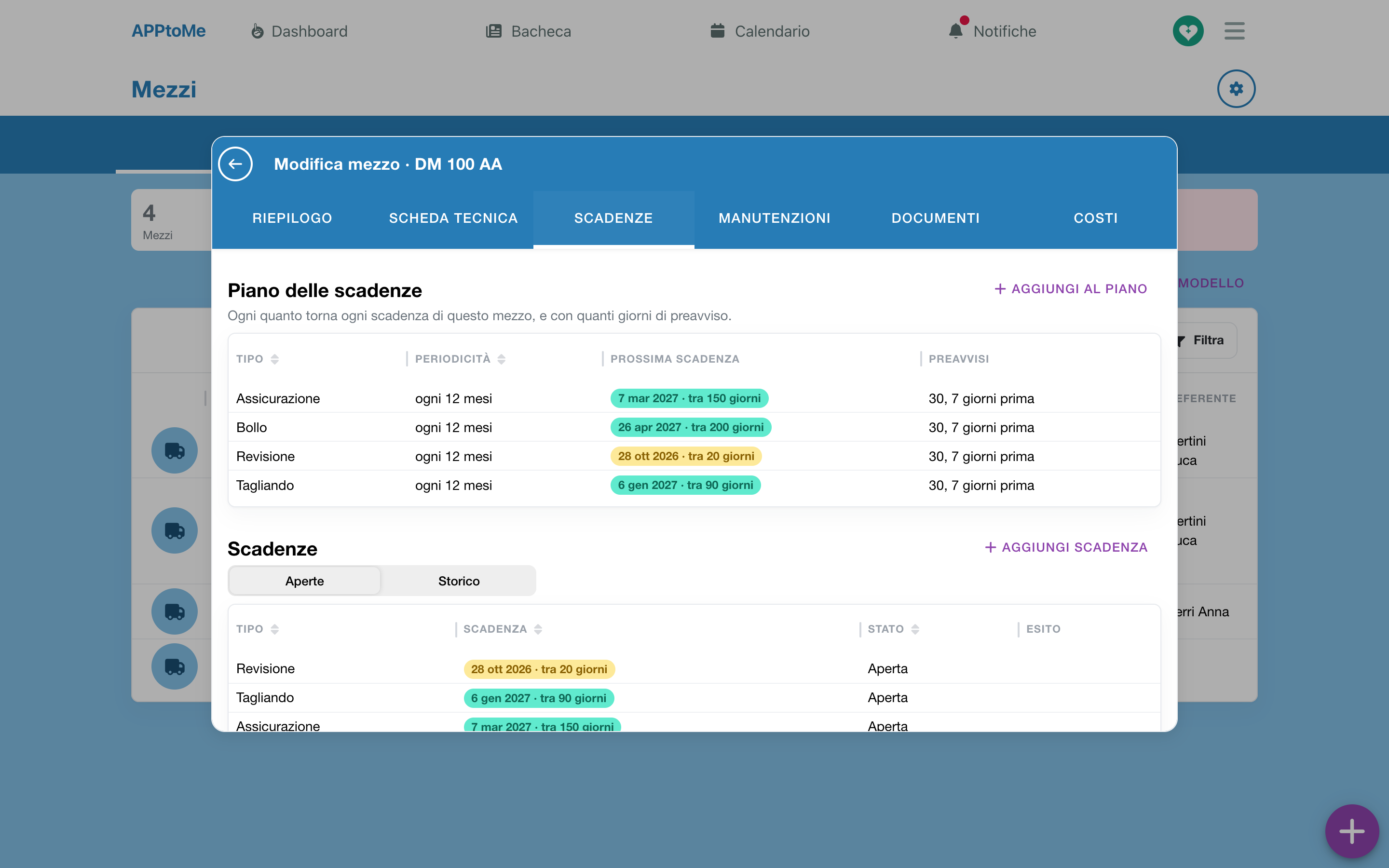
- Tap Add to the plan: New deadline plan opens.
- Choose the Type.
- In Every (months) write how often it comes back: 12 for a yearly insurance, 24 for an inspection every two years. Leave it empty for a deadline that does not repeat.
- In Next due date write the date of the current deadline.
- Leave Reminder days empty to use those of the type, or write them separated by commas, for instance 60, 30, 7.
- Save.
| Field | Type | What it does |
|---|---|---|
| Type | choice, required | the deadline type. A vehicle has only one plan per type |
| Every (months) | number | When it is renewed, the next deadline is created this many months later. Leave empty for a one-off deadline |
| Next due date | date | Creates the open deadline, or moves it |
| Reminder days | numbers separated by commas | when the reminders go out. Empty: those of the type |
In the plan list you read, for each type, Every (every 12 months, or one-off), the Next due date and the Reminders (30, 7 days before, or type defaults). Tap a row to change it. If you delete a plan, the deadline already open stays.
A deadline without a plan
Below the plan there is the vehicle's Deadlines list, with Open and History. For a deadline that does not repeat, or to give it a responsible person, tap Add deadline:
| Field | Type | What it does |
|---|---|---|
| Type | choice, required | the deadline type |
| Due date | date, required | the day it expires |
| Reminder days | numbers separated by commas | empty: those of the type |
| Responsible | person | receives the reminders for this deadline, as well as the referents |
Recording a deadline as done
Tap the deadline, in the vehicle's card or in the Deadlines entry: a menu opens with the possible actions.
Register renewal — for insurance, road tax, health authorization and your own types.
- Check Renewed on: it is already filled in with today's date.
- Check New due date: if the vehicle has a plan it is already calculated, counting the plan's months from the old deadline. Paying the insurance early does not move its date.
- If you like, fill in Cost (€), attach the Document (The new policy, the receipt) and write a Note.
- Save.
The deadline closes and the next one is created at the New due date. The document ends up in the vehicle's Documents: a policy as Insurance policy, an authorization as Health authorization.
Register the work — for inspection, service and the check of the on-board devices. New maintenance opens, already linked to the deadline, with the type Ordinary. Fill it in like any maintenance entry (see Maintenance and faults), with two extra fields:
- Inspection result — Passed, To be repeated or Suspended;
- Next due date — When the linked deadline comes back; empty for a one-off. If the vehicle has a plan it is already calculated, counting the months from the day of the work: an inspection is valid from when it was passed.
The deadline closes when you close the maintenance, and the next one is created. If the result is To be repeated or Suspended, though, the deadline stays open and the app asks Inspection not passed — The inspection of … must be repeated or is suspended. Put it out of service? Tap Put out of service to stop the vehicle; otherwise close the question.
Edit deadline — to correct type, date, reminders or responsible person.
Cancel deadline — the app asks Cancel «…»? No next one will be created. You can write the Reason (optional). It is for a deadline that no longer concerns the vehicle, not for an expired one: that one gets renewed.
Deadline reminders
On the reminder days the Upcoming deadline notification goes out, by email too: Inspection of Ambulance 3: due Monday 9 November 2026, in 30 days. Tapping it opens the Deadlines entry.
It goes to the deadline's Responsible, the Vehicle referent and the general referents. Each reminder goes out only once per deadline; if you move the date, the reminders start again for the new one.
A deadline that has passed without being recorded stays open and becomes a red warning next to the vehicle — Insurance expired on … — in the Vehicles tab, in the vehicle choice of a shift and among the Vehicles free in this time slot of bookings. It blocks nothing, unless you have switched on the automatic block.
The automatic block
In Vehicle settings, Put out of service when expired lists the types that stop the vehicle on their own: When a deadline of one of these types expires, the vehicle is put out of service until it is renewed. By default it is empty.
- The check runs every morning: the day after the deadline the vehicle goes out of service with the reason Expired deadline and a note such as Insurance expired on 01/10/2026. The same notifications go out as for an out of service set by hand, see Vehicles.
- When you register the renewal, or cancel the deadline, the vehicle goes back in service on its own.
- If you put the vehicle back in service by hand, the block does not come back the next morning for that same deadline.
Importing deadlines from Excel
The quickest way to start: the deadlines you keep in a spreadsheet go in all together. The same import also serves later on, to update them.
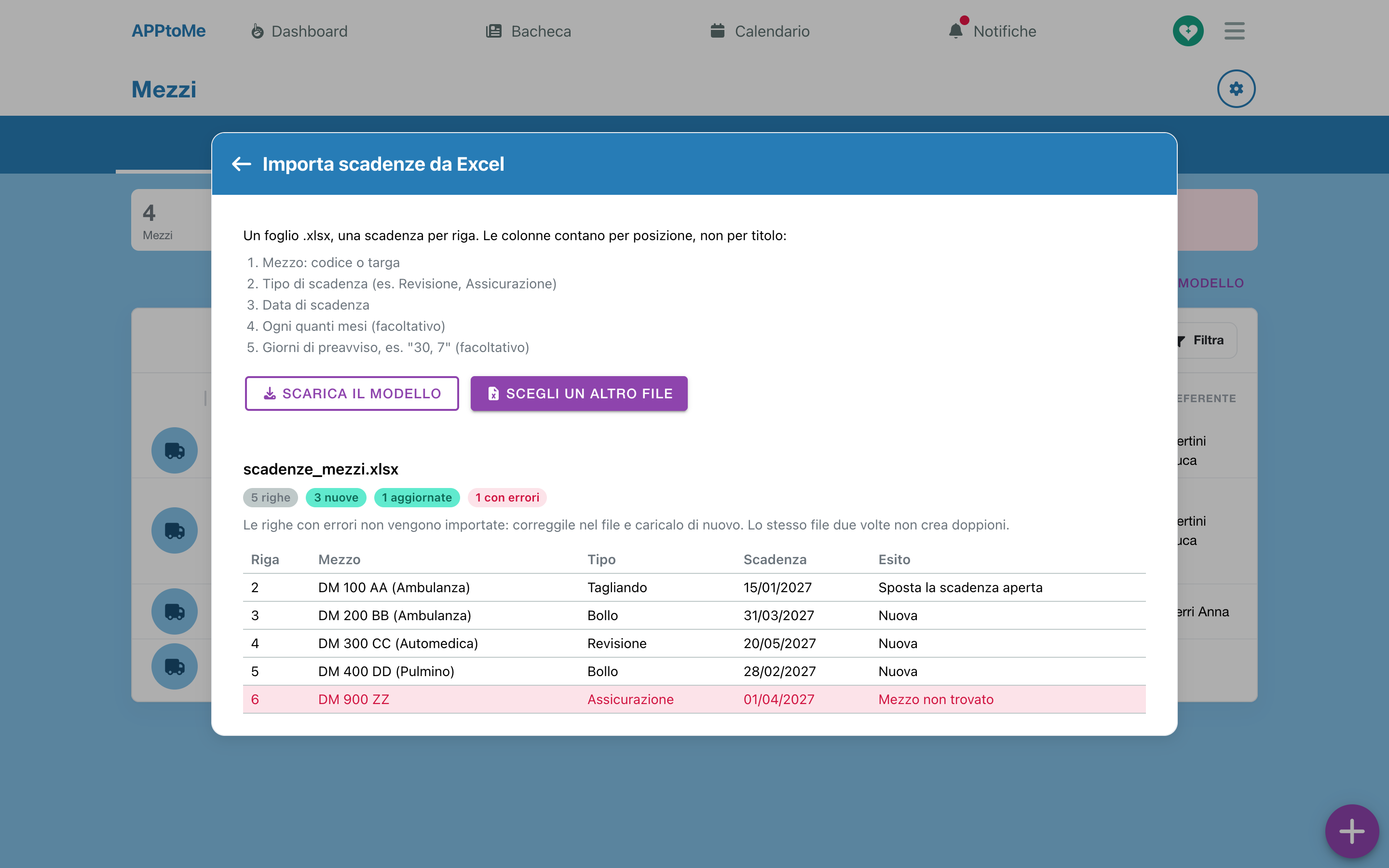
You need the Can manage Fleet permission. Import deadlines from Excel is at the top of the Vehicles tab and in Vehicle settings.
- Tap Download the template: it is an .xlsx sheet with the headings and an example row.
-
Fill in one deadline per row. Columns count by position, not by heading:
Column What to write in it A Vehicle: code or plate. If more vehicles have the same plate, use the code B Deadline type (e.g. Inspection, Insurance), with the name it has in AppToMe C Due date D Every how many months (optional) E Days' notice, e.g. "30, 7" (optional) -
Tap Import deadlines from Excel, then Choose the file.
- The app reads the file and does not import anything yet: it shows how many rows, how many new, how many updated and how many with errors, and for each row the Result: New, Moves the open deadline, Skipped, or the error.
- If there are errors, fix them in the file and choose Choose another file. Rows with errors are not imported.
- Tap Import … deadlines.
For each row the import creates or updates the vehicle's plan for that type, with how often it comes back and the reminders if you wrote them, and creates the open deadline or moves its date. The same file twice creates no duplicates. At most 2000 rows per file.
| Error | What to do |
|---|---|
| Vehicle not found | the code or the plate does not match any vehicle |
| More vehicles have this plate: use the vehicle ID | write the vehicle's code instead of the plate |
| Unknown deadline type | the type does not exist: correct the name, or add it in Deadline types |
| Invalid due date | write a real date, in a date-type cell |
| Invalid period in months | write a whole number of months, or leave it empty |
| Invalid reminder days | write numbers separated by commas |
| Same vehicle and type as a row above | the file already has a row for that vehicle and that type: keep only one |
Maintenance and faults
The vehicle's Maintenance tab collects garage work and fault reports. With Ongoing you see the open ones, with All the history too. For each entry: Date, Type, Status, Description, Garage and Cost.
Module managers open a new entry with New maintenance; module viewers can use Report a problem.
| Field | Type | What it does |
|---|---|---|
| Type | choice | Ordinary (service, tyres, inspection), Extraordinary or Fault |
| Status | choice | see below. A new entry starts as Open |
| Description | long text, required | what is being done, or what is wrong |
| Unfit | yes/no | Reported as unable to go out: a warning in shifts and bookings, it does not take the vehicle out of service |
| Out of service | yes/no | The vehicle is out of service until this record is closed |
| Photo | file | a photo of the damage or of the work |
| Garage | text | Pick one already used or write a new one |
| Km | number | the vehicle's mileage |
| At the garage from / Work done on | dates | when the vehicle went in and when the work was finished |
| Cost (€) | amount | VAT included, optional: it ends up in the Costs |
| Inspection result | choice | only on a maintenance entry linked to a deadline, see above |
| Outcome | long text | how it went |
| Next due date | date | only on a maintenance entry linked to a deadline |
The statuses
An entry goes from Reported (reports only) to Open, then At the garage, then Closed; at any moment it can be Cancelled. Closed and Cancelled are final: a fault that comes back is a new report, with its own date.
Tapping an entry opens Edit maintenance; the actions are in the gear, and only those possible at that moment appear:
| Action | What it does |
|---|---|
| Take charge | from Reported to Open: someone is dealing with it |
| In the garage | the vehicle is at the mechanic's |
| Close | asks Close the work on …? A linked deadline is closed and the next one created. and the Outcome. If Work done on is empty, it becomes today |
| Cancel maintenance | the entry was not needed |
| Put out of service | stops the vehicle straight away, as long as the entry stays open |
| Can go out | removes the Unfit warning; the entry stays open |
Automatic out of service
A maintenance entry with Out of service on puts the vehicle out of service straight away, until further notice, with the reason Breakdown if the type is Fault and Maintenance otherwise. The same notifications go out as for an out of service set by hand.
Closing or cancelling the maintenance, or switching Out of service off, puts the vehicle back in service on its own. It is the right way for a vehicle at the garage: the stop lasts as long as the work, and nobody has to remember to remove it.
Reports from volunteers
The first to see a fault is whoever is on the vehicle. That is why Report a problem does not require staff permissions:
- the approved crew of a shift finds it in the shift, for each vehicle, see Shifts;
- module viewers also find it in the vehicle's card and in its gear.
The form asks What happened, an optional Photo and whether The vehicle cannot go out. It is sent with Send report.
The report starts as Reported, of type Fault, and reaches the referents straight away, except whoever made it:
- usually as the notification A problem has been reported on a vehicle: … reported a problem on Ambulance 3 (…, shift …)., with the description;
- with The vehicle cannot go out, as the notification A vehicle cannot go out, by email too. In addition the vehicle shows as Unfit in the Vehicles tab and shows the warning Reported unfit on … to whoever assigns it to a shift or books it.
The report does not put the vehicle out of service: the staff decide that.
Deciding on a report
Tapping the notification opens the Report: vehicle, description, who made it and when, the shift, and the warning The reporter says the vehicle can't go out. if that is the case. Then the two decisions, before any other action:
- Put out of service — … goes out of service now, until further notice. Staff will be notified. The report becomes Open and the vehicle stays stopped until you close it;
- Can go out — Confirm that … can go out? The report stays open. The Unfit warning disappears; the fault still has to be fixed.
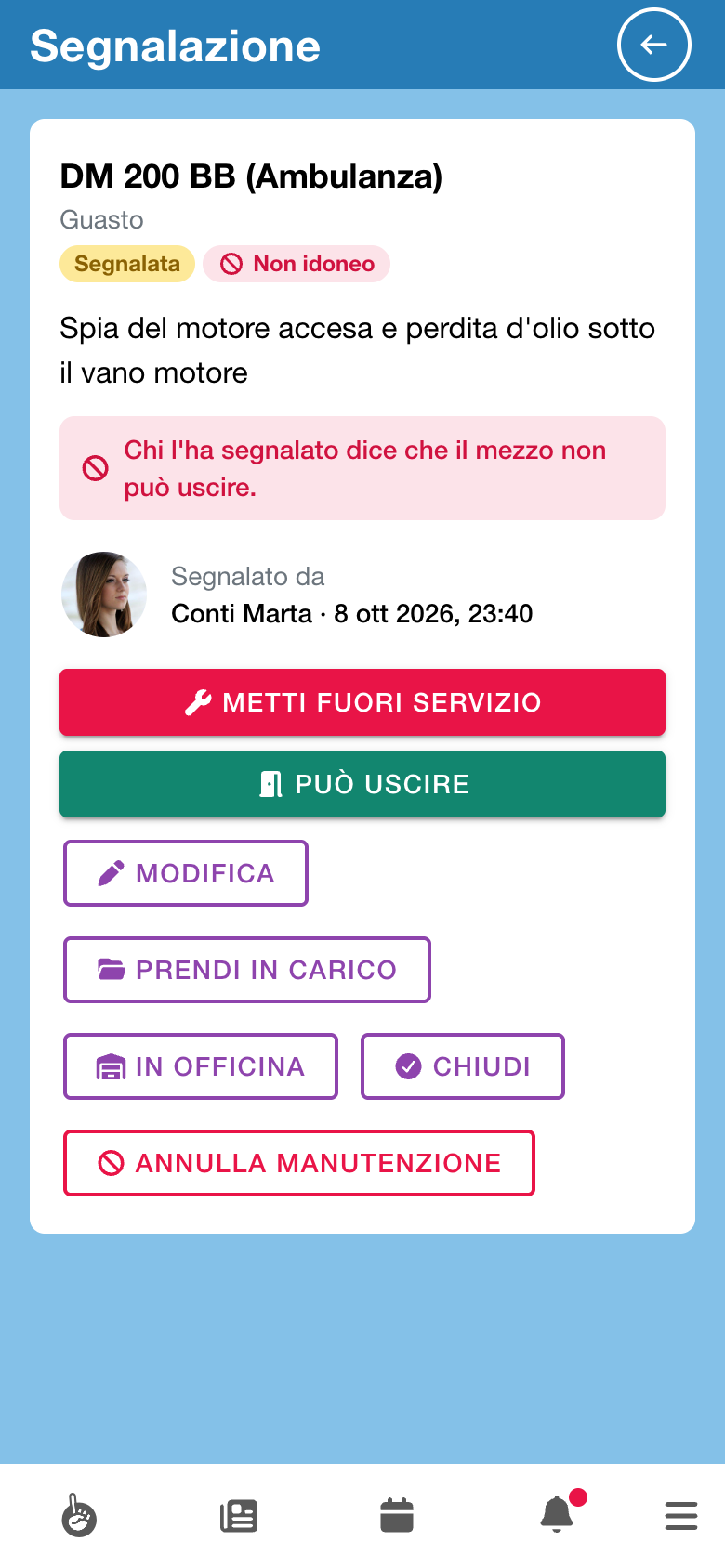
Below you find the entry's other actions, as in the Maintenance tab.
Documents
The vehicle's Documents tab keeps its papers: module viewers read them, module managers upload and delete them.
- Choose the Document type: Registration certificate, Insurance policy, Inspection certificate, Health authorization, Contract (loan, leasing) or Other.
- Tap Upload and choose the file: a photo or a PDF, 5 MB at most. Photos are shrunk before they are sent.
To delete a document the app asks Delete «…»?.
Documents attached to a Register renewal land here on their own.
On-board documents
Registration certificate and Insurance policy are the on-board documents: the approved crew of a shift with that vehicle sees them too, read only, without staff permissions. The other documents stay with module viewers.
Costs
The vehicle's Costs tab adds up what the vehicle cost in the period chosen with From and To: by default, from 1 January of the current year.
Maintenance entries with a cost count, except cancelled ones, and so do renewals with a cost. For each row: Date, Category (the type of maintenance or deadline), Description, Garage and Amount; at the bottom the Total for the period.
Amounts are in euros, VAT included. It is a figure about the vehicle, not bookkeeping: no accounts, balances or suppliers.
Vehicle settings
With the gear at the top right of Vehicles, module managers open Vehicle settings. Three boxes.
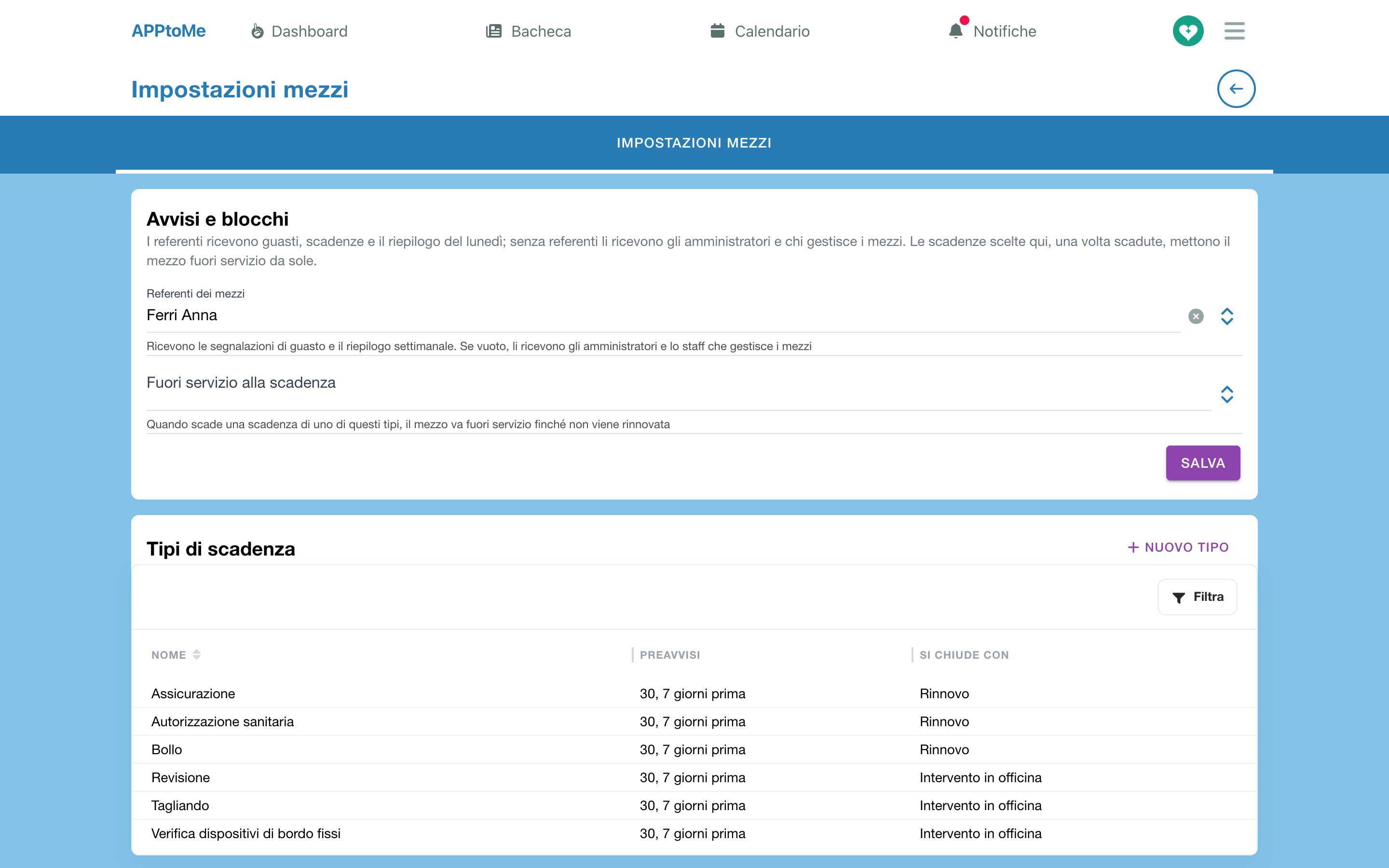
Alerts and blocks
| Field | What it does |
|---|---|
| Fleet referents | Told about reported faults and sent the weekly summary. When empty, the administrators and the module managers receive them instead |
| Put out of service when expired | the deadline types that, once expired, stop the vehicle on their own. See The automatic block |
Tap Save.
Deadline types
The list of types, with Name, Reminders and Closed by.
- New type adds a type of your own: Name and Reminder days. It closes with a Renewal. It can be deleted: deadlines already closed keep it.
- Of the six standard types you can only change the Reminder days: name and way of closing stay as they are.
A type's reminder days apply to every vehicle that has none of its own in the plan.
Import deadlines from Excel
The same import as in the Vehicles tab, see Importing deadlines from Excel.
The Deadlines entry
From the menu, under Resources, Deadlines lists the deadlines of all the vehicles. It is the page the Upcoming deadline notification opens.
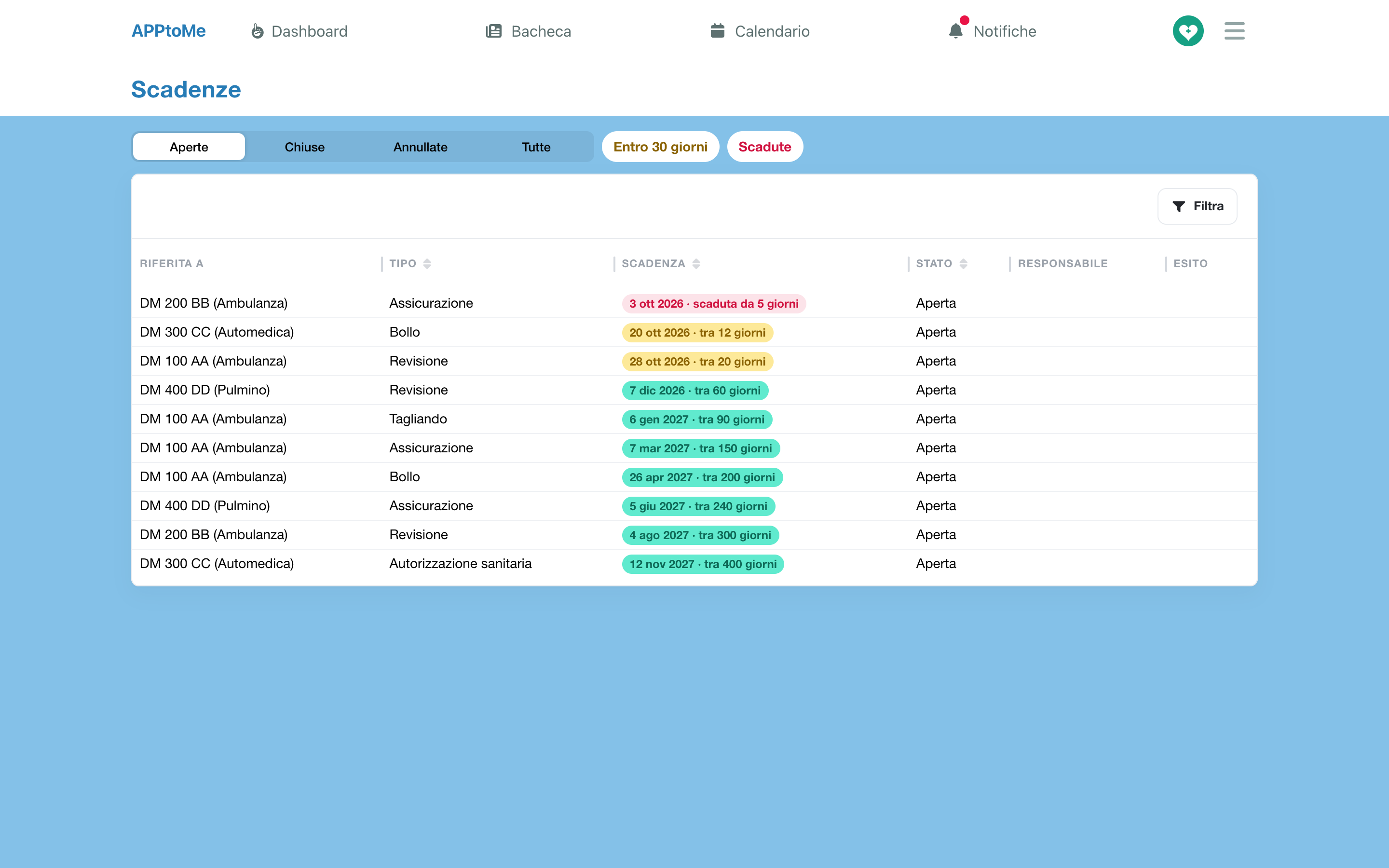
- At the top choose Open, Done, Cancelled or All.
- On the open ones, Within 30 days shows only those coming up, overdue ones included; Overdue only those already past. Tap again to remove the filter.
- The columns are Concerns (the vehicle), Type, Due date, Status, Responsible and Outcome. The filter on Type also searches the outcome.
Tap a deadline for the same actions as in the vehicle's card: Register renewal or Register the work, Edit deadline, Cancel deadline. Module viewers who do not manage it can only read it.
The Monday summary
Every Monday morning the general referents receive Vehicles: the week's summary, as a notification and by email:
- the deadlines within 30 days, and how many are already overdue;
- the open faults;
- the vehicles out of service.
The notification gives the numbers, the email the lists too (up to 20 items per list). Tapping the notification opens the Vehicles tab. If there is nothing to report, the summary does not go out.
Who receives the alerts
| Alert | Who receives it |
|---|---|
| A problem has been reported on a vehicle | the vehicle's referent and the general referents, except whoever reported it |
| A vehicle cannot go out (email too) | the same people |
| Upcoming deadline (email too) | the deadline's responsible person, the vehicle's referent and the general referents |
| Vehicles: the week's summary (email too) | the general referents |
| A vehicle is out of service, from the automatic block or from a maintenance entry | as for an out of service set by hand, see Vehicles |
The general referents are the people chosen as Fleet referents in Vehicle settings. If you have not chosen anyone, the administrators and whoever has the Can manage Fleet permission receive the alerts in their place.
If you use Odoo
The module's deadlines, maintenance, documents and costs stay in AppToMe: the Odoo connector does not carry them to the management system. Nor does it carry the out of service, including the one set by the module.
If something goes wrong
I do not see the status and deadlines of the vehicles — you need the module active and the Can visualize Fleet and Can visualize Vehicles permissions. After receiving a permission, close and reopen the app.
This vehicle already has a plan for this type — a plan for that vehicle and that type already exists: open it and change it.
This deadline is already closed — someone has already recorded it, or cancelled it. Look at the vehicle's History.
The file is larger than 5 MB — shrink the PDF, or upload a photo.
A report reached nobody — check the Fleet referents and that they have an email address. Whoever made the report does not receive it.
The vehicle went out of service again on its own — look at the reason: with Expired deadline it is the automatic block, and it goes away when you register the renewal.