Warehouse from Excel
Info
Available only if the Warehouse module is active, for those with the Can manage Warehouse permission. The rest of the module is in Warehouse.
If your warehouse lives in an Excel sheet today, there is no need to copy it by hand: move it into your warehouse's template and upload it in one go. Areas, items, stock and, with Uniforms and PPE on, what people already hold.
Where it is
- Warehouse settings (the gear at the top right) › Import from Excel;
- in Items, the Import from Excel button above the catalog;
- with an empty catalog, in the Overview and in Items.
In short
- Tap Import from Excel, then Download the template.
- Fill in the sheets you need, in Excel or a similar program, and save the file as .xlsx.
- Tap Choose the file: the app reads the file and tells you, sheet by sheet, what each row would do. It does not write anything yet.
- If there are errors, fix them in the file and upload it again with Choose another file. While there is an error nothing is imported.
- Tap Import.
The template
The template is made for your warehouse: every time you download it, it holds the areas and items you already have. It comes in the language of the app, and the app reads it in any language.
| Sheet | What it holds when you download it |
|---|---|
| Instructions | how to fill it in, in short |
| Areas | the sites, areas and shelves you have |
| Items | the catalog |
| Stock | empty |
| Outfit | empty; it is there only with Uniforms and PPE on |
The rules apply to every sheet:
- columns with the asterisk (*) are required;
- do not change the column headings or the sheet names: that is how the app recognises them;
- the columns with a drop-down list (areas, categories, people, Yes/No) offer what is already there; a new category or area can still be typed;
- on an item already in the catalog an empty cell keeps what is there;
- nothing the file leaves out is archived or deleted: the file adds and updates, it does not remove.
Areas
One row per site, area or shelf: Site *, Area, Shelf. Three levels at most, as in the Areas tab. The areas you already have are listed; add the missing ones. For a new site, just write its name in Site.
Items
One row per item.
| Column | What to write |
|---|---|
| Code | the barcode, if there is one. Without it, the item is found by its name |
| Item * | the name |
| Category | required for a new item |
| Unit | pz, l, pk…; empty means pz |
| Pack size | how many units a pack holds |
| Sizes | separated by a semicolon: S; M; L |
| Size from the profile | Jacket / top, Trousers, Shoes or None |
| Service life (months) | for PPE |
| Minimum stock | below this, across the warehouse sites, the item is on the reorder list |
| Kept in | the usual area, as in the list: Main site / Cabinet 1 |
| Kept in stock | No for what is not counted |
| Notes | model, serial number, box, defects: what the name does not say |
Sizes are added as in the item's card: the first ones only to an item without stock, see Sizes.
Stock
One row per item, size and area, with the quantity counted.
| Column | What to write |
|---|---|
| Code or Item | at least one of the two |
| Size | only for an item with sizes, and then it is required |
| Area * | as in the list: Main site / Shelf PPE |
| Quantity * | decimals too: 7.5 |
| Count date | the day you counted; empty means today |
What happens depends on the area:
- in an area that never had movements, the quantity goes in as an Opening balance;
- in an area that already has some, the stock does not change at once: the file opens an Inventory on its site, with the file's quantities as counted. You review and confirm it like any inventory, see Reviewing and confirming.
A row at zero in an area without movements does nothing: the item stays in the catalog without stock.
Outfit
With Uniforms and PPE on: what each person already holds. One row per person, item and size.
| Column | What to write |
|---|---|
| Person * | chosen from the list, which has name and code: two people with the same name are not mixed up |
| Code or Item | at least one of the two |
| Size | for a garment with sizes |
| Quantity * | how many pieces they hold |
| Delivery date | when they received them; empty means today. The service life of PPE starts from here |
What people hold does not leave the warehouse: they already had it. Each person gets a delivery with No signature, with the reason Initial load from the spreadsheet, which you find in their Equipment tab. No notification is sent.
Uploading the file
After Choose the file the app shows the file name and, for each sheet, how many rows it has and what they would do:
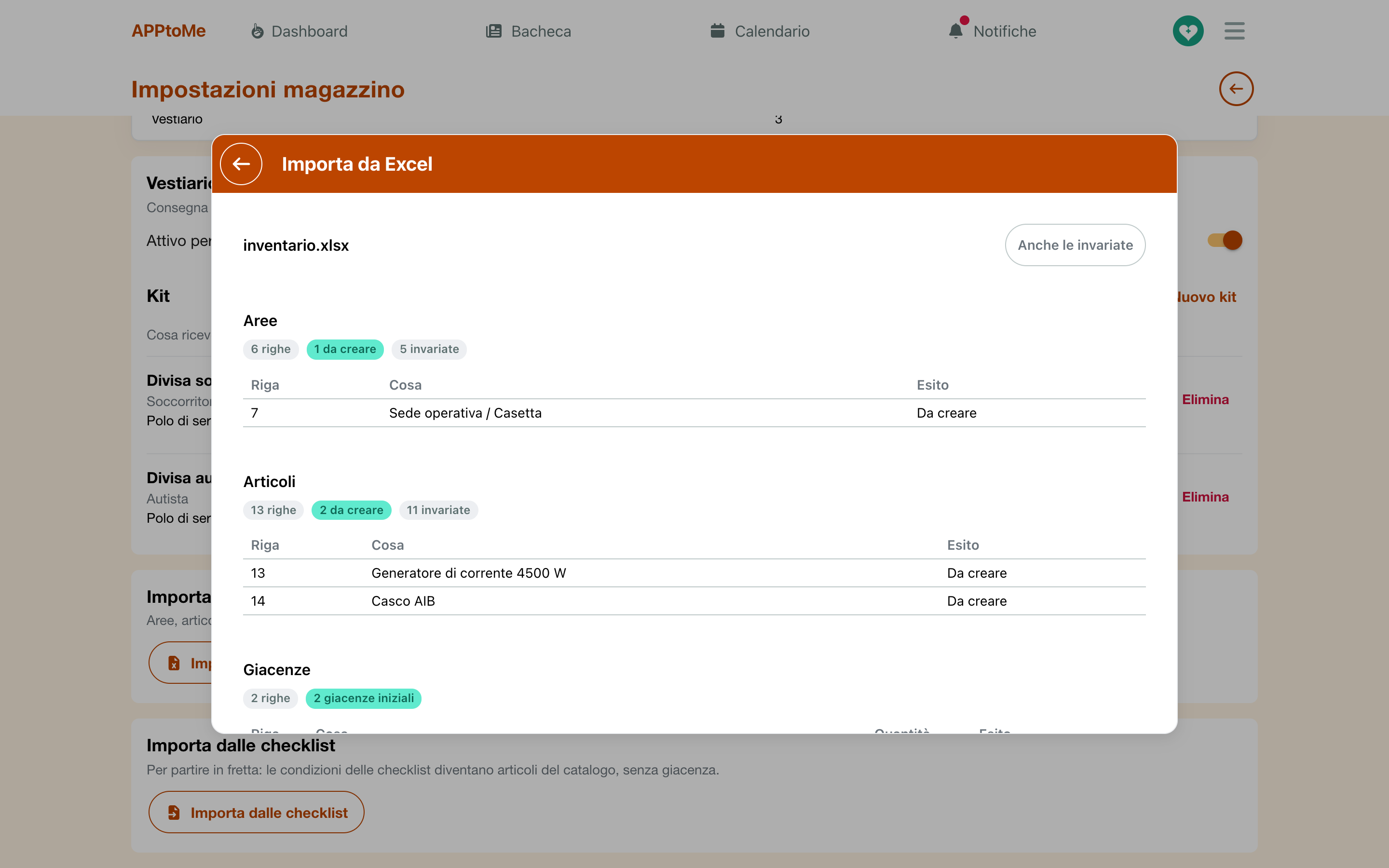
| Outcome | What it means |
|---|---|
| to create | a new area or item |
| to update | an item that changes |
| opening balances | quantities going into an area without movements |
| in an inventory | quantities going into an inventory to confirm: the row says stock now → counted |
| to people | pieces already held by a person |
| unchanged | rows equal to what is already there |
| with errors | rows to fix: the Outcome says why |
With errors, the app shows Errors only: the rows to fix, with the row number in the file. Tap Errors only to see the others too, and Unchanged too for the rows that change nothing.
When there are no errors, tap Import. A message says what was done: areas and items created, opening balances loaded, outfit lines recorded. If the file opened an inventory, the app opens Review adjustments right away.
The same file uploaded twice changes nothing: the second time the app says The file changes nothing: the warehouse is already like this.
The rules
- Repeated rows are an error, never added up: the same item in the same area twice must be fixed in the file.
- Dates are written as Excel dates or dd/mm/yyyy; a date in the future is not accepted.
- A file with an error writes nothing, not even the right rows.
- At most 5 MB and 5,000 rows per sheet.
If something goes wrong
This is not the warehouse template: download it from the app and fill it in — the file does not come from Download the template. Copy the data into the template.
This template is of another version: download it again from the app — the template has changed since you downloaded it.
Unknown column «…» in the sheet … — a heading was changed, or a column was added. Put back the template's name or remove it.
Item not found: … Add it to the sheet Items — a stock or outfit row names an item that is not there: add it in Items, or fix the name.
Area not found: … Add it to the sheet Areas — the area must be written as in the list, site included: Main site / Cabinet 1.
A count is already open for …: confirm or cancel it first — an inventory is in progress on that site: close it in Inventory and upload the file again.
… already holds …: record a delivery or a return in the app — the person already holds a different quantity of that piece: differences are recorded from their Equipment tab, see Uniforms and PPE.
Uniforms and PPE are not active: empty the sheet Outfit — turn the block on in Warehouse settings, or leave the sheet empty.