Activities
Info
Only available if the organization uses the Activities module. You need the permission to view activities; to configure and correct them, the one to manage them.
Activities are the structured account of what happens during the shifts. You are the ones who decide which information to collect.
Activity types
From the Activities section, the gear at the top right opens the Activities settings, where you create the activity types: one for every kind of service you want to report on (emergency, scheduled transport, representation duty).
| Field | Type | What it does |
|---|---|---|
| Name | text, required | how the type appears to volunteers |
| Calendars | multiple choice | the calendars in which this activity type can be used. Empty = all |
| Minutes advance tolerance | number, required | how long before the start of the shift the activity can be filled in or corrected |
| Minutes late tolerance | number, required | how long after the end of the shift it stays editable |
Linking the type to the right calendars is what makes the Complete Activities button appear inside the shifts of those calendars: if volunteers do not see it, this link is almost always missing.
Sections and fields
Inside an activity type you define the Sections — which only have a Name — and inside every section the fields to fill in.
Fields of an activity field
| Field | Type | What it does |
|---|---|---|
| Label | text, required | the name whoever fills in reads next to the box |
| Type | choice, required | Text, Multiline text, Number, Yes/No, Date, Time, Single choice, Multiple choice, Place |
| Choices | list | for choice fields: the selectable values |
| Required | yes/no | the activity does not close while the field is empty |
| Editable | yes/no | if off, the value is entered once and then stays locked |
| Help text | long text | a line of help below the box |
| Contains sensitive data | yes/no | every reading of the activity is recorded, for compliance |
Advice that saves work later:
- few fields, clear ones — a long form is filled in badly or not filled in at all;
- use choices instead of free text where the values are known: they are filterable and comparable, free text is not;
- required is a commitment — if a datum is not always available on site, making it required blocks whoever is filling in.
Fields can be marked as sensitive: access to that data is recorded, so it is known who read it and when. Use it for the information that really deserves it.
How activities behave
The filling window applies to volunteers, not to you. The activity type's two tolerances open and close the possibility of filling in for those on shift; with the permission to manage activities you can act afterwards too. It is for corrections, not as a permanent safety net: an account written three weeks later is worth little.
You need to be on shift. A volunteer can record activities only on the shifts where they have a confirmed availability, and only of the types linked to that calendar.
AppToMe reminds about open activities twice: within 24 hours of the end of the shift, and while they are on duty on a shift that still has open ones. They are two single alerts, they do not insist: what stays open afterwards you recover from this tab, and that is why it is worth looking at it regularly rather than at the end of the month.
Kilometres are a chain. When a vehicle is chosen, the departure mileage is proposed automatically from the arrival of the last activity recorded on that vehicle, and the app refuses a lower value. The consequence is that a wrong closing does not stay a problem of that activity: it blocks or distorts the next one. Corrections on the kilometres should be made early.
Sensitive fields leave a trace. Every time someone opens, prints or exports an activity whose type contains at least one field marked Contains sensitive data, the reading is recorded with user, moment and origin. Lists do not generate records, only access to the detail. It is a protection for the person whose data is in there, and for you who look after it.
These records do not pile up forever: like the other audit traces, they are deleted after a few months (90 days as standard). If your rules ask for them to be kept longer, the period has to be agreed with support: it cannot be extended from the app. And if you have to reconstruct who saw what for an old event, ask straight away — once the window has passed, the trace is gone.
Reviewing activities
In the Activities tab you find all the activities of the period, with Type, Start, End, Vehicle and the indication of whether it has attachments. You can filter, export and print.
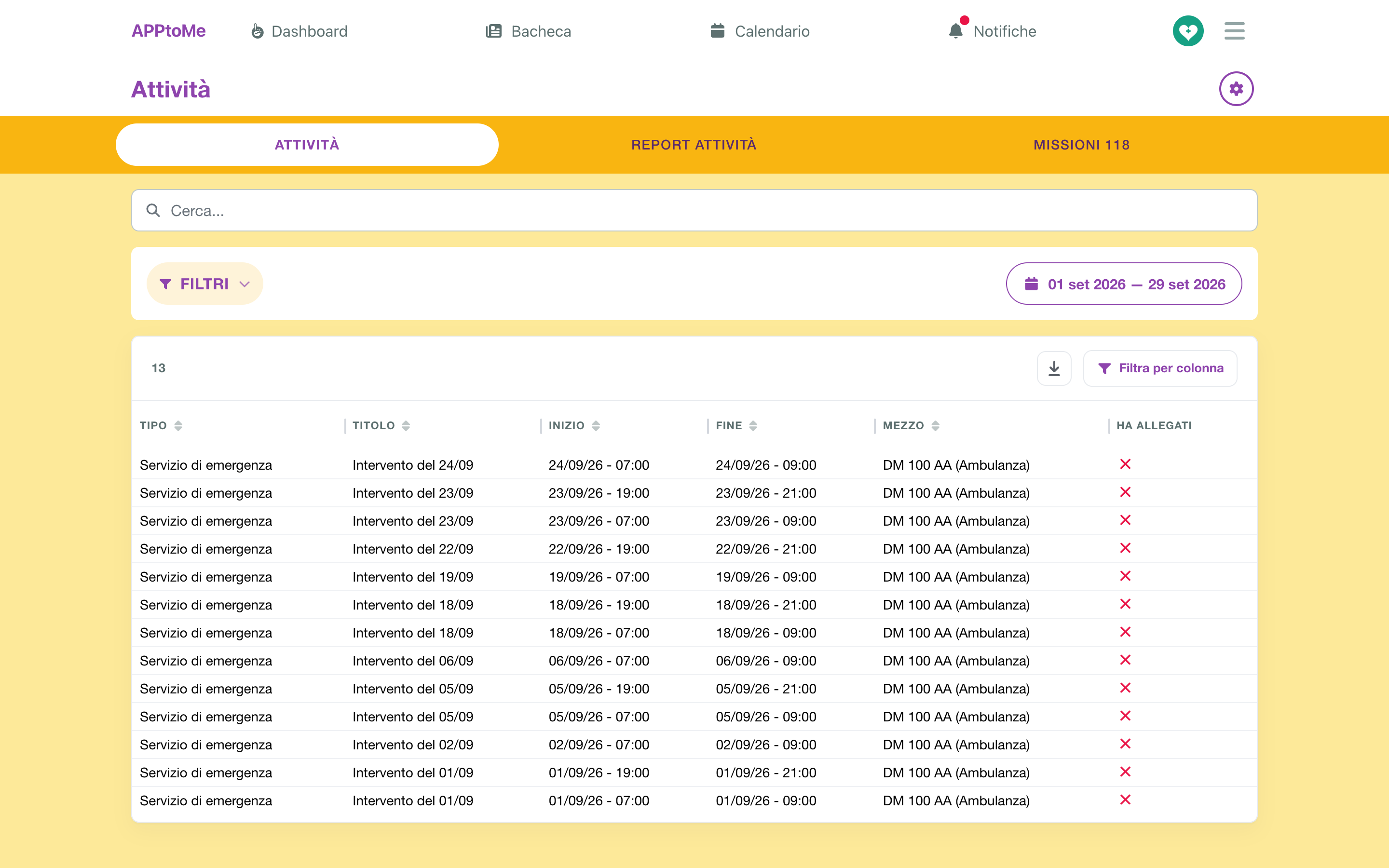
Activities without an end time are drafts: someone opened them and did not close them. They are the first thing to recover, because they do not enter the counts.
Careful: for AppToMe an activity that has the end time but, having a vehicle, does not have the kilometers at the end, is open too. It looks complete and it is not — and it is the most frequent case among those left behind.
The filters available are Shift name, Activity type and Vehicles.
Fields of an activity
These are the fields common to every activity; below them appear the sections and fields defined by the type.
| Field | Type | What it does |
|---|---|---|
| Activity type | choice, required | decides which sections and fields appear |
| Title | text | a name to recognise it in the list |
| Start date / Start time | date and time, required | when the activity began |
| End date / End time | date and time | while they are empty the activity stays a draft |
| Vehicle | choice | the vehicle used |
| Kilometers at the beginning | number | |
| Kilometers at the end | number | |
| Participants | multiple choice | who took part in the activity |
Attachments can be added, each with the file and a Name describing it.
118 missions
If the organization is under agreement with AREU, Activities also shows the 118 missions tab: the missions imported from the dispatch centre, placed next to the shifts. They are a read-only archive, separate from activities: see 118 missions (AREU integration).
Report
The Activities report tab summarises the hours per person in the period.
The period is chosen from the button with the calendar, which opens Range: a quick range, such as Last month, or two dates on the calendar. The last day is included in full. It can be narrowed further by Shift name, Activity type and Vehicles: the activities that fall within all the filters set are counted.
The hours are the duration of the activities — from start to end — attributed to each participant: a two-hour activity with three participants counts two hours for each of the three. Whoever filled in the form is irrelevant: what counts is who is listed among the Participants, so it is worth insisting that that field is filled in well.
An activity still open is worth zero hours. Before using the report for a statement, close the drafts.
As in the statistics, the people of groups marked Exclude from statistics stay out of the count.