Getting started for volunteers
From the app you just downloaded to your first shift, in five steps. It only takes a few minutes: you discover everything else when you need it, and each step leads to the full chapter.
1. Download the app
- iPhone and iPad — https://apps.apple.com/us/app/apptome/id1553043077
- Android — https://play.google.com/store/apps/details?id=it.pagina46.apptome
It also works from a computer browser, but only on your phone do you get push notifications and login with fingerprint or face.
2. Create your account
- Open the app and tap Sign up.
- Fill in Name, Surname, Main phone and Email address.
- Tap Sign up.
- Open your mailbox: type the 6-digit code you received into the app.
There is no password to remember: every time you log in, AppToMe emails you a new code.
Did you get an invitation by email?
Your organization is already expecting you. Sign up with the same address as the invitation and accept it from the Dashboard, in the Invitations card: you are in straight away and you can skip step 3.
Learn more: Sign-up and login.
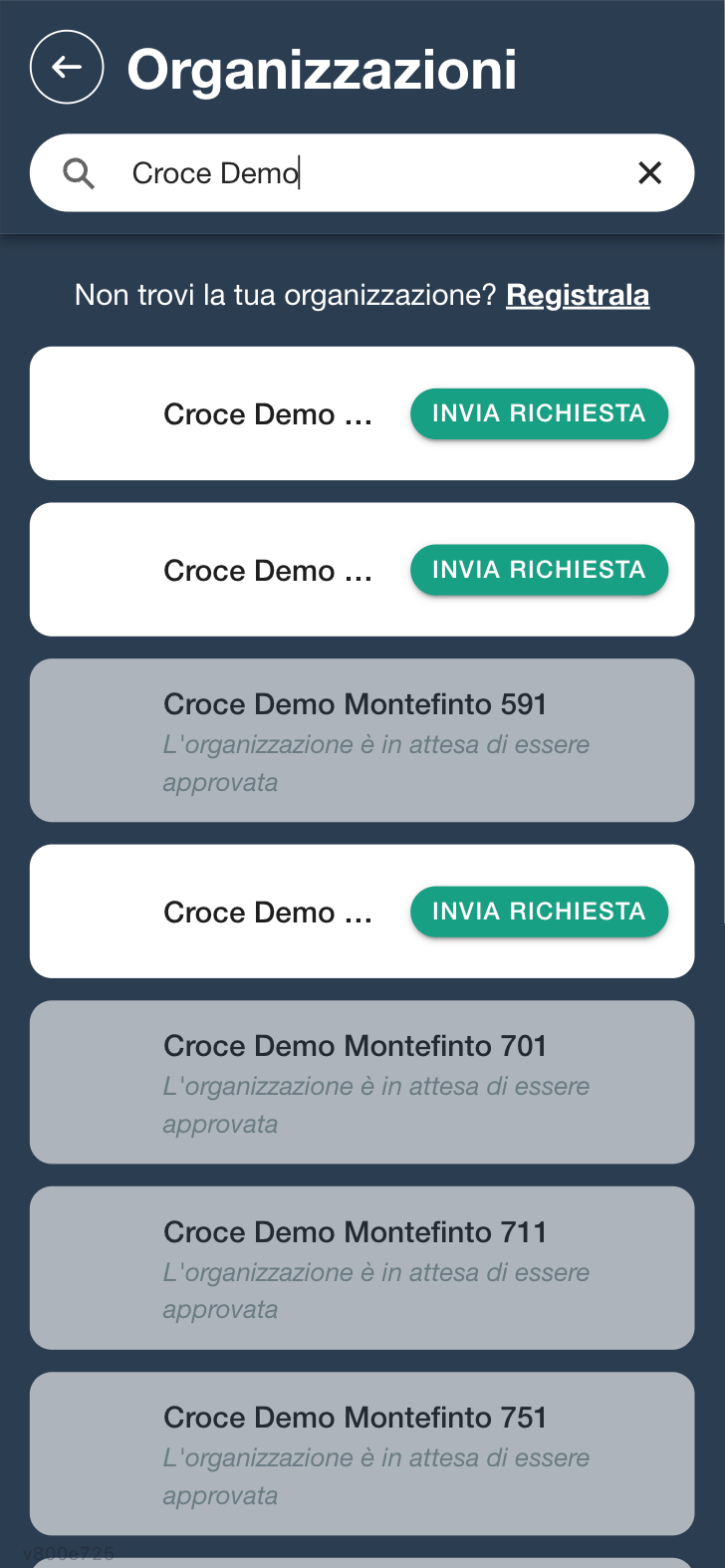
3. Ask to join your organization
- In the Dashboard tap + next to the organizations.
- Type the name of your organization in the search.
- Tap Send request.
Now a manager has to approve you. When they do, the organization appears in your Dashboard.
Learn more: Asking to join an organization.
4. Let notifications through
When your phone asks for permission to send you notifications, accept: that is how you hear about an uncovered shift, a confirmed availability, the reminder the day before.
If you said no, the Notifications are off warning appears in the Dashboard: tap it to fix it.
Learn more: Push notifications.
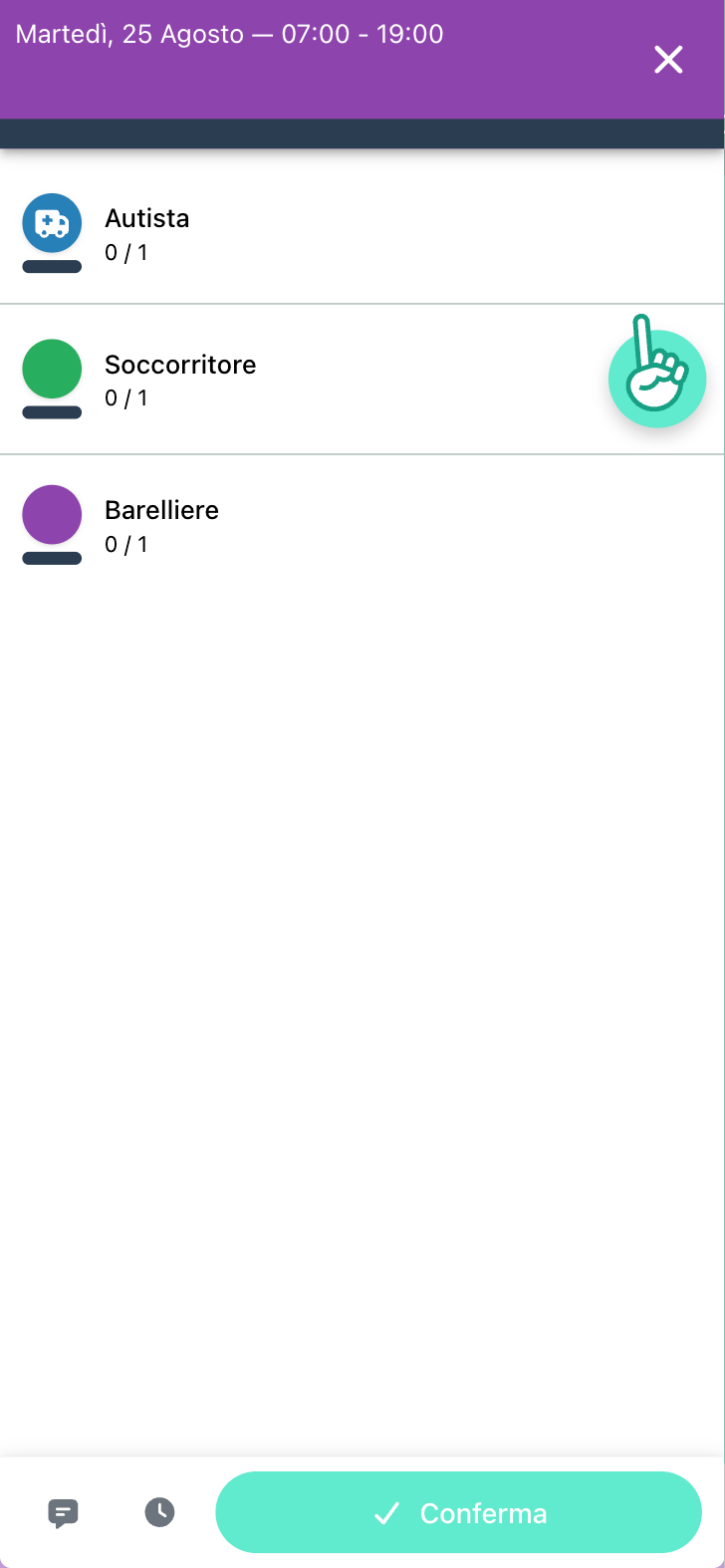
5. Sign up for your first shift
- In the Dashboard tap your organization's symbol: the calendar opens.
- Tap a shift.
- Tap the round button with the hand next to your task.
- Tap Confirm.
If you read Great! you are on the shift. If you read Attention! your availability is waiting for a manager to confirm it: that is normal, in some organizations it always happens.
Learn more: Shifts.
No button with the hand?
It is not a fault. The most common causes:
- you have no tasks assigned yet: a manager gives them to you, in the registry;
- for your task that shift is already covered;
- it is too early or too late to sign up for that shift.
Learn more: Why I do not see the button to offer myself.
Where to go from here
- Your upcoming shifts are in the Dashboard, under What's next?.
- Clockings, checklists, courses and the other features appear in the menu only if your organization uses them: they are explained in the Volunteer guide.
- Got a specific question? Try the Frequently asked questions.