Expense claims
Info
Available only if the organization uses the Accounting module and has switched expense claims on.
Paid out of your own pocket for something the organization needed? Upload it in Expense claims with a photo of the receipt and ask to be paid back.
Where to find it
In the menu, under Resources, tap Expense claims. Everyone with a record among the organization's people sees it, staff included: whoever keeps the books sometimes pays for things too.
If it is not there, your organization does not collect expense claims in AppToMe. From an old link you read Expense claims are off. Either way, ask whoever manages the accounting.
Your expenses
At the top, a box reminds you what the page is for. Below are the expenses you uploaded, newest first, each with its date, amount and status. The filters at the top choose which ones to see: All, Submitted, Approved, Reimbursed or Rejected.
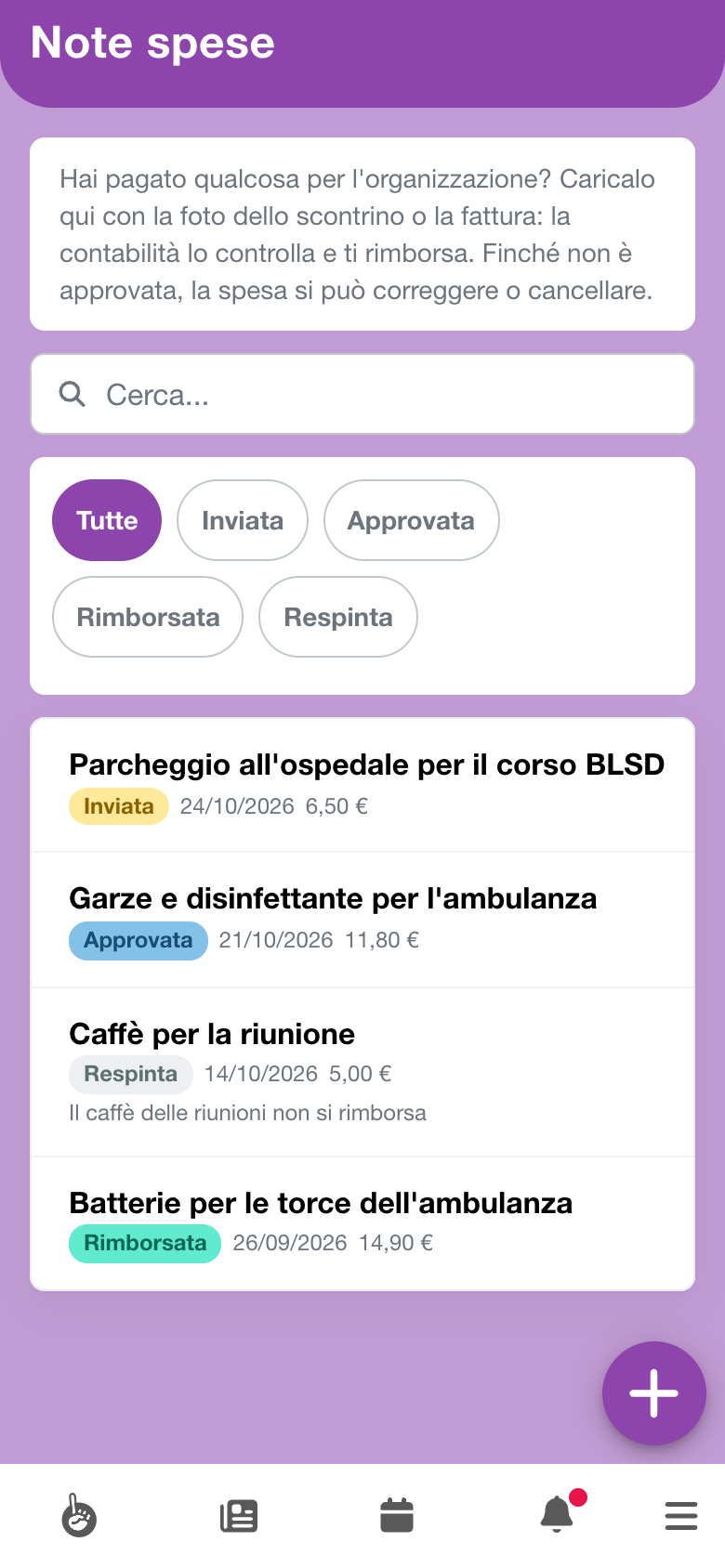
| Status | What it means |
|---|---|
| Submitted | you uploaded it and it is waiting for the accounting. You can still correct or delete it |
| Approved | the accounting accepted it and will pay you back. From now on it cannot be changed |
| Reimbursed | the reimbursement is recorded in the organization's accounts |
| Rejected | it will not be paid back. Under the expense you read the reason |
Uploading an expense
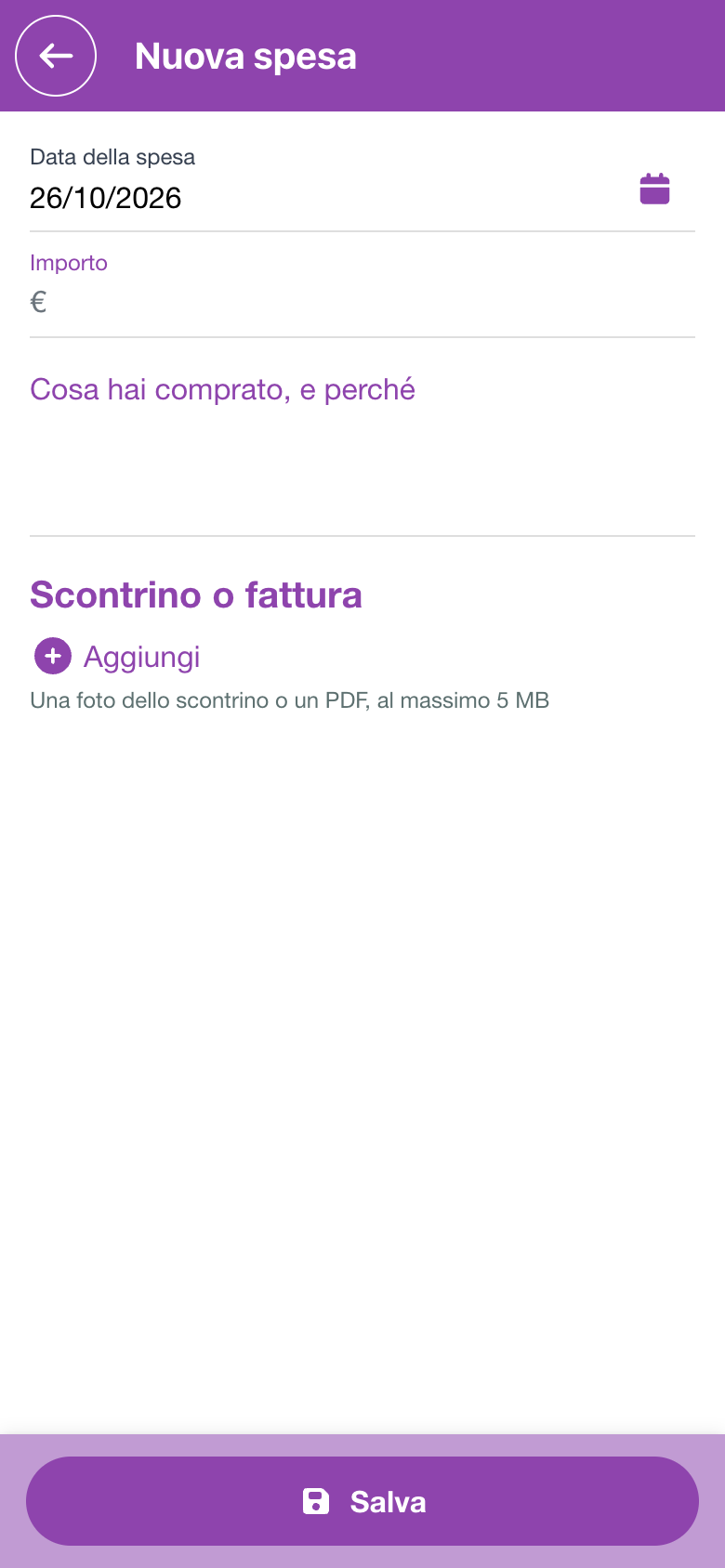
- Tap + at the bottom right: New expense opens.
- In Date of the expense put the day you paid. It starts from today and cannot be in the future.
- Write the Amount in euros.
- In What was bought, and why explain the expense in a few words, for example Gauze and disinfectant for the ambulance. This is the line the person paying you back reads.
- In Receipt or invoice tap Add and choose a photo of the receipt or a PDF, 5 MB at most. At least one is needed. If you also have the card terminal slip, add that too.
- Tap Save. The app confirms with Expense sent.
Each expense gets its own claim. Lunch and parking on the same day are two expenses, with two receipts.
Correcting or deleting an expense
While the expense is Submitted you can change it. Tap it in the list to open it:
- Edit reopens date, amount and description;
- Delete removes it together with its attachments, after the question Delete this expense and its attachments?;
- in Supporting documents, Add a document attaches another file and, from the phone, Take a photo photographs the receipt.
An attachment can be removed, but never the last one: an expense always has its receipt. Wrong photo? Add the right one first, then delete the other.
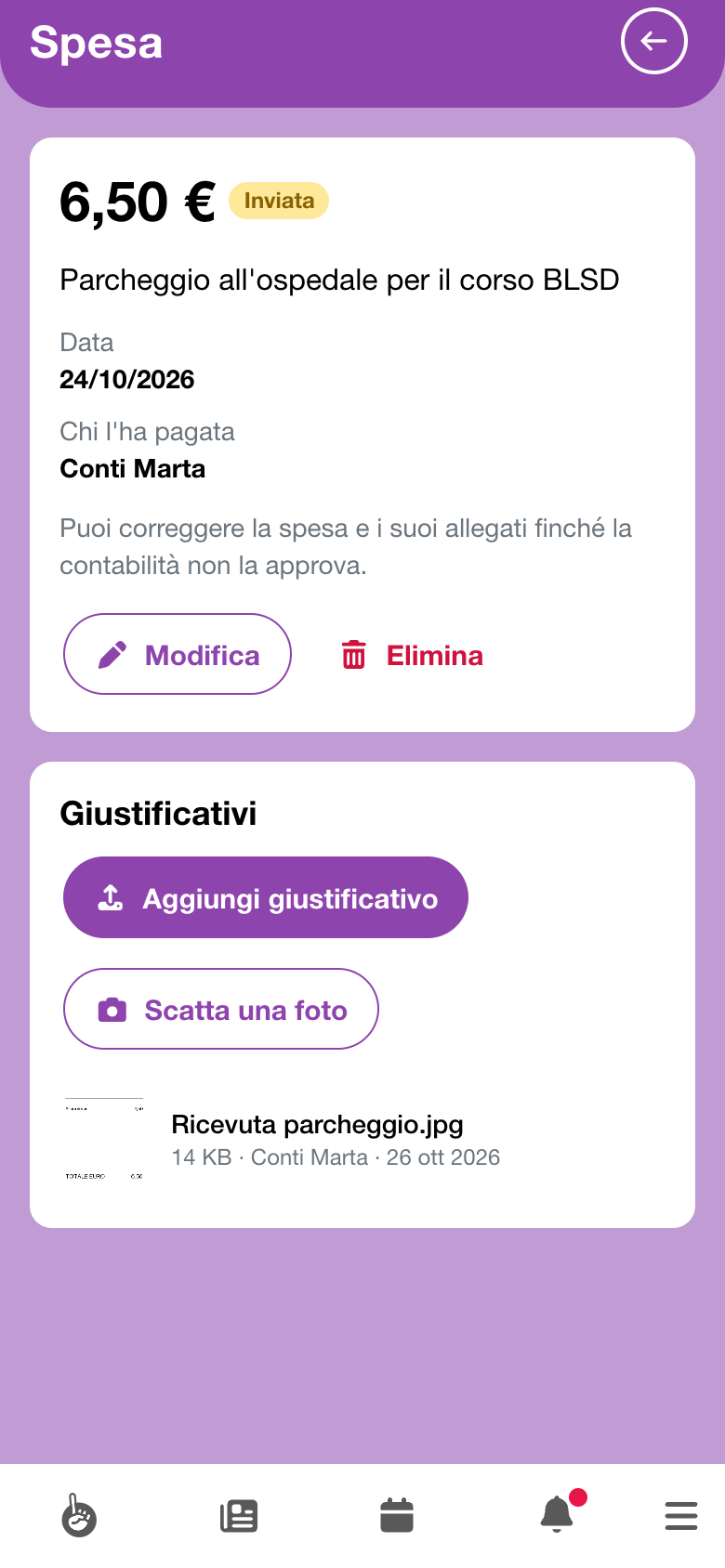
When the accounting approves the expense, these buttons disappear. If you notice a wrong amount afterwards, tell whoever manages the accounting: they correct it when they record the reimbursement.
After sending it
For now AppToMe sends no notifications about expense claims. Where yours stands you see in Expense claims, and on the expense's page Reviewed by says who approved or rejected it, and when.
A Rejected expense shows the Reason for rejecting, in the list and on its page, and stays that way. If something can be fixed, for example with a more readable receipt, upload a new expense.