Warehouse
Info
Only available if the organization uses the Warehouse module.
The main site's warehouse is inside AppToMe: gauzes, gloves, masks and all the rest. When you take supplies, record them as consumption: that way whoever manages the warehouse knows what is running out and what to order.
Open the menu and, under Resources, tap Warehouse. You find three tabs: Overview, Items and Stock.
Recording what you took
One item
- Open Warehouse: you are on the Overview.
- In the Search or scan field type the item's name, for example gauze.
- Tap the item in the list: Consumption · … opens, with its name.
- Type the Quantity, or the Packs if you took whole packs.
- Leave From where empty: the app takes it from the area where it is.
- Tap Record movement.
If there is a barcode reader connected to the computer at the main site, just read the code on the pack: the same form opens.
Several items at once
At the end of a shift, to record everything in one go:
- On the Overview tap Consumption.
- Search the first item and tap it: it becomes a line. Do the same with the others. With the list button next to the field you pick the items from the catalog.
- Correct the quantities with − and +, or type them.
- If needed, write the Note for all lines (optional), for example the shift.
- Tap Record … movements.
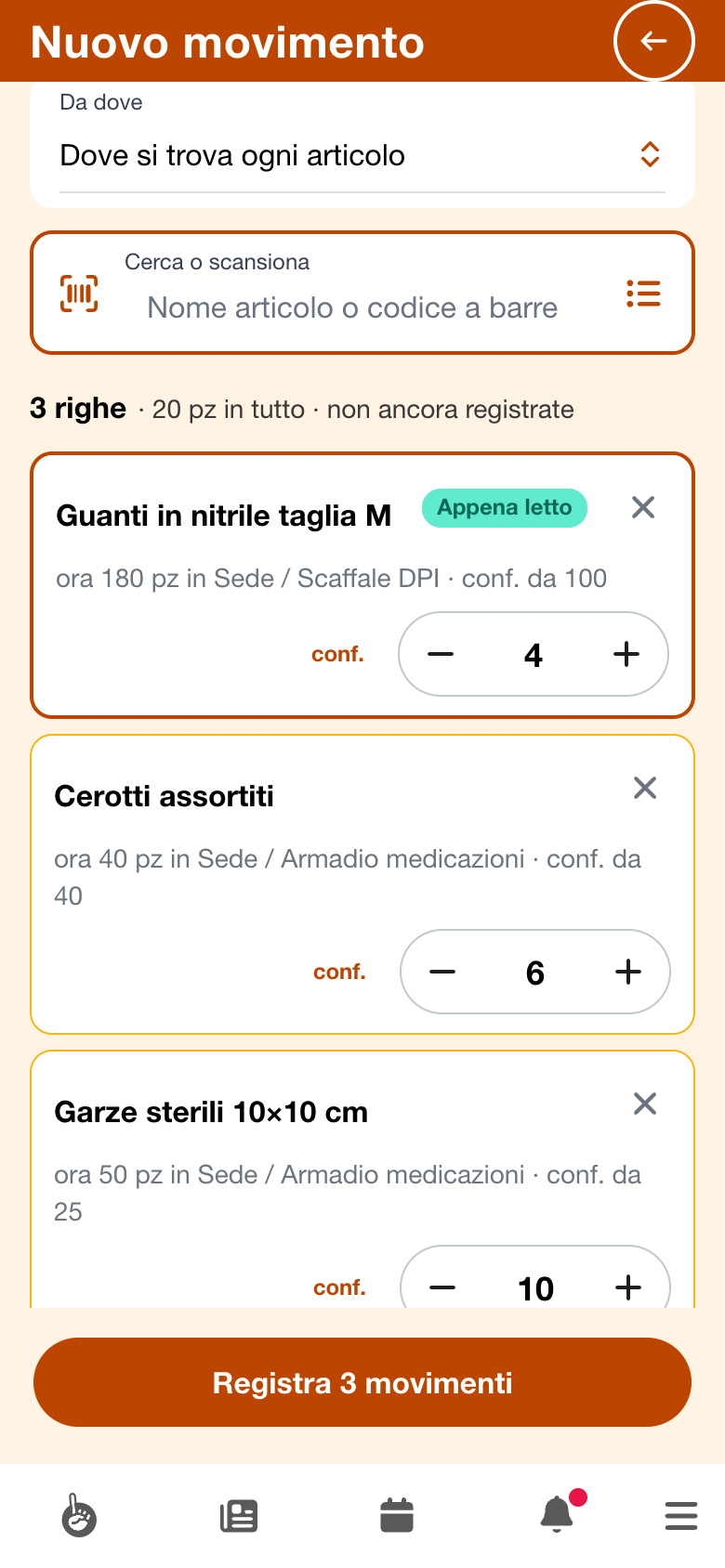
The lines not recorded yet stay on the phone: if you close the app, you find them again.
The warnings
After saving, the app may warn you that the item is under the minimum stock, or that the stock has gone below zero. You did nothing wrong: the consumption is recorded, and the warning is for whoever manages the warehouse.
Seeing what there is
- Items is the catalog: search by name, filter by category or with Under minimum. Tap an item to see how much there is in each area and for Record consumption.
- Stock says how much there is of each item, area by area. Tap a row to record a consumption from that area.
- The Overview shows how many items there are and how many are Under minimum, with the list of those to buy again under To handle.
What the staff does
Loads, transfers, inventories and corrections are done by whoever manages the warehouse. If you recorded a wrong consumption, tell them: they will correct it.
Error messages
| Message | What it means |
|---|---|
| The catalog is empty | the warehouse has no items yet: whoever manages it adds them |
| No item with this code | the code read is not in the catalog: search the item by name |
| “…” is archived: no consumption is recorded. | the item is no longer in use: tell whoever manages the warehouse |
| “…” is not kept in stock: there is no consumption to record. | that item is not counted: there is no need to record it |