Clockings
Info
Only available if the organization uses the Clockings module. Some organizations reserve clocking to employees: there the clocking button does not appear and you get no reminders — a manager records your hours.
Clocking records the time you really start and finish your service. It is different from availability: that says you will be there, clocking says you were there.
Clocking in and out
- From the Dashboard, tap the button with the stamp at the bottom right.
- If you are in several organizations that use clockings, choose the right one.
- The app looks for your position: for a moment you read Waiting for position, then the Accuracy in metres appears.
- The app checks where you are (Checking…) and shows you the Place and Activity it recognised.
- Tap Stamp entrance. At the end of the service repeat and tap Stamp exit.
After clocking you see the summary with Stamp date, Stamp time, Place and Activity.
How it works
When you tap the button, the app sends three pieces of information: where you are, how accurate that position is and who you are. AppToMe decides the rest.
In or out
You do not choose: the app checks whether you have a clocking still open — an entrance without an exit, made in the last 24 hours. If there is one, the next stamp closes it and is an exit; if there is none, it is an entrance.
Something important follows: if you forget the exit, the next time you clock within 24 hours you close the earlier service, you do not open a new one; after 24 hours you open a new entrance instead, and the forgotten one stays open. Either way, ask a manager for a correction: otherwise the hours recorded would be wrong.
How the place is recognised
The organization registers clocking places, each with a radius in metres. The place of a shift or lesson you have right now also counts: the calendar's place, the shift's destination, the course's place. The app takes the place nearest to you and considers it valid if the distance is less than the place's radius plus your GPS error.
The GPS error, though, counts for at most 50 metres. Up to there an imprecise position makes the check looser; beyond that it widens nothing: with a very imprecise position — an iPhone with Precise Location off, a browser on a computer — the entrance may be rejected. Keep precise location on.
If no place contains you, it depends on the organization: if it has chosen not to tie clockings to a place, the app records the address you are at anyway; otherwise the entrance is rejected with the message You are not at a place where you can clock in. The exit is never blocked: it is recorded anyway, with the place's name if you are inside one, otherwise with the address you are at.
How the activity is recognised
Once the place is recognised, AppToMe looks for what you are doing, in this order:
- A shift of yours in progress. It looks for an approved availability of yours on a shift already started and not yet over at the place where you clocked. "Already started" includes the calendar's early tolerance: if the calendar grants fifteen minutes, you can clock a quarter of an hour before the time. If there is more than one shift in progress, the one that started first wins.
- A lesson of a course you are enrolled in, with the same time and place rule. If the course provides for it, the clocking also marks your attendance at the lesson.
- An uncovered shift you could cover. Only on calendars configured for it: if at that moment there is an open shift at the place you are, you have the task required and you are not already busy elsewhere, the app signs you up for the shift by itself and tells you. It is the case of the volunteer who shows up without having booked.
If it finds none of the three, the clocking is recorded anyway: it has a time and a place, but no associated activity.
What happens to the hours
The hours of a clocking are not a datum on their own: when the exit is closed, the linked shift is marked as actually carried out. From there they go into statistics, reports and — if your organization uses it — the management system.
That is why the exit counts as much as the entrance: a service without an exit is not half a service, it is a service that does not show.
Reminders
You do not have to remember on your own. AppToMe sends you a notification:
- when the shift has started and you have not clocked in yet;
- shortly after the end of the activity, if you have an entrance still open.
Reminders do not leave at the exact instant: a periodic check gathers and sends them, so they can arrive a few minutes late. Each one arrives once only.
Location permission
Clocking needs your position. The first time, the phone asks for permission: if you deny it, instead of the accuracy the screen shows Location permission missing: tap here and grant it in settings to clock in. Tap the message and then Open settings: grant location to AppToMe and reopen clocking. Without the permission the app cannot clock.
Keep in mind you need an active and accurate position: indoors or with a disturbed GPS the accuracy worsens and the place might not be recognised. On an iPhone check that Precise Location is on for AppToMe; from a computer the browser's position is often too imprecise to clock.
If something goes wrong
Location permission missing — you denied the app permission to use your position. Tap the message and then Open settings to grant it, then reopen clocking.
Stamping failed, please try again — the app could not record the clocking: usually the position or the connection is missing. Try again after a few seconds, outdoors.
You are not at a place where you can clock in — the entrance was rejected: no clocking place contains you, and neither does the place of a shift or lesson of yours in progress. It may be because you really are elsewhere, because the radius configured for that place is too tight (typical from the car park or the basement) or because the position is too imprecise: look at the Accuracy, turn on precise location and try again outdoors. If it always happens at the same spot, report it to a manager, who can widen the radius or make that place valid for clocking.
The shift is not recognised — the clocking is recorded but the Activity stays empty. The causes are always the same three: you clocked too early compared with the calendar's tolerance, you clocked at a place different from the shift's, or your availability on that shift has not been approved yet. Check the shift in the calendar before insisting.
I clocked the entrance twice — within 24 hours it is not possible: the second stamp closes the first. If you see an exit you did not want, this is it: ask for a correction. After 24 hours, instead, the second is really a new entrance and the first stays open: that needs a correction too.
Viewing your clockings
From the menu open Clockings. At the top choose the date range; the list shows for each row In, In place, Out, Out place, whether it was entered by hand (Manual), the Person and the Activity. On phones the place and activity columns are hidden to make room: rotate the device or use a computer to see them.
There is also a search box and the button to export the list.
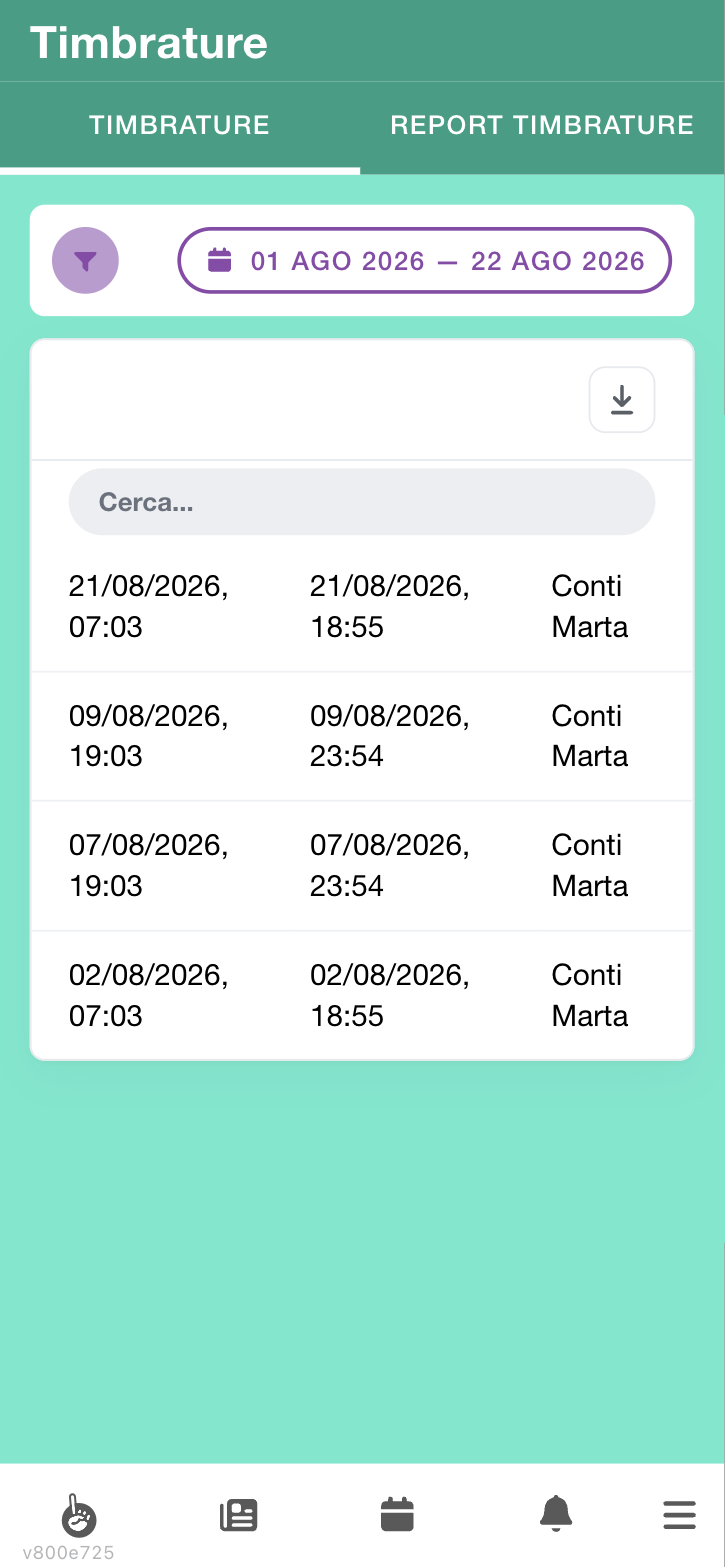
Manual clockings are those entered by a manager on your behalf: it happens when you forgot to clock or the clocking did not go through.
You cannot correct a wrong clocking yourself: ask a manager, who can fix it from their view.