Profile and account
From here you manage your details, your email address, your password, the app language and, if you want, deleting your account.
To open it: from the Dashboard, tap your picture at the top right.
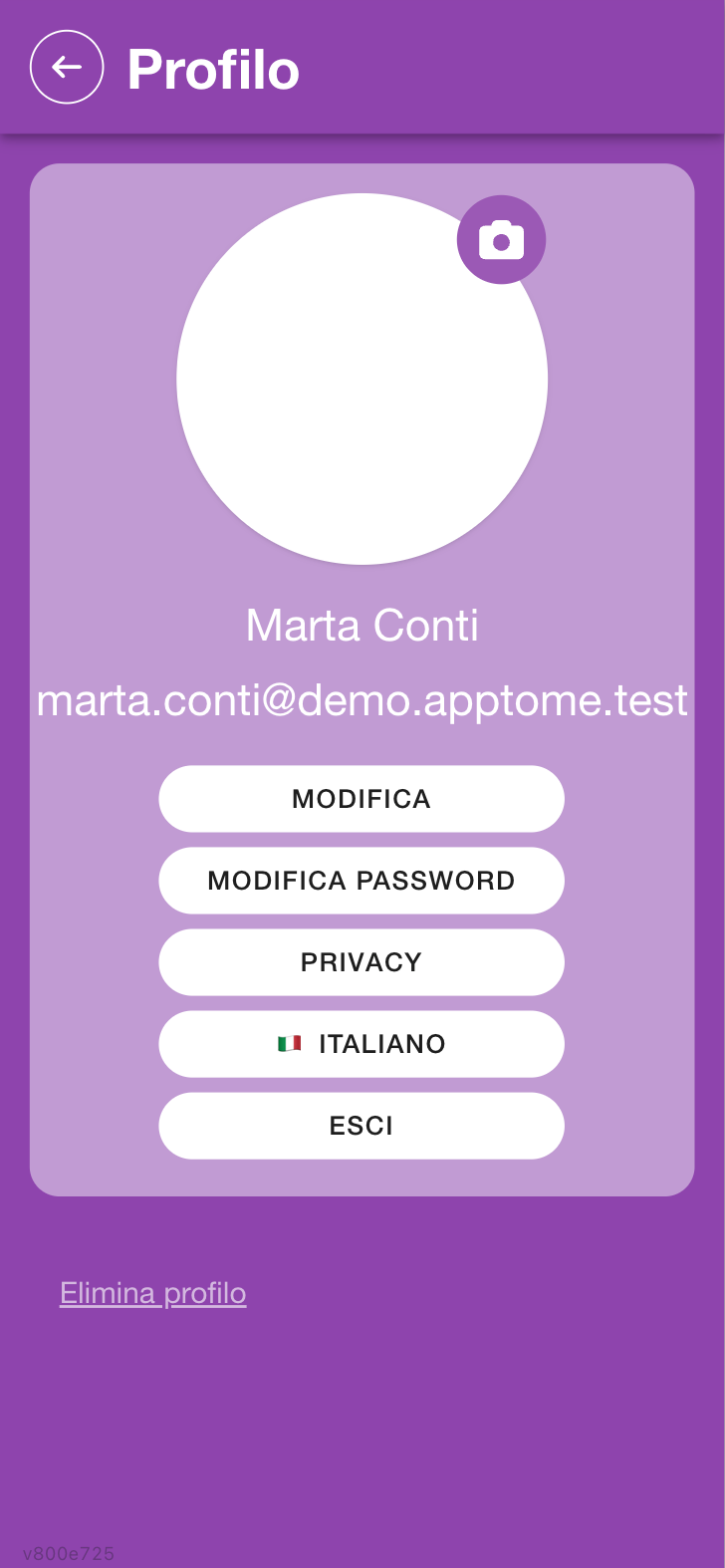
Changing the profile picture
Tap the camera icon on the picture and choose the image. The first time, the phone asks permission to access the camera and gallery: if you deny it, the app offers to open the system settings to grant it.
The picture makes you recognisable in shifts and in the organization's registry.
Editing your details
Tap Edit: the form with your personal details and contacts opens.
| Field | Type | What it does |
|---|---|---|
| Name | text, required | |
| Surname | text, required | |
| Main phone | text, required | the number managers call you on |
| Email address | read only | it is your key to get in: it changes with Change email, not here |
Keep phone and email up to date: they are the contacts managers use to reach you and where the organization's communications arrive.
Changing your email
Your Email address is your login credential and the way your organization recognises you: that is why it is not edited in the form, but with a confirmation from the new mailbox.
- Tap Change email.
- Type the new address and tap Proceed.
- AppToMe sends a 6-digit code to the new mailbox (not the old one). Open it and type the code in the field.
- Done: the profile shows the new address right away, and next time you log in with that one.
If you read This address is already used by another account, that email already has an AppToMe account: it cannot have two.
If you use fingerprint or face login on the phone, after the change you need to log in once more with the password (or the code): the saved credentials carried the old address.
Changing your password
A password is not required: you can always get in with the email code only. Setting one is useful if you want fingerprint or face login on the phone, or simply because you prefer it.
- Tap Change password.
-
Fill in the fields:
Field What to enter Current password the one you use now — the field is absent if you never had a password New password the new one Confirm new password the same again, to verify -
Confirm with Update password.
The new password must follow four rules:
- at least 8 characters;
- not too similar to your personal details (name, surname, email);
- not one of the most used passwords;
- not made only of digits.
If you use fingerprint or face login on the phone, AppToMe updates the saved credentials by itself: at the next start, recognition works with the new password.
Changing language
In the Language section choose among Italiano, English, Español, Deutsch and Shqip.
The choice is not just for the screens: it also changes the language of the notifications and emails AppToMe sends you.
How you want to be alerted
The channels AppToMe uses to contact you are chosen inside Edit, together with your details. There are three boxes:
| Box | What it does |
|---|---|
| Email notifications | you also receive communications by email |
| Push notifications | you receive alerts on your phone, with the app closed |
| SMS notifications | you receive alerts by message, where your organization uses them |
Turning them all off means no longer receiving alerts about shifts and requests: requests have a deadline, and those who do not see them let them expire.
Privacy
The Privacy button opens the notice on how your data is processed.
Reporting a problem
If Report a problem appears, you can send a report to the development team without leaving the app: describe what happened in What happened?, attach a screenshot if useful, and send with Send report. The button is not present in every installation.
Always add the version you read at the bottom of this page: it tells whoever receives the report which AppToMe you were using. See App updates and version.
Logging out
Tap Log out. You lose nothing: your details stay on the server and you come back whenever you want with an email code or your password.
Deleting your profile
Irreversible operation
Delete profile deletes your AppToMe account. The app asks for confirmation (Are you sure you want to delete your profile? This action is irreversible.) and, once confirmed, there is no going back.
The button is at the bottom of the page. If you only want to stop being part of one organization but keep the account, do not use this: use Disassociate in the list of organizations (see Sign-up and login).
What happens to the organizations
Deleting your profile takes you out of all the organizations you are linked to, at the same time: there is no need to disassociate one by one.
What remains is your registry record at each organization, with the shifts done and the hours given: it is the organization's record of volunteering activity, not your account, and the app does not delete it. If you want that removed too, you have to ask the organization directly.