Managing shifts
Info
You need the permission to create shifts; to act on those created by others you need edit shifts created by other users.
The everyday work: publishing shifts, correcting them, repeating them.
The calendar bar
Opening a calendar as a manager, at the top right three buttons appear that volunteers do not have:
| Button | What it does |
|---|---|
| Expand / collapse | widens the shift cards to see all the names without opening them, or compacts them again |
| downloads the PDF of the period displayed, ready to hang at the premises. It works in every view, the combined tab included | |
| Export | downloads the period displayed in Excel format |
Exporting is not available on the combined tab, the one that merges all calendars: it is used from the tab of the individual calendar.
Printing and exporting cover the range you are looking at: if you scrolled ahead to load more weeks, those are included too.
Adding a shift
- Open Calendar and choose the right calendar's tab — not the combined one, which is read only.
- Go to the day and use the add button.
- Choose the shift type: the requirements come from there, that is the tasks required with their minimums and maximums.
- Set start and end. A shift can end the following day: on the card the asterisk will appear next to the end time.
- If needed, fill in the custom fields and the destinations.
- Save.
From that moment the shift is visible to volunteers and availabilities are open, within the calendar's time limits.
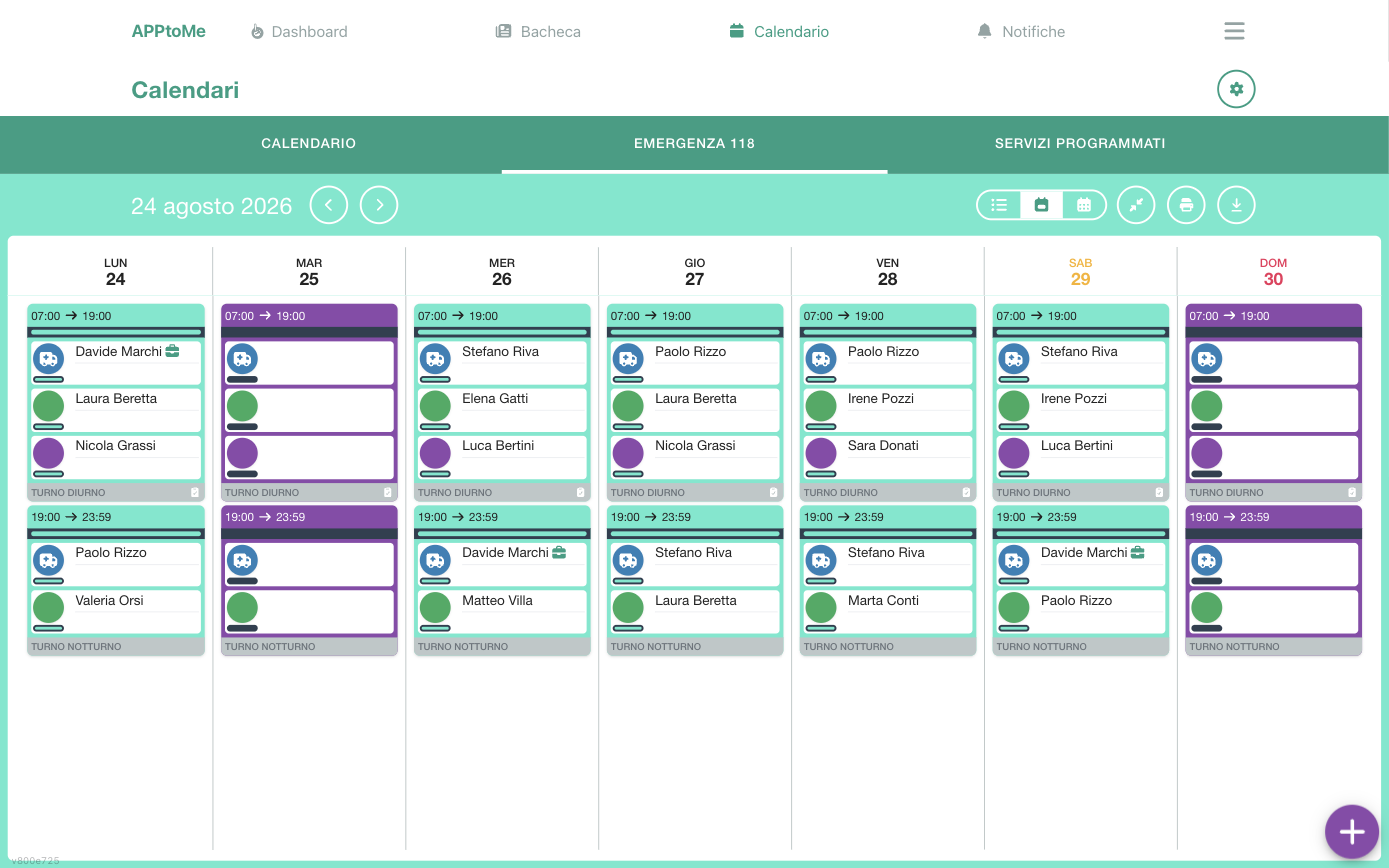
In the weekly view you read at a glance how the coverage is going: full shifts look different from those still uncovered, and on every card the empty places stay visible next to those already signed up.
Shift fields
| Field | Type | What it does |
|---|---|---|
| Name | text | the shift's identifier, the one volunteers read on the card. If you leave it empty the shift type's name appears |
| Calendars | choice, required | the calendar containing the shift |
| Type | choice, required | requirements and checklists come from here |
| Shift date | date, required | the day the shift starts |
| Shift end date | date, required | the day it ends: change it if the shift crosses midnight |
| Shift start time | time, required | |
| Shift end time | time, required | |
| Notes | long text | operational instructions visible to whoever opens the shift |
| Vehicles | multiple choice | the vehicles assigned to the shift |
At creation the repetition fields also appear:
| Field | Type | What it does |
|---|---|---|
| Notify possible candidates | yes/no | sends a notification right away to those who could cover the shift — see below |
| Repeat the shift | yes/no | turns on the following fields |
| Repeat every | number | how many days between repetitions |
| Repeat until | date | last date of the series |
| Repeat if | multiple choice | Monday … Sunday, or weekday, pre-holiday, holiday, always |
| Don't repeat on | multiple choice | the same entries, to skip the days listed |
Weekday, pre-holiday, holiday
They are categories calculated on the civil calendar, public holidays included: using them is more solid than listing the days of the week by hand.
Who receives the possible-candidates notification
Notify possible candidates warns everyone holding one of the tasks required by the shift type — hidden requirements excluded. It does not look at groups, it does not look at who is already busy elsewhere: it is an announcement, not a targeted invitation. To ask a specific person there is the availability request.
Two limits to know, otherwise the box seems not to work:
- it does not go out when sign-ups are still closed for that shift. If the calendar imposes a minimum notice or a maximum window, a shift outside that window does not trigger the alert: it would be an invitation to do something the app then prevents;
- it does not go out on recurring shifts. Creating a series with Repeat the shift, the notification is skipped: it would be one alert per occurrence. If you want to flag the series, use the board.
Shift requirements
The requirements come from the shift type, but on the individual shift you can add more (Add requirement): these are the manual requirements, the ones that apply only to that shift. They are for the exception — a second driver for a particular service — not to get round a badly configured shift type.
The fields of a manual requirement are the same as those of the shift type's requirements — Task, Minimum, Maximum, Hidden, Extra, Use hierarchies — and are described in Calendars and shift types.
Whoever is absent does not get signed up
In a requirement's list of candidates, whoever has a recorded absence covering the shift appears at the bottom of the list, with the row in orange and the Absent label in place of the phone number. On that row there is neither the switch nor the status combo, and the person cannot be invited — neither individually nor with a bulk selection.
It is not a disguised ban: it is there on purpose to show it to you. Whoever is away stays in the list of candidates for that task, but you do not call them by mistake.
If the person was already signed up
Recording an absence deletes the future availabilities falling in the period, so normally that person comes back among the candidates as absent. If instead an availability is still there — you signed it yourself afterwards, or the absence was only opened later — the availability wins: the row shows the normal status and stays editable. The absence does not overwrite it.
Editing a published shift
Open the shift and use Edit. If the shift is part of a recurrence, the app asks what to apply the change to:
- Just this — changes the single shift
- This and future occurrences — from here on
- All occurrences — the whole series, past included
In the occurrence's form the Only futures field also appears: if it is active, every change concerns only the occurrences after the one you are opening.
Choose carefully: All occurrences also touches shifts already done, and the people already signed up notice it.
Warning
If you move the time of a shift someone is already signed up for, those people find themselves committed to a slot they had not chosen. Depending on the calendar's configuration, those who were there are either warned of the change or asked again with a new availability request: the two modes, and their consequences, are explained in Calendars. In both cases a phone call to those involved is worth more than the notification.
Check the vehicles again too: if the new time puts them in conflict with another shift, they are removed from this one.
Assigning a vehicle, and what blocks it
The Vehicles field is not a label: assigning a vehicle really commits it, and AppToMe defends that commitment before saving.
- A vehicle cannot be on two shifts at once. If you try, saving stops and tells you which shift already holds it, of which calendar and at what time: The vehicle … is occupied by shift … (…) from … to ….
- An already approved booking blocks the assignment. The message says who booked it and for when: The vehicle … is booked by … from … to …. It is a promise made to a volunteer, and the app does not let you break it by mistake: if the shift really has priority, cancel that booking first — and tell the person.
- A request still pending gives way, but not silently. The first save is refused with … has a request awaiting approval from … Save again to confirm: the request will be cancelled. Saving a second time the assignment goes through and the request is cancelled, with a notification to whoever made it. It is there so that someone else's work does not vanish without you noticing.
- A vehicle out of service cannot be added. If the shift falls in the period of the stop, saving stops: The vehicle … is out of service (…) from … to …. A vehicle that was already on the shift before the stop stays, though, and the shift can be edited as usual: it is up to you to replace it. See Vehicles.
- Warnings about deadlines and faults do not block. With the Vehicle management module, when you choose the vehicle its name may be followed by a warning: Insurance expired on …, Reported unfit on …. The vehicle can still be assigned: the warning is there so that the decision is yours, and an informed one.
On the routes that copy an assignment — duplication and repetition — there is no form to show you the error: a vehicle that is not free, or out of service, is simply left out of the copy. After creating a recurring series, therefore, check the vehicles on the shifts of the series: some may have been left without.
Duplicating a shift
With Duplicate shift you create a copy of the shift, requirements included, without redoing the configuration. It is the quick way to replicate an identical service on another day.
If you have the permission to duplicate availabilities, you can also copy the people already signed up: handy for fixed shifts with the same team, but check that those people can really be there on the new date.
The Duplicate shift form only asks for the New date.
The one for copying availabilities asks instead:
| Field | Type | What it does |
|---|---|---|
| People | multiple choice, required | who to copy over onto the following shifts |
| Repeat every | number, required | how many days between copies |
| Repeat if | multiple choice | the days to copy onto (Monday … Sunday, weekday, pre-holiday, holiday, always) |
| Don't repeat on | multiple choice | the days to skip |
| Until | date, required | last date to copy onto |
| Override existing availabities | yes/no | if there is already someone on the destination shift, it replaces them instead of adding to them |
Warning
Override existing availabities deletes the sign-ups already collected on the destination shifts. Use it only when you really want to rebuild the team from scratch.
Recurrences
A shift can repeat according to a rule: days of the week, every N days, with any days to exclude.
On an existing series you can:
- Edit occurrence — change the rule
- Extend occurrence — lengthen the series further into the future
Extending is the operation to do at the end of a period: it creates the following shifts without rebuilding everything.
Fields of "Extend occurrence"
| Field | Type | What it does |
|---|---|---|
| Last occurrence | date, required | the last date currently covered by the series: it is the point to start again from |
| Repeat until | date, required | the new final date |
| Repeat every | number | how many days apart, if you want to change the step |
| Repeat if / Don't repeat on | multiple choice | days to repeat on and days to skip |
| Create new occurrence | yes/no | instead of lengthening the existing series, it creates a new one starting from the dates given |
Fields of a destination
Destinations are the shift's stops.
| Field | Type | What it does |
|---|---|---|
| Time | time | the time planned for the stop |
| Place | choice | the place, chosen among those registered by the organization |
Destinations are not just information for whoever reads the shift: when a shift has them, it is the destination — not the calendar's place — that is compared with the position of whoever clocks. A shift starting from the premises but taking place elsewhere must therefore be described with the destinations, or the clockings on site will not be associated with the shift.
Deleting a shift
Open the shift and use Delete, then confirm. On a recurring series the app asks again what to apply the deletion to (Choose occurrence deletion option): just this, this and future ones, all.
Warning
Deleting a shift also deletes the availabilities collected, and those who had signed up receive the notification. If the shift exists but changes, edit it: deleting and recreating loses the sign-ups.
Past shifts
Editing a shift already done requires the permission to edit past shifts. It is something for corrections after the fact — an attendance to fix — not for everyday use: the hours already certified end up in the statistics and in people's counts.