Sign-up and login
How to create your account, get into AppToMe and link up with your organization.
The first time you open the app
The very first time, AppToMe introduces itself: Hi, I'm Apptome, "I'm the app volunteer organizations use to manage shifts, vehicles, activities and volunteers". Then it asks Tell me how you got here and offers two ways in.
- My organization uses Apptome — the common case. You create the account and then look for your organization in the list to ask to join.
- I'm just taking a look — it explains that the subscription is taken out by the organization, not by the individual volunteer: you can create an account and wander around, but shifts and activities only show up once your organization is registered.
Both ways lead to Sign up or, if you already have an account, to I already have an account. This introduction appears only once.
Creating an account
You only need to do this once. If a manager has already invited you by email, skip to If you received an invitation.
There is no password to invent: AppToMe recognises you by your email, with a code it sends you every time you log in.
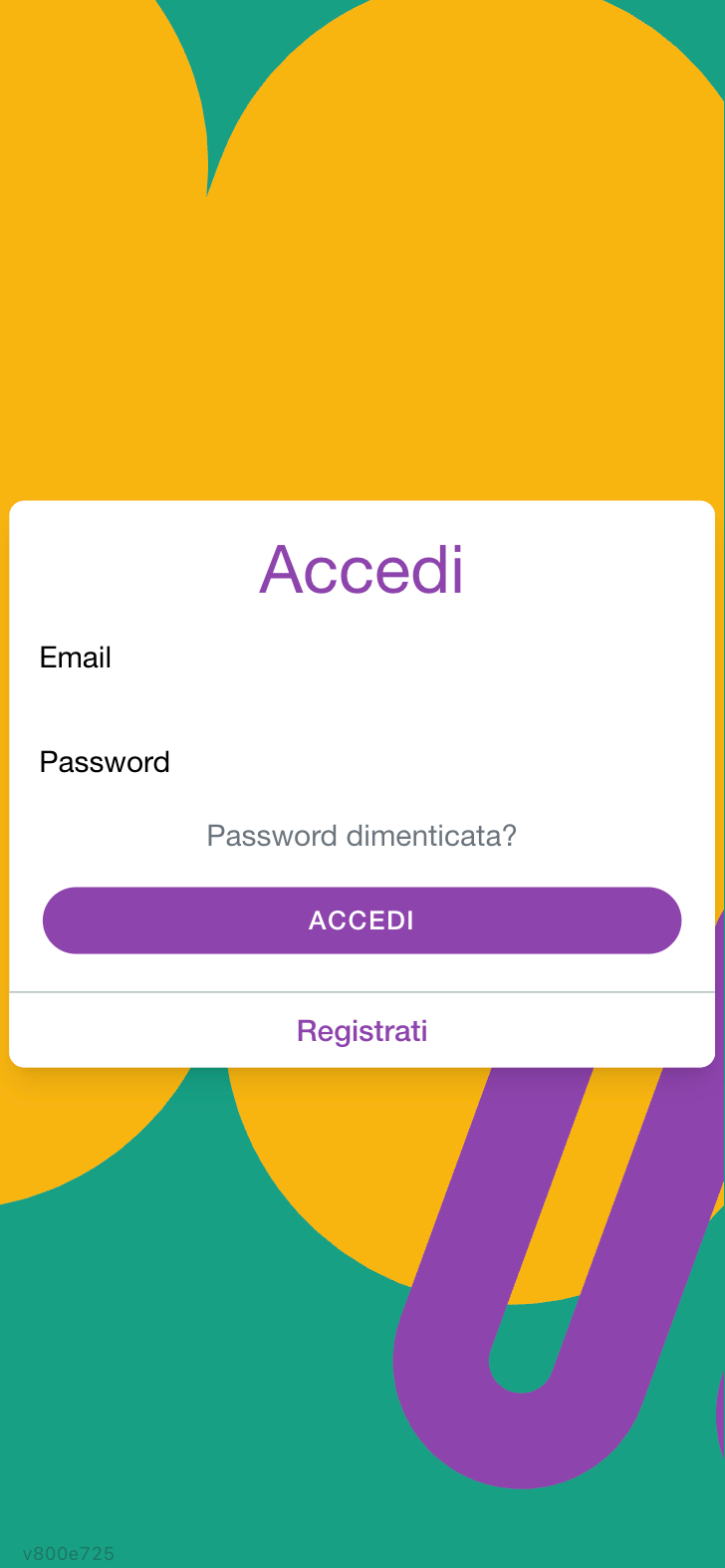
- Open the app: the first screen is Log in.
- At the bottom of the screen tap Sign up.
- Fill in all the fields, they are all required:
- Name
- Surname
- Main phone
- Email address — it is your key to get in: type it carefully, that is where the login codes will arrive
- Below the fields you find the links to the Terms of service and the Privacy policy: by signing up you accept them.
- Tap Sign up.
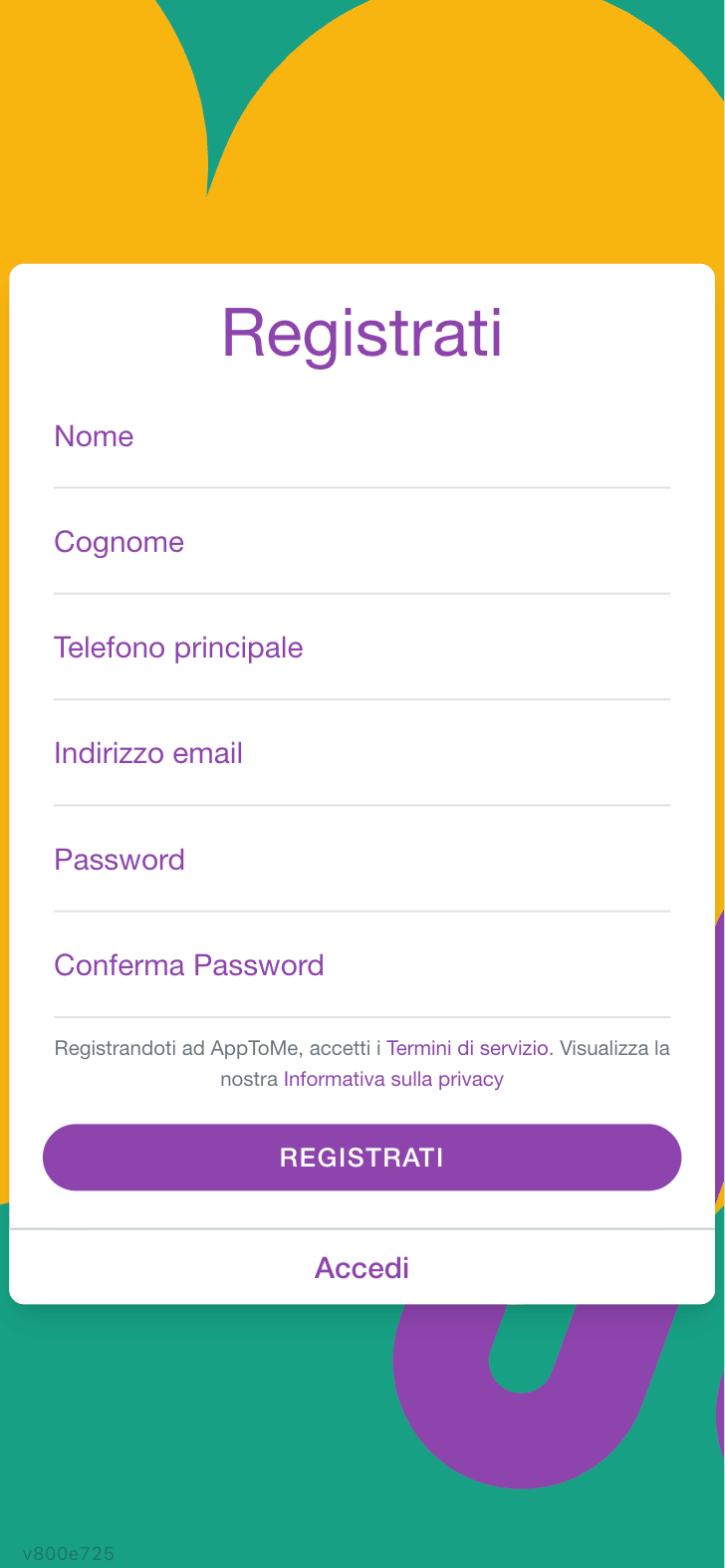
- The app moves to the code screen: We sent a code to …. Open your mailbox, find the AppToMe email with a 6-digit code and type it in the field. On the sixth digit you are in.
If Sign up failed, please check your details appears, a field is not valid: check above all that the email is spelled right. If you read Email already used, that address already has an account: go back to Log in and ask for a code.
Once signed up you land in the Dashboard, your personal area, with the Join your organization box. From there you still need to link up with your organization: see Asking to join an organization.
Logging in
You do not need to remember a password to get in: your email is enough.
- On the Log in screen type your Email.
- Tap Send me a code.
- The app tells you We sent a code to …. Open your mail: the AppToMe email contains a 6-digit code, valid for 10 minutes.
- Type the code in the field. On the sixth digit you are in; if nothing happens, tap Log in.
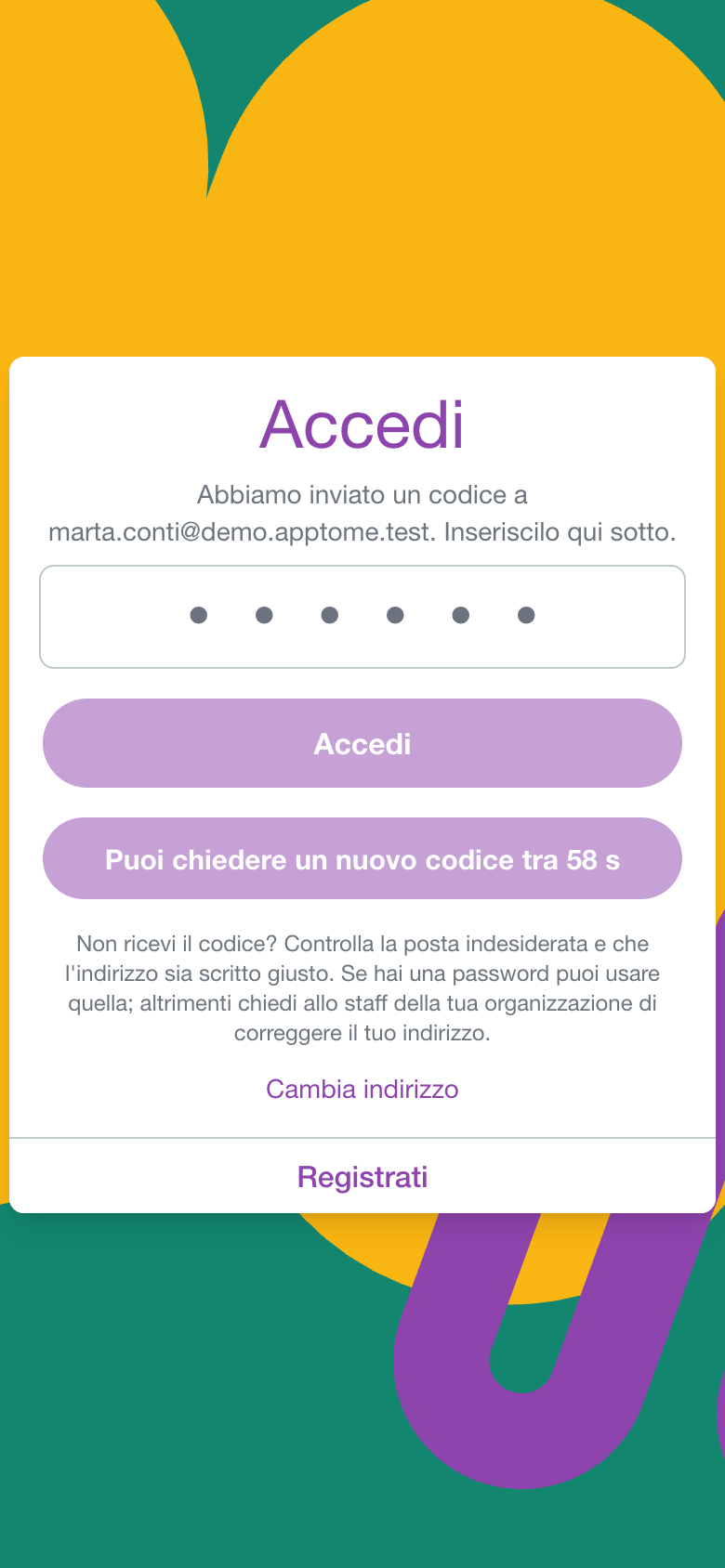
The email also has an Open AppToMe button: tapping it opens the app with the code already filled in, and you only have to tap Log in.
On the phone, as soon as the email arrives, the keyboard often offers you the code by itself: tap it and you are in.
If the code does not arrive — under the field you find No code? with the three things to check:
- look in your spam folder;
- check that the address is spelled right: the app sends the code to the address you typed, even if it matches no account, and does not warn you;
- if you have a password, use it (below).
After a minute you can tap Send a new code; with Change address you go back and fix the email. If the address on your account is actually wrong, ask your organization's staff to correct it.
If the code is refused:
- Wrong code — check the digits again, or copy them from the email.
- Code expired: request a new one — more than 10 minutes have passed.
- Too many attempts: request a new code — after five mistakes the code is no longer valid, get another one sent.
- Too many requests: try again in a few minutes — you asked for too many codes in a short time.
Logging in with a password
If you had an account before September 2026, or set a password from your profile, you can still use it: on the Log in screen tap Sign in with a password, fill in Email and Password and tap Log in. To go back to the code tap Sign in with an email code.
If Incorrect email or password appears, check both fields again: it is often the phone keyboard capitalising the first letter of the email. Or forget the password and ask for a code.
If a network problem warning appears, the app cannot reach the server: check your connection and try again.
Logging in with fingerprint or face
Only on the app installed from the App Store or Google Play, and only after at least one login with a password: that is what AppToMe stores on the phone in a protected way. Whoever always logs in with the code has nothing to store, and does not see the prompt.
When you reopen the app the Biometric login prompt appears: rest your finger or frame your face and you are in. If recognition fails, tap to try again or close the prompt and log in with email and password.
Forgotten password
With the email code the password is no longer needed: if you forgot it, simply ask for a code (see Logging in). If you later want one again, set it from your profile: Changing your password.
The old procedure is still there for those who prefer it:
- On the Log in screen tap Sign in with a password, then Forgot password?.
- Enter your account's address in the Email field and confirm.
- The message Reset email sent, check your inbox appears.
- Open the email and tap the link: AppToMe opens on Reset password, which asks you to tap Set password.
- Only then does the form appear, where you fill in New password and Confirm new password.
The link works once only. If you open it again, or too much time has passed, you read Invalid link — "The password reset link has already been used or has expired" — and from there you tap Request new reset to get a fresh email.
The new password must have at least 8 characters, must not resemble your personal details too closely, and cannot be a common password or made only of digits.
Asking to join an organization
An account alone is not enough: to see shifts, board and courses you must be linked to an organization, and your request must be approved by a manager.
- From the Dashboard, tap the + button next to the organizations, or Find your organization if you are not in any yet.
- The Organizations list opens.
- In the bar at the top type the name of your organization (Search your organization...).
- Find it in the list and tap Send request.
- Below the name, Your request is awaiting approval appears.
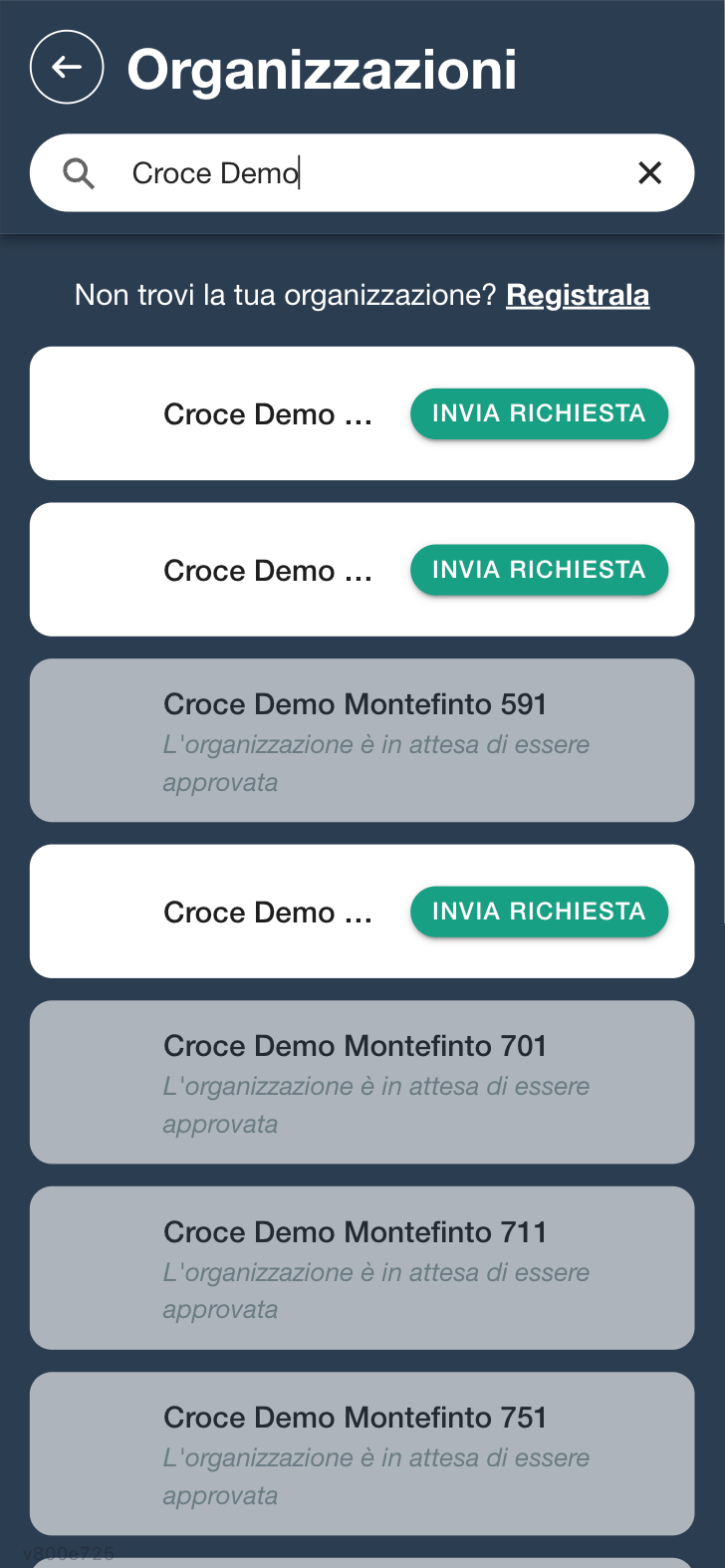
When a manager approves the request, the organization appears in your Dashboard and you can enter it by tapping it.
If next to an organization you read Organization is awaiting approval, that organization is not yet active on AppToMe: you cannot ask to join it yet.
If your organization is not there
After typing at least three letters in the search, Can't find your organization? appears above the list with the Register it link. It is for registering a new organization on AppToMe: use it only if you are the manager who will run it, otherwise ask the right person in your organization.
The registration form asks for two things:
| Field | Type | What it does |
|---|---|---|
| Name | text, required | the organization's name, as it should appear to those searching for it |
| Bio | long text | a short introduction |
The request is not immediate: the organization stays awaiting approval until AppToMe enables it. The other details — contacts, address, VAT number — are completed later, from the organization settings.
If you received an invitation
When a manager invites you, you receive an email. If the invitation is nominal (that is, you are already in the registry), accepting it gets you straight into the organization without waiting for approval. Pending invitations also appear in the Dashboard, in the Invitations card, with the buttons to accept or reject.
How the account works
It is worth being clear about the mechanism, because it explains almost every odd case — the app that "doesn't recognise you", data that changes by itself, a history that seems to have vanished.
There is one account, and it belongs to AppToMe, not to the organization. The email address is also the username and cannot be used by two accounts: if you try to sign up with an email already in use, the registration does not go through. Whoever invites you does not "create" an account for you: they link you to the one you already have, or ask you to make one.
Membership of an organization is a separate link, and you need one for each organization. For the organization to really appear in the Dashboard, two things must hold together: a manager must have approved you, and AppToMe must have enabled the organization. That is why you sometimes find the organization in the search but cannot enter it yet.
Profile data is shared, service data is not. Name, surname, contacts, picture, language and notification preferences live on the account: changing them changes them for every organization you are in. Tasks, groups, certifications, shifts and hours instead live inside each organization, and do not move from one to another.
Leaving does not delete your history. When you disassociate — or when a manager disassociates you — you lose access to that organization's data, but your registry record stays there with the shifts done and the hours given: only the link with the account is detached. If later on they readmit you with a nominal invitation, the account hooks back onto that record and you find your history again. What you do not get back is access while you are out: you no longer see that organization's shifts, board and notifications.
If you are left with no organizations, AppToMe writes to you, once. Those who sign up and after a few days have still not joined any organization receive a reminder email: it often happens to people who sign up and then forget to send the request.
Your email is your key, and it gets verified. Every time you log in with a code, AppToMe has proof that the mailbox is really yours. Whoever has an older account and still logs in with a password sees the Verify your email notice in the Dashboard: it blocks nothing, but it is worth tapping once, so that if you ever forget the password you get back in with a code. If the address on your account is wrong, from that same notice — or from the profile, with Change email — you fix it: see Changing your email.
Belonging to several organizations
You can be a volunteer in several organizations with the same account: repeat the request procedure for each one. In the Dashboard you see them all in a row and switch from one to another by tapping its symbol.
Leaving an organization
- From the Dashboard tap + to open the Organizations list.
- Find the organization you want to leave: next to the name you find Disassociate.
- Confirm the prompt Are you sure you want to disassociate from …?.
You do not lose the account: you still have AppToMe and the other organizations you are linked to.
If login fails
- Account disabled — your account has been suspended. Contact a manager of your organization.
- Access denied — you do not have permission for the page you are opening, typically because you came from a link someone else received.
- The code does not arrive or is refused — see Logging in.