API keys
With an API key an external program, such as a supplier's management system or a script, reads and changes the organization's data without going through the app. On this page you create keys, check them and revoke them.
Info
Available only if the API and AI assistants module is active. Not part of the Lite plan.
Prerequisites
- You must be an administrator (superuser) of the organization. Staff and volunteers do not see the page.
Open the menu, tap Organization Settings and then API keys.
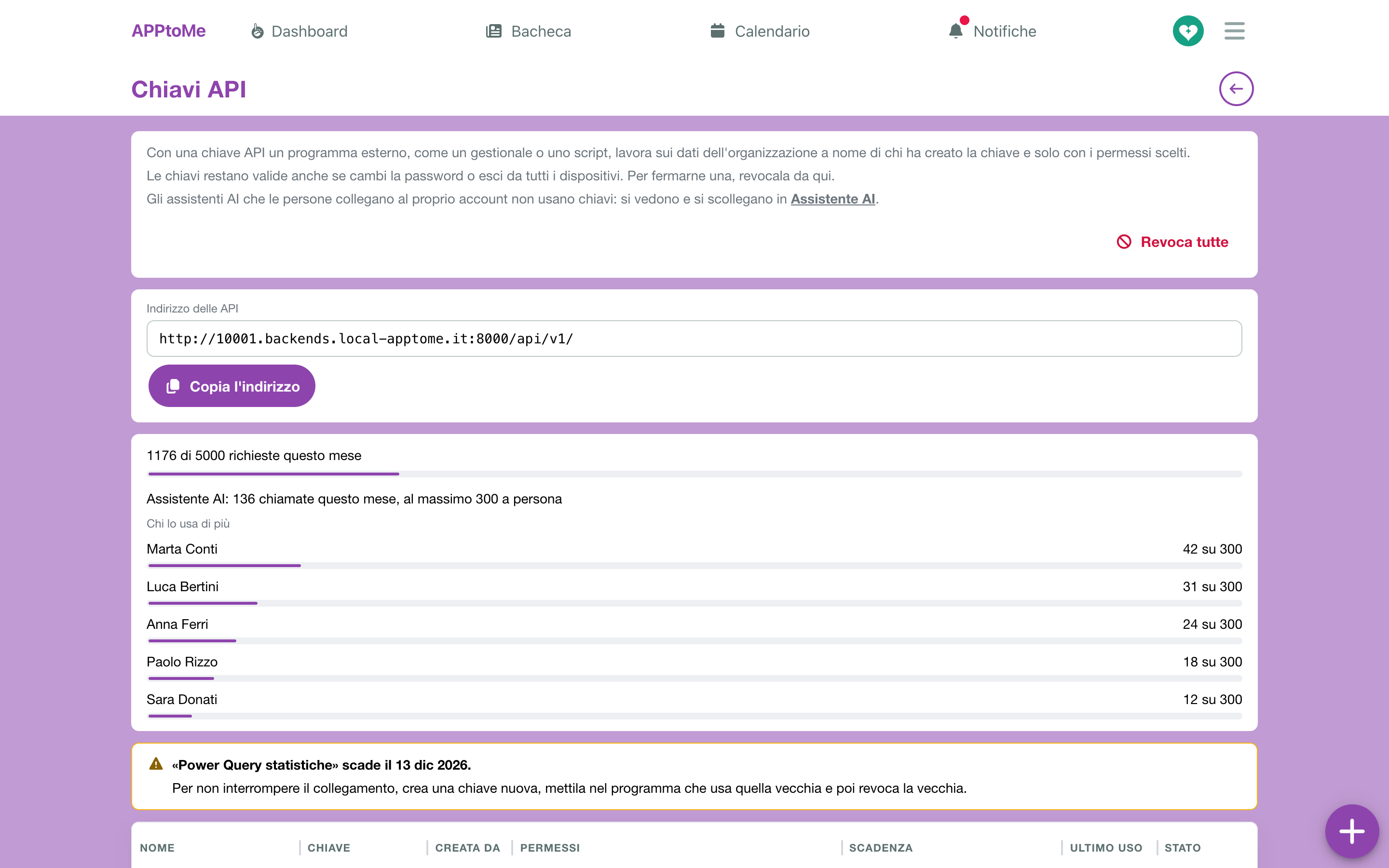
Below the introduction is the API address, the one the program sends its requests to: tap Copy the address to copy it.
What giving a key means
A key is a password for a program. Whoever receives it, for example the supplier of your management system, can work on the organization's data until the key expires or you revoke it.
- The key acts on your behalf: everything the program does is recorded as done by you, in the activity log and in the notifications that go out.
- It cannot do more than you can do in the app, and only with the permissions you choose when creating it.
- It works even when you are not signed in: it is made to work on its own.
Before handing one over, ask yourself what the program really needs. A management system that reads the volunteers' hours does not need to create shifts.
A user for integrations
If the administrator who created the key gives up the role, the key stops working until they take it back. If they leave the organization, or their account is deactivated, the key is revoked. For an integration meant to last, create a dedicated account (for example "Management system integration"), make it an administrator and create the key with it.
Creating a key
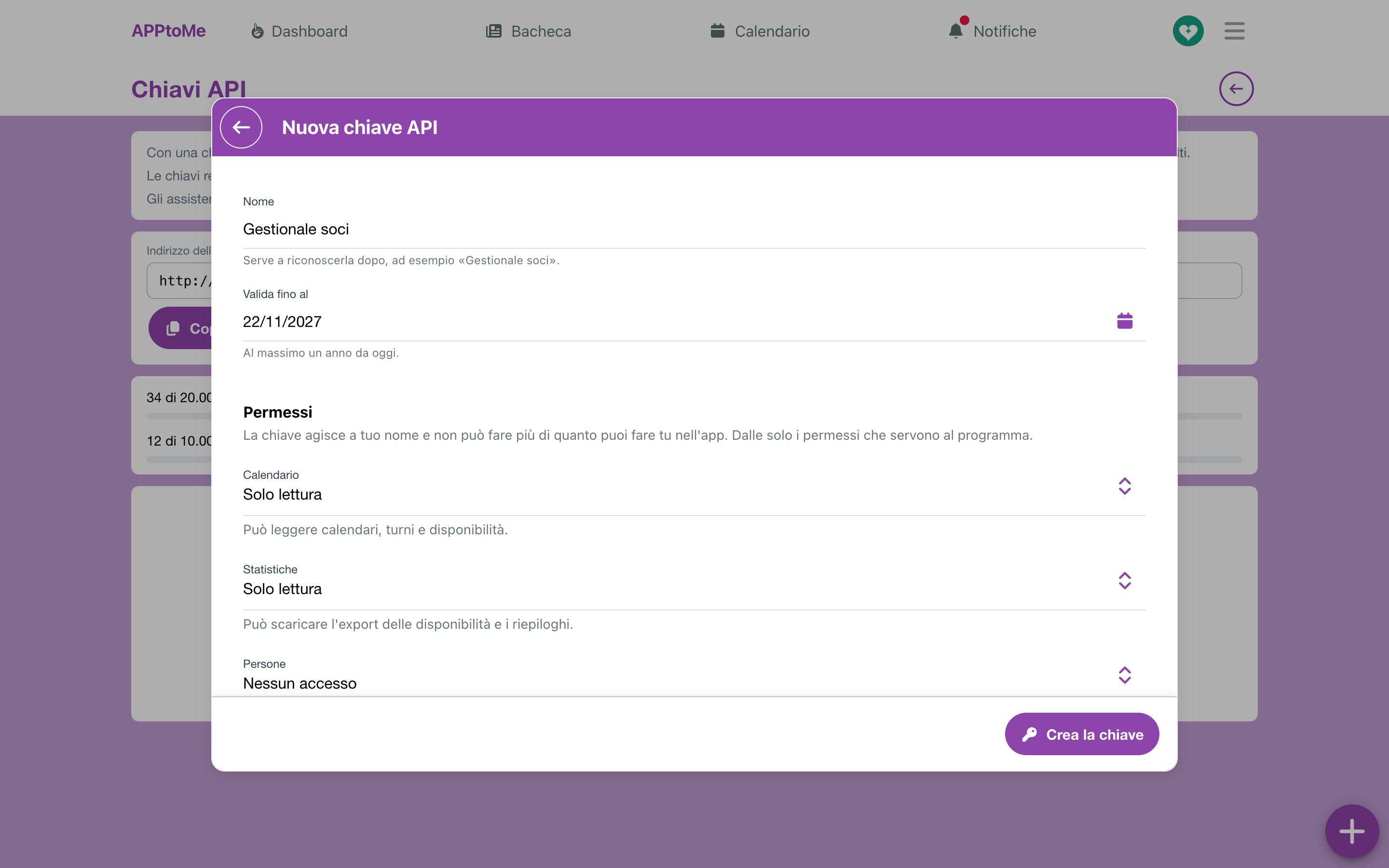
- Tap + at the bottom right (New key).
- In Name write a name that lets you recognise the key later, for example the name of the program or of the supplier.
- In Valid until choose the expiry. The date suggested is one year from today, the most allowed. Under the field the app reminds you: "It works until the end of that day. At most one year from today."
- In Permissions choose, for each area, No access, Read only or Read and write. Under each choice the app writes what the program will be able to do. At least one area needs a permission: otherwise the app asks "Choose at least one permission."
- Tap Create the key.
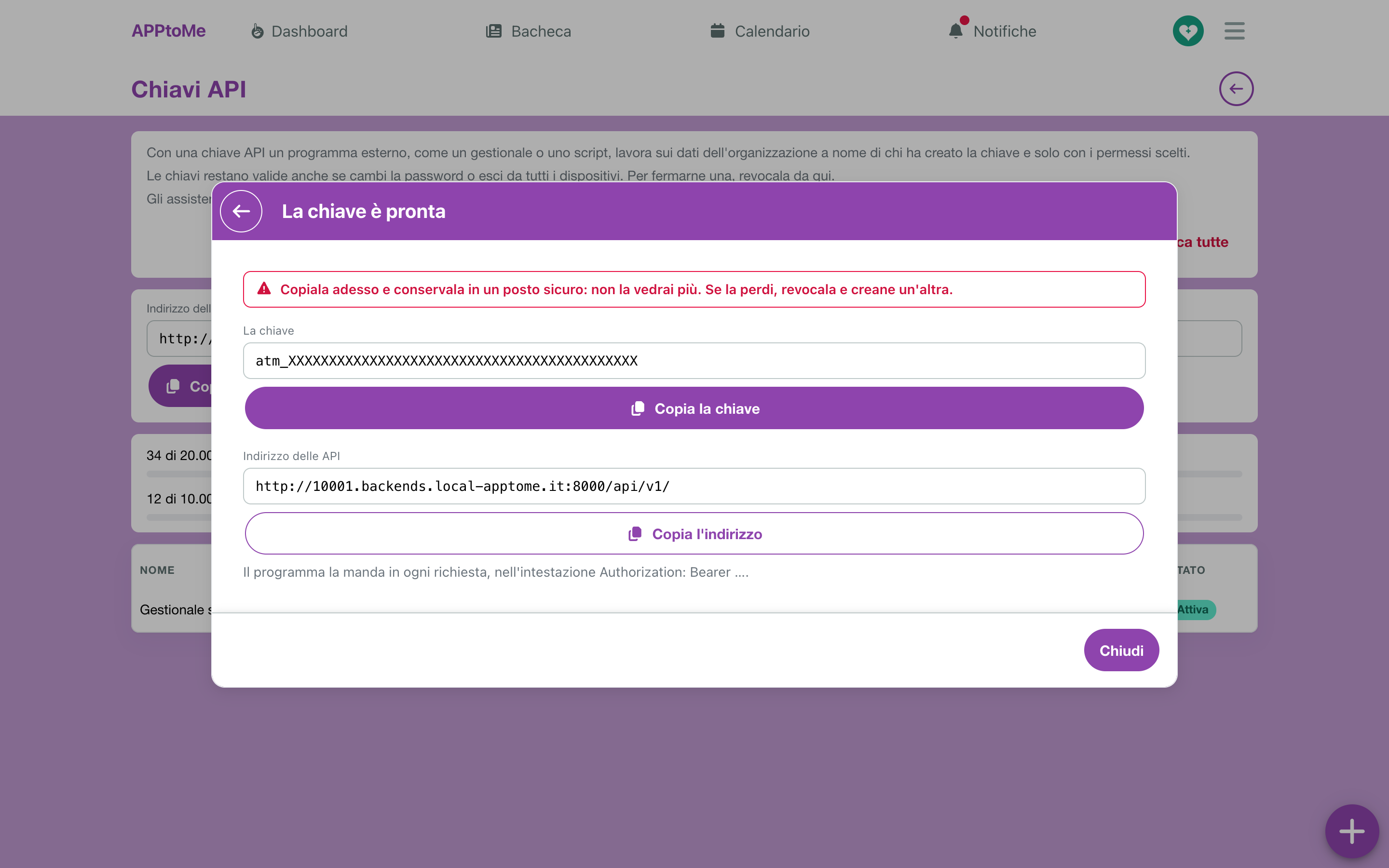
The The key is ready window opens:
- Tap Copy the key. This is the only time you see it: afterwards the app shows only its first characters.
- Tap Copy the address for the API address: the program needs it too.
- Give the key and the address to whoever sets up the program, privately: not in a group chat, not in an email to many people.
- Tap I have copied it.
If you close the window without copying, the app asks Close without copying?. A lost key cannot be recovered: revoke it and create another.
Each administrator can have at most five active keys.
Permissions
| Area | Level | What the program can do |
|---|---|---|
| Calendar | Read only | read calendars, shifts and availabilities |
| Calendar | Read and write | on top of that, on your behalf, create, edit and delete shifts, and add and remove people |
| Statistics | Read only | download the availability export and the summaries of hours and shifts |
| People | Read only | search the organization's people and see their name, tasks and groups |
With No access the program sees nothing of that area. A key always has at least one permission. A shift created or a person added by the program notifies whom the app would notify, as if you had done it.
The list of keys
The list shows every key of the organization, including those created by other administrators: Name, Created by, Key (the first characters), Permissions, Expires, Last used and Status.
| Status | Meaning |
|---|---|
| Active | it works |
| Suspended | its author is no longer an administrator: it does not work until they are one again |
| Expired | the expiry date has passed |
| Revoked | someone revoked it, or AppToMe did because its author lost access to the organization |
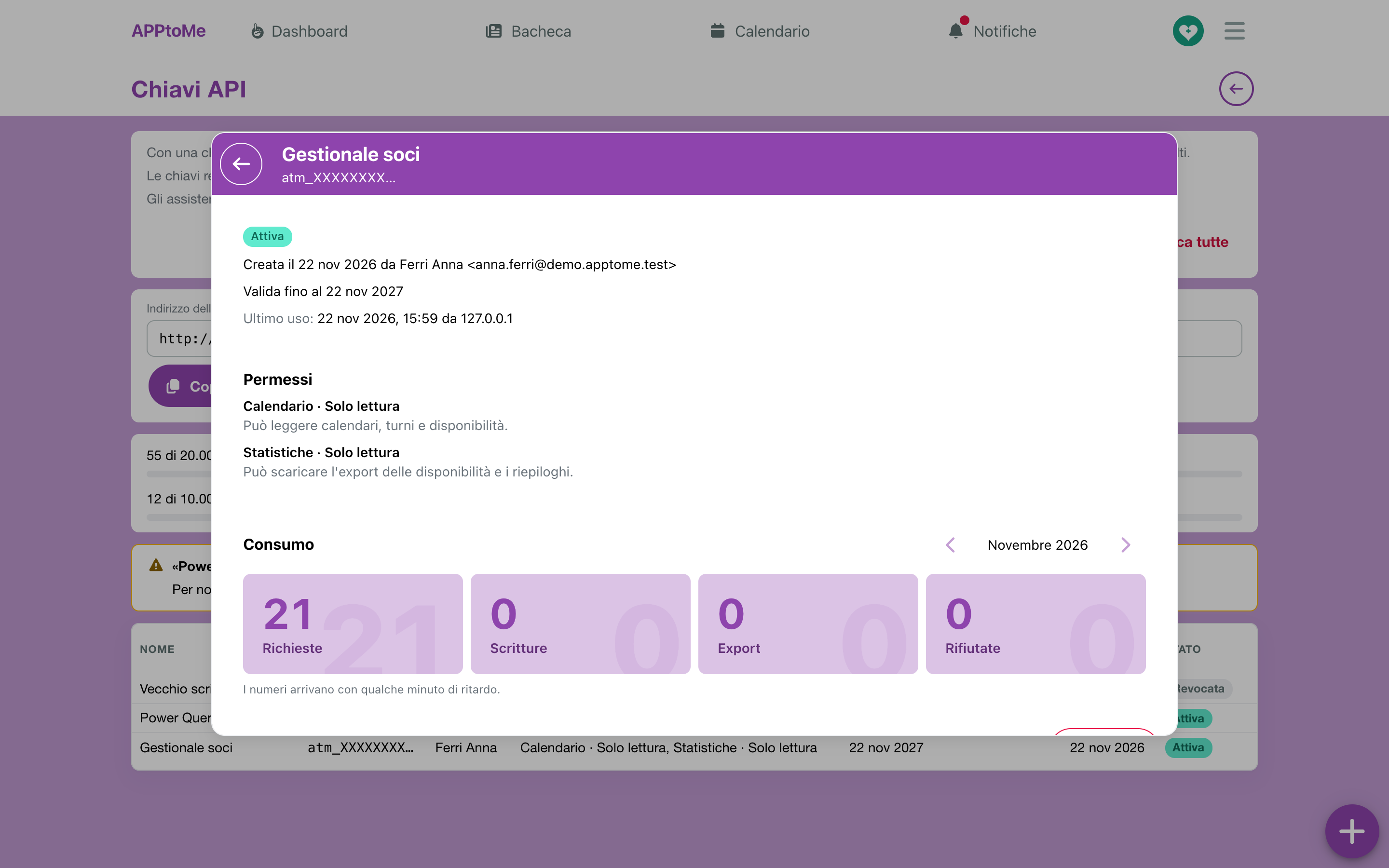
Tap a key for the details: who created it and when, until when it is valid ("Valid through …", or "Expired: valid through …"), the last use, the permissions and the Usage month by month (Requests, Writes, Exports, Rejected). The figures include the requests just made.
Expiry
From thirty days before the expiry the key carries the mark Expires in … days in the list, and the message "… expires on …" appears at the top of the page. Whoever created the key gets an email thirty days before and another seven days before.
To keep the connection running:
- create a new key with the same permissions;
- give it to whoever runs the program, who puts it in place of the old one;
- check that the new one has a Last used;
- revoke the old one.
Usage
The module includes normal use: 5,000 requests a month for the whole organization, 50 writes a day per key, 5 exports a day. At the top of the page a bar shows how many requests have been used this month.
- At 80% a notice appears, and the administrators get an email.
- At 100% requests are refused until the first of next month. Another email arrives.
Nothing is charged automatically. If the program needs more requests, write to info@apptome.it.
Below it is the AI assistant's usage: "AI assistant: … calls this month, at most 300 per person". The assistant has no ceiling for the whole organization. Each person has 300 calls a month and 100 a day, and what one uses takes nothing from the others. At 80% and 100% the email goes to the person, not to the administrators; once their calls run out, the assistant stops answering them until the next day or month.
Who uses it most lists the five people who made the most calls this month, each with their own bar ("… of 300"). If the limit is tight for someone, write to info@apptome.it: the per-person ceiling is raised for the whole organization.
Revoking a key
- Tap the key in the list.
- Tap Revoke.
- Confirm with Revoke in Revoke the key?.
The key stops working at once and the program using it gets an error. This cannot be undone. Any administrator can revoke any key of the organization.
Revoke all, at the top of the page, stops every key still valid at once: use it if you fear the keys have ended up in the wrong hands.
AppToMe revokes on its own the keys of whoever loses access to the organization: account deactivated or deleted, leaving or being removed from the organization. The keys that person created in this organization are revoked, and their AI assistants are disconnected.
Changing password does not stop keys
Keys stay valid even if you change your password or sign out of all devices. To stop one, revoke it from this page. For AI assistants the opposite holds: see below.
People's AI assistants
The organization's people can connect their own AI assistant, such as Claude or ChatGPT, to their account (see AI assistant). Assistants do not use keys: each one sees and does only what the person who connected it can do.
Staff who manage availabilities can ask the assistant to cover a shift: it looks for the people who have the task and invites them one at a time, as you would from the shift (see Inviting a person). Each invitation notifies the person like the ones sent from the app.
Administrators see the list: on the API keys page tap the AI assistant link, or open AI assistant from the menu, and choose the All tab. Under All links, for each link: Person, Assistant, Service, Connected on and Last used.
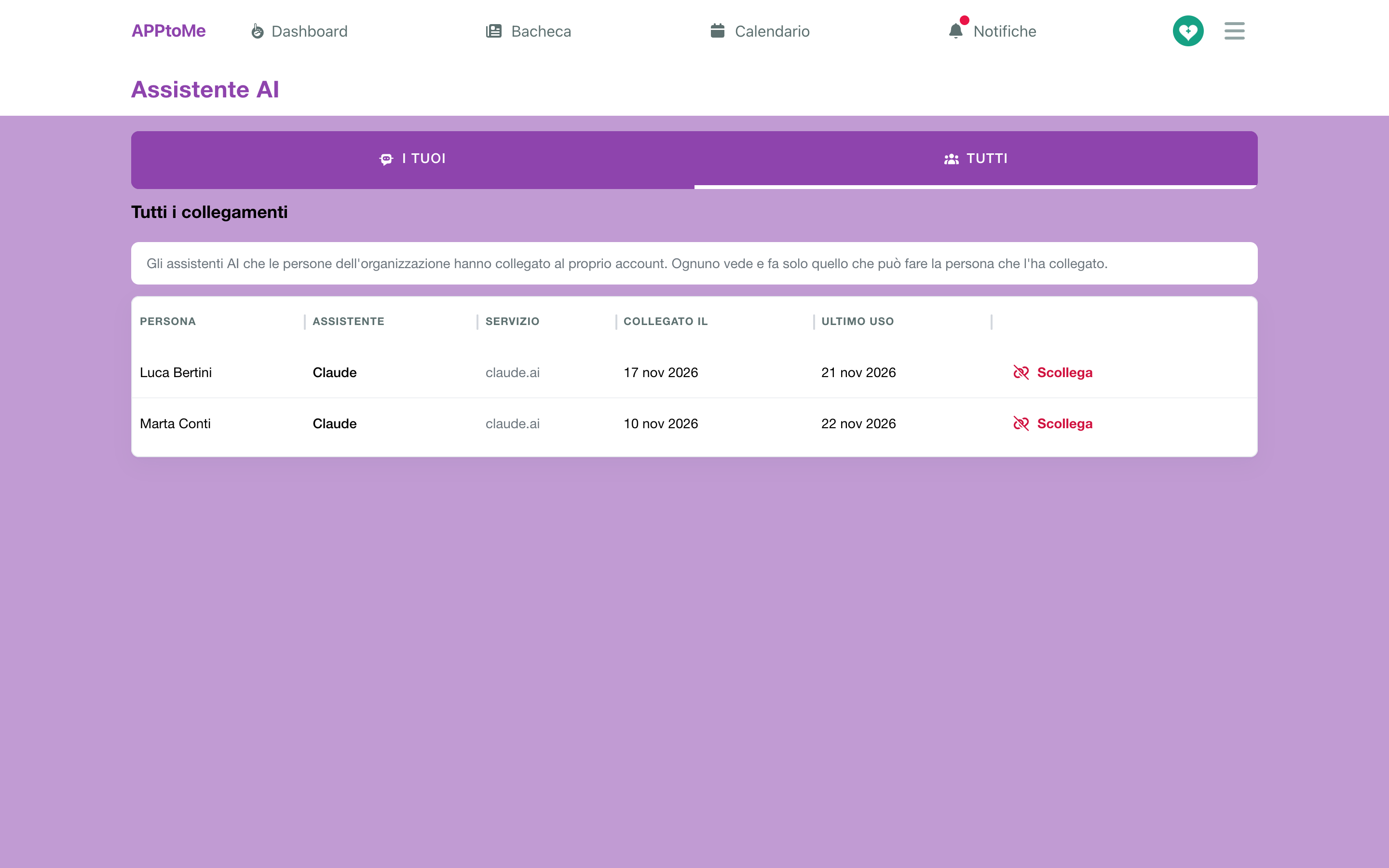
To disconnect one:
- Tap Disconnect on the row.
- Confirm with Disconnect in Disconnect the assistant?.
The assistant stops working on that person's behalf at once. The person can connect it again: if they should not, that is something to sort out with them.
Unlike keys, links close by themselves when the person changes their password or email, or signs out of all devices: to get the assistant back they must connect it again. Like keys, they also close when the person loses access to the organization.
The data an assistant reads go through the company that provides it. Knowing who connected what lets you answer for those data: that is what this list is for.